How to add a feedback widget to a Angular app
Where the Bopmigo line goes in a Angular app (src/index.html), with code you can copy, and how to test it locally.
Short answer: paste your Bopmigo line into src/index.html, just before </body>. Build and deploy.
Add it to Angular
- 1
Create your Bopmigo project
Sign up at bopmigo.com, choose Website, and add your Angular address. Copy your line from Install snippet:
HTML<script src="https://bopmigo.com/widget.js" data-project="YOUR-PROJECT-ID" defer></script> - 2
Open it
Open
src/index.html. - 3
Add your line
Paste the line before
</body>.HTML<!-- src/index.html --> <body> <app-root></app-root> <script src="https://bopmigo.com/widget.js" data-project="YOUR-PROJECT-ID" defer></script> </body> - 4
Go live
Run
ng buildand deploy. - 5
Send yourself a test
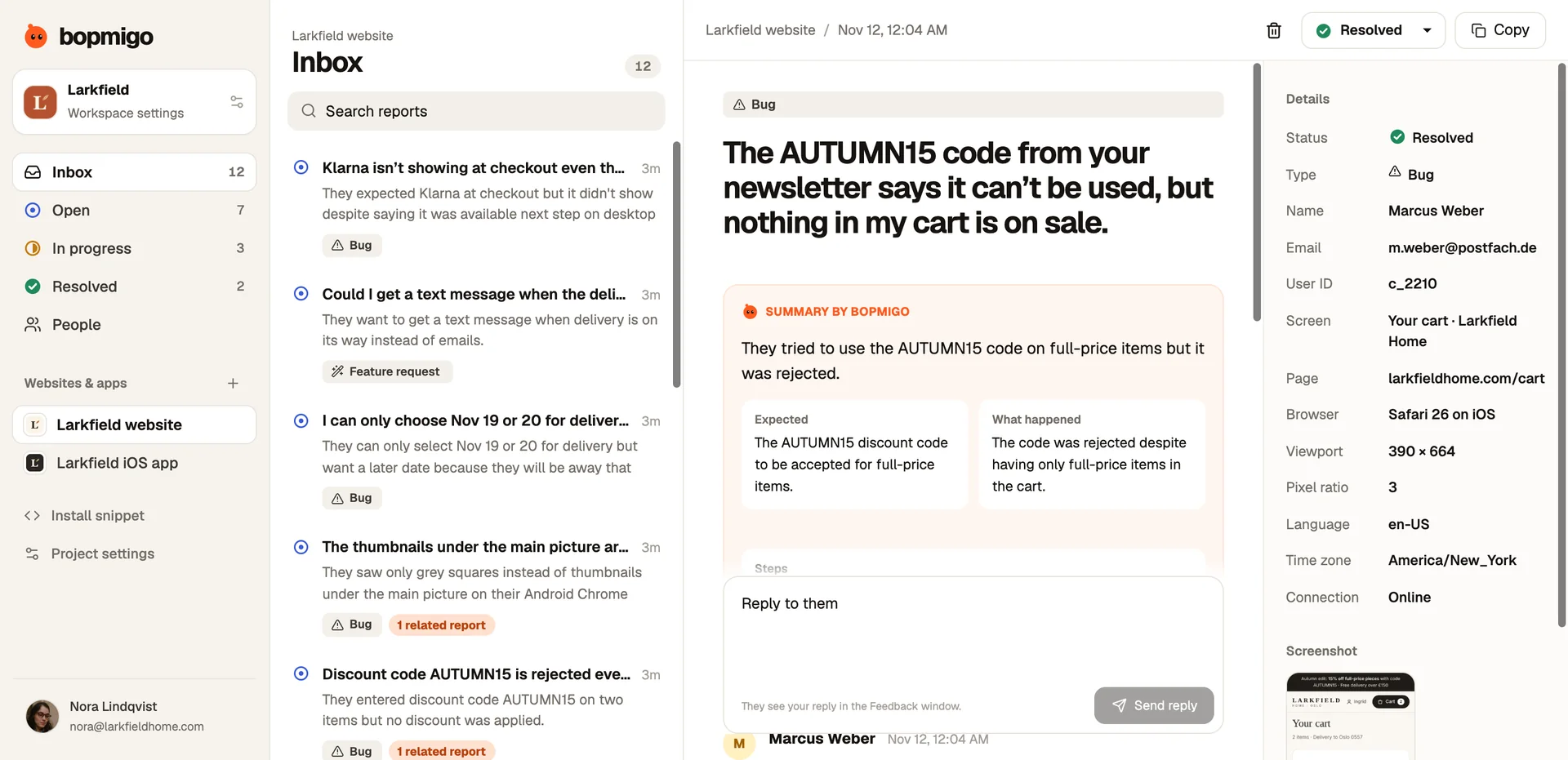
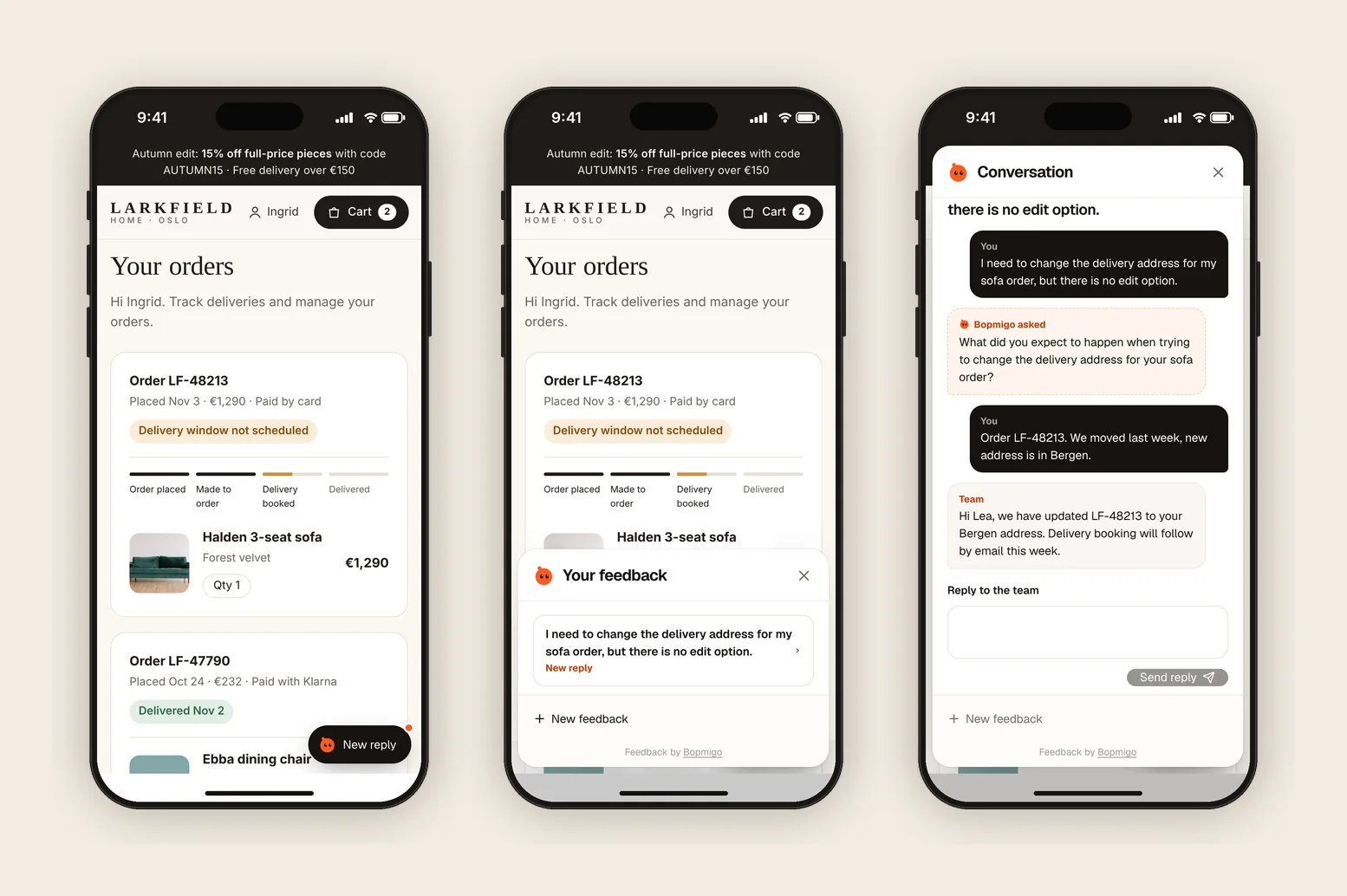
Open the live page, choose Feedback and send a short report. It arrives in your Bopmigo inbox (and by email, if you turned that on). Reply, then open Feedback again to see your answer.
Angular tips
- Don’t add it to the
scriptsarray inangular.json: that bundles files from your project, not a hosted script with attributes. - Router navigation is picked up automatically.
- If you use a strict Content Security Policy, allow
https://bopmigo.com.
Single-page apps and client-side routing
Load the script once in the root layout, not per page. Bopmigo notes the page people are on when they report, including after client-side navigation, so there’s nothing to re-run on route changes.
Testing locally
Add your local address (for example http://localhost:3000) to the project in Bopmigo, alongside your production address. Reports are only accepted from addresses you list.
What Angular users tend to report
- Forms with validation that blocks real data, like long names.
- Change detection lag on large tables.
- Accessibility issues reported by keyboard users.
Your first week
- 1
Day 1: test locally and in production
Send a report from localhost and from your live site, and check both arrive in the same inbox.
- 2
Days 2 to 5: identify signed-in users
Pass the user ID and any useful context, such as plan or account, so each report says who it came from.
- 3
Days 6 and 7: route reports to your tracker
Copy reports that need code changes into your issue tracker, and reply when the fix ships.
Questions
Does it work with Angular SSR?
Yes. It runs in the browser after hydration.
Is there an Angular module?
Not needed. The script adds the button.
Why doesn’t the button show?
Check that the address you’re on is listed in your Bopmigo project, that the change is live, and open a private window in case of caching. If your site has a Content Security Policy, allow https://bopmigo.com.
More: all install guides · website options · install with a coding agent