How to add a feedback button to your Bubble app
Add a Feedback button to your Bubble app in a few minutes, so visitors can report problems and ideas with the page and a screenshot.
Short answer: paste your Bopmigo line into Settings › SEO / metatags › Script in the body so it runs on every page. Deploy to live, and a Feedback button appears in your app.
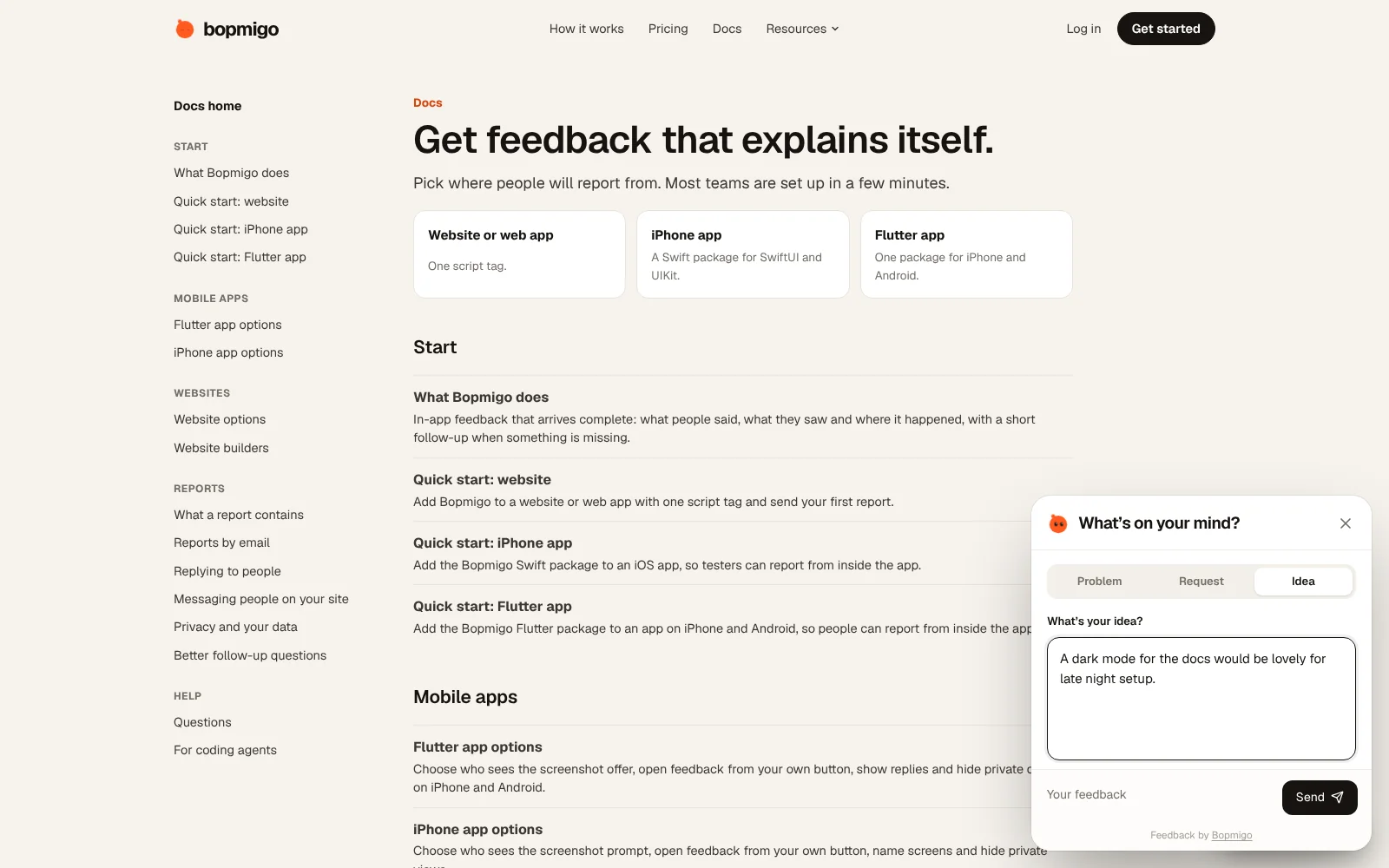
Add it to Bubble
- 1
Create your Bopmigo project
Sign up at bopmigo.com, choose Website, and add your Bubble address. Copy your line from Install snippet:
HTML<script src="https://bopmigo.com/widget.js" data-project="YOUR-PROJECT-ID" defer></script> - 2
Open it
In the Bubble editor, open the Settings tab, then SEO / metatags.
- 3
Add your line
Paste your Bopmigo line into Script in the body (the header field works too).
- 4
Go live
Deploy to live and open your app’s live address.
- 5
Send yourself a test
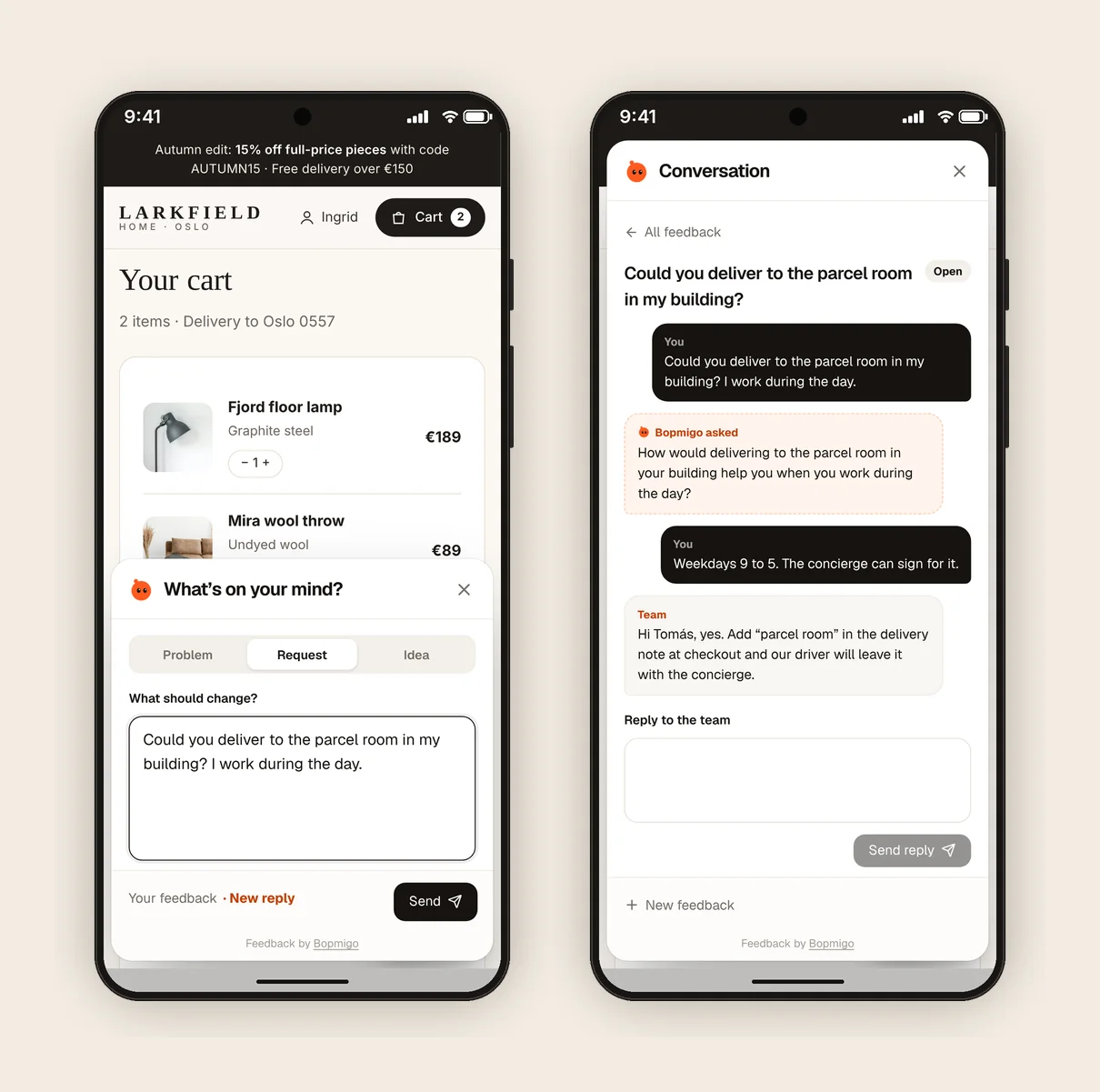
Open the live page, choose Feedback and send a short report. It arrives in your Bopmigo inbox (and by email, if you turned that on). Reply, then open Feedback again to see your answer.
Bubble tips
- Scripts in Settings run on both your development (
version-test) and live versions. Add both addresses to the project in Bopmigo if you test on each. - Bubble pages are single-page apps after the first load, which Bopmigo handles: the page is still noted correctly.
- Hide the button on pages where you don’t want it (for example a checkout) from website options.
What you get in your inbox
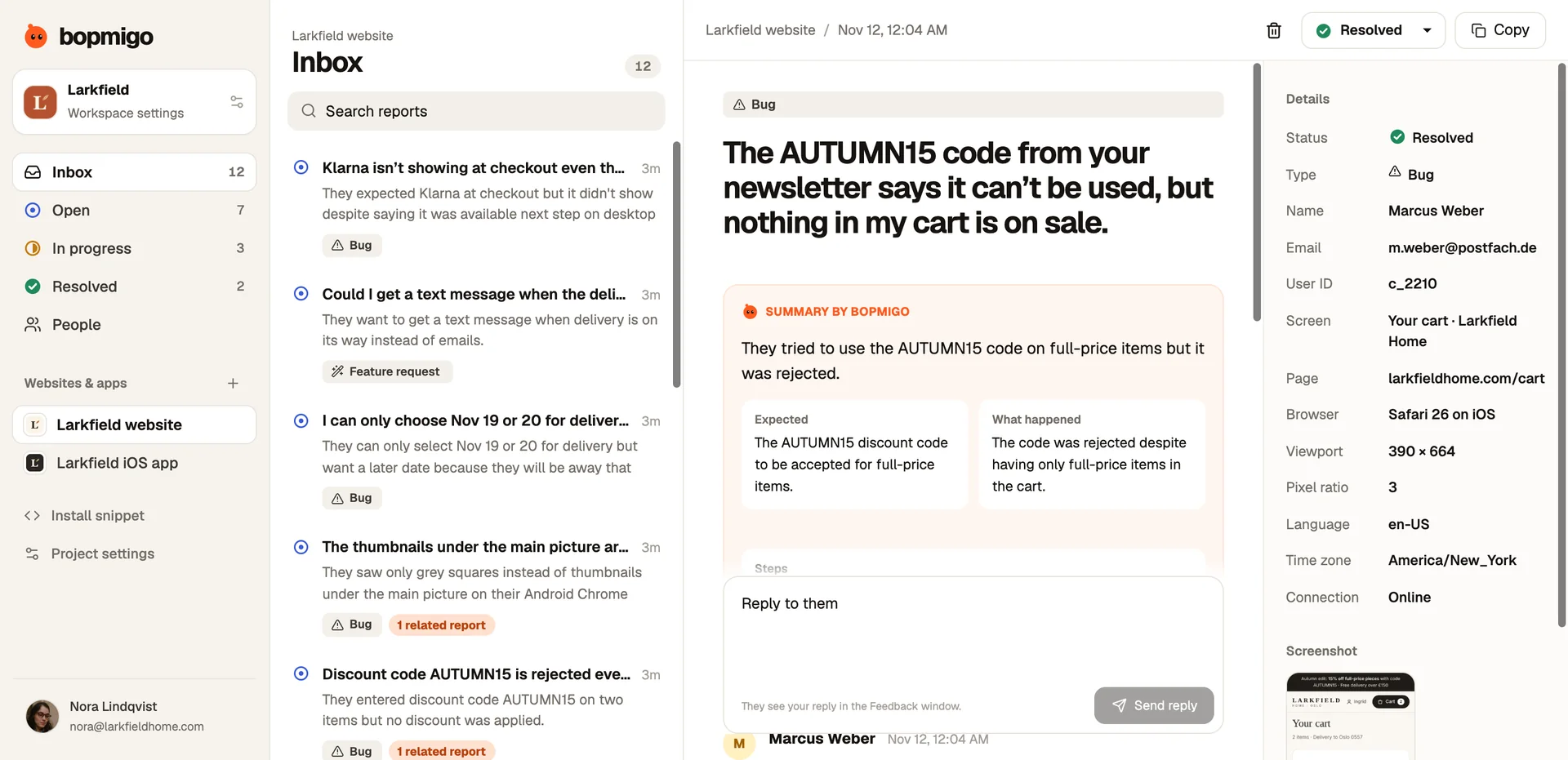
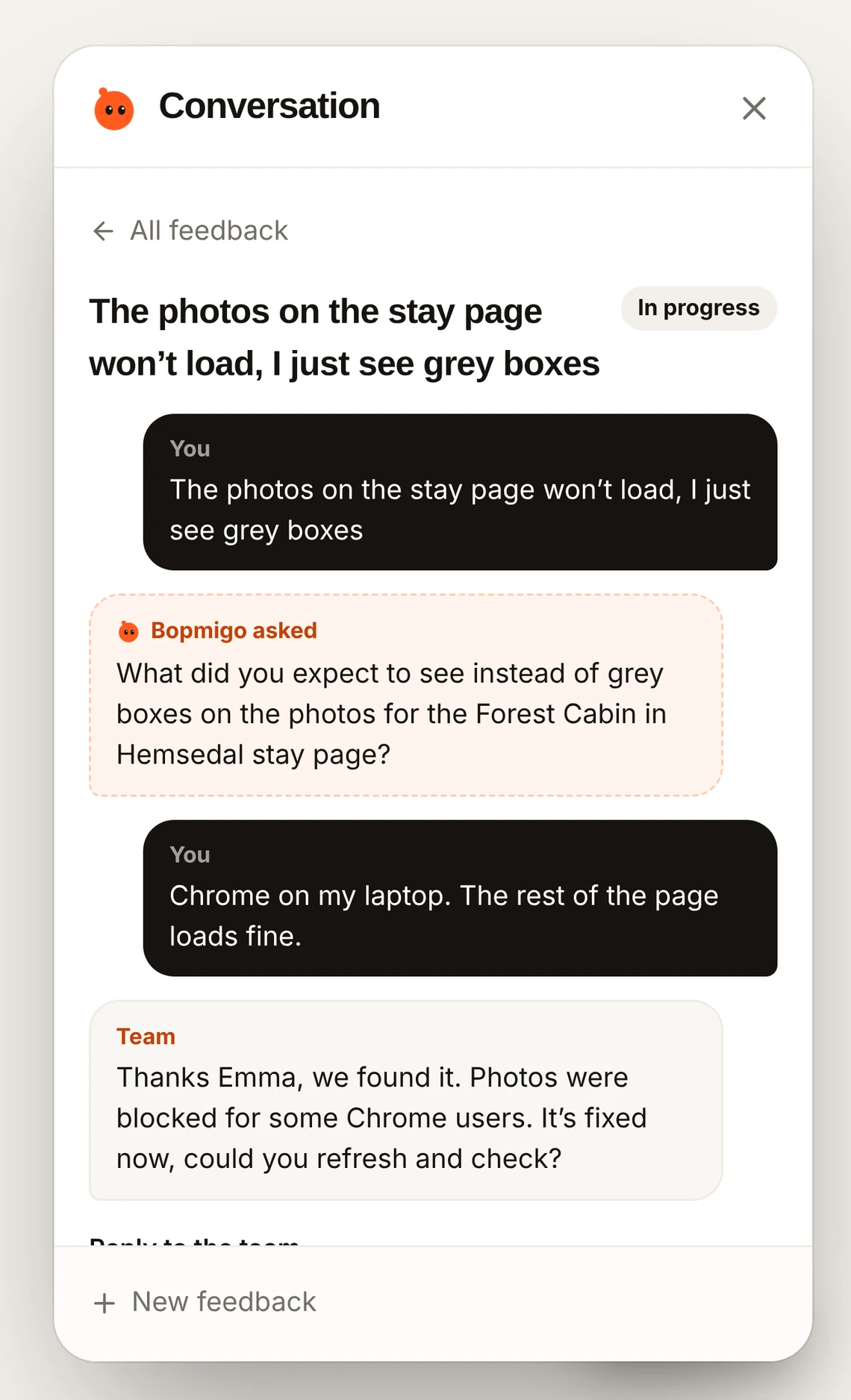
Each report starts with a summary of what happened and what they expected, the page, browser and screenshot. Reply and they see it in the Feedback window next time they open it.
What Bubble users tend to report
- Workflows that fail silently for one user role.
- Repeating groups that load slowly with real data.
- Privacy rules that hide something a user should see.
Your first week
- 1
Day 1: test from a phone
Most of your visitors are on phones. Send a report from yours and check the screenshot and page are right.
- 2
Days 2 to 5: watch your key pages
Forms, pricing and checkout pages tell you the most. Reply to every report, even with a short thanks.
- 3
Days 6 and 7: fix the top three
Group what you heard by page, fix what is quick, and note the rest for next week.
Questions
Can I add it to only one page?
Yes: add an HTML element on that page with the line, instead of the Settings field.
Does it see what people typed in my app?
Screenshots cover private fields like passwords and payment details. See privacy and data.
Why doesn’t the button show?
Check that the address you’re on is listed in your Bopmigo project, that the change is live, and open a private window in case of caching. If your site has a Content Security Policy, allow https://bopmigo.com.
More: all install guides · website options · install with a coding agent