How to add a feedback button to your Ghost site
Add a Feedback button to your Ghost site in a few minutes, so visitors can report problems and ideas with the page and a screenshot.
Short answer: paste your Bopmigo line into Settings › Code injection › Site footer. Save, and a Feedback button appears on every post and page.
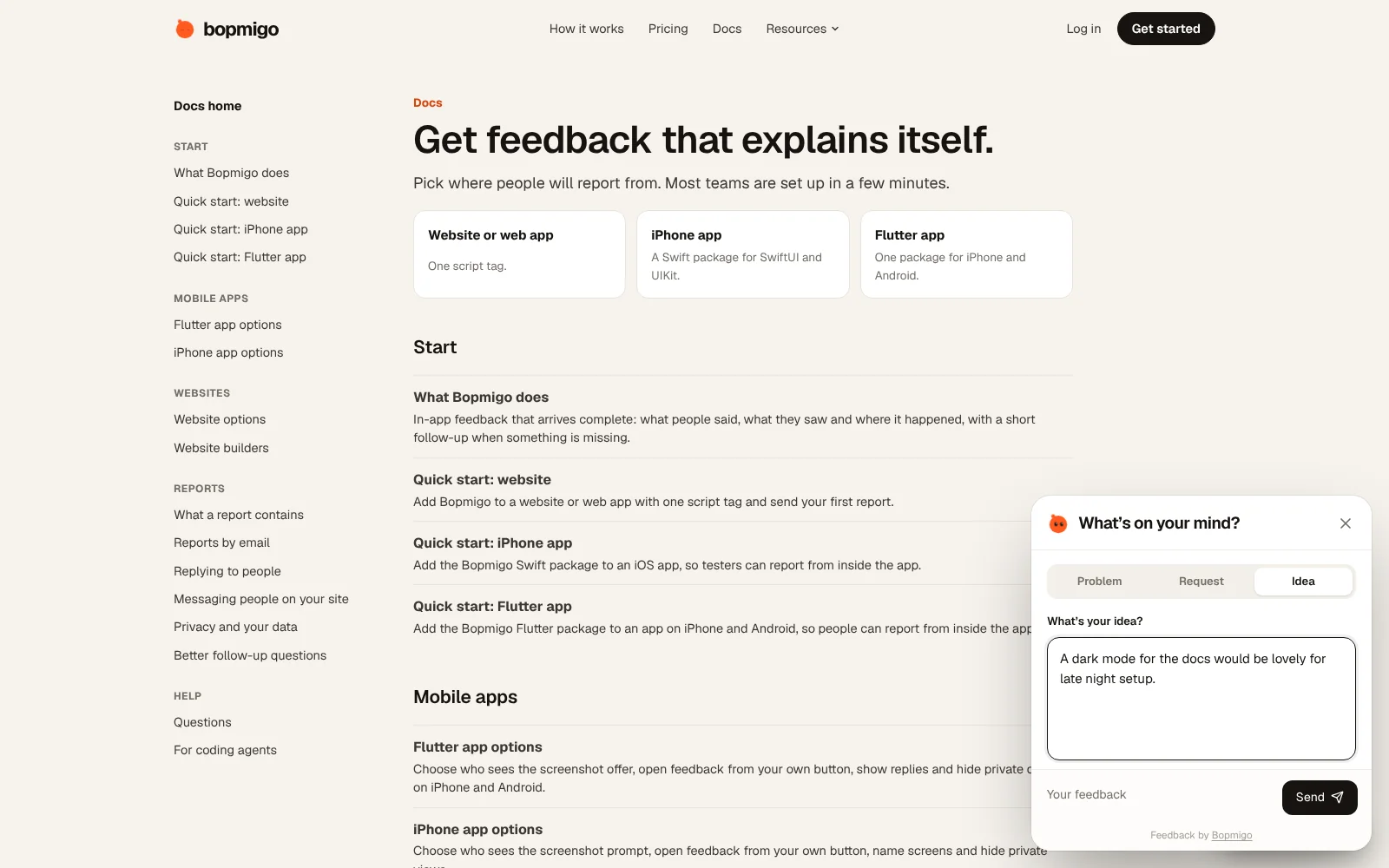
Add it to Ghost
- 1
Create your Bopmigo project
Sign up at bopmigo.com, choose Website, and add your Ghost address. Copy your line from Install snippet:
HTML<script src="https://bopmigo.com/widget.js" data-project="YOUR-PROJECT-ID" defer></script> - 2
Open it
In Ghost Admin, open Settings and find Code injection.
- 3
Add your line
Paste your Bopmigo line into Site footer.
- 4
Go live
Save and open your site.
- 5
Send yourself a test
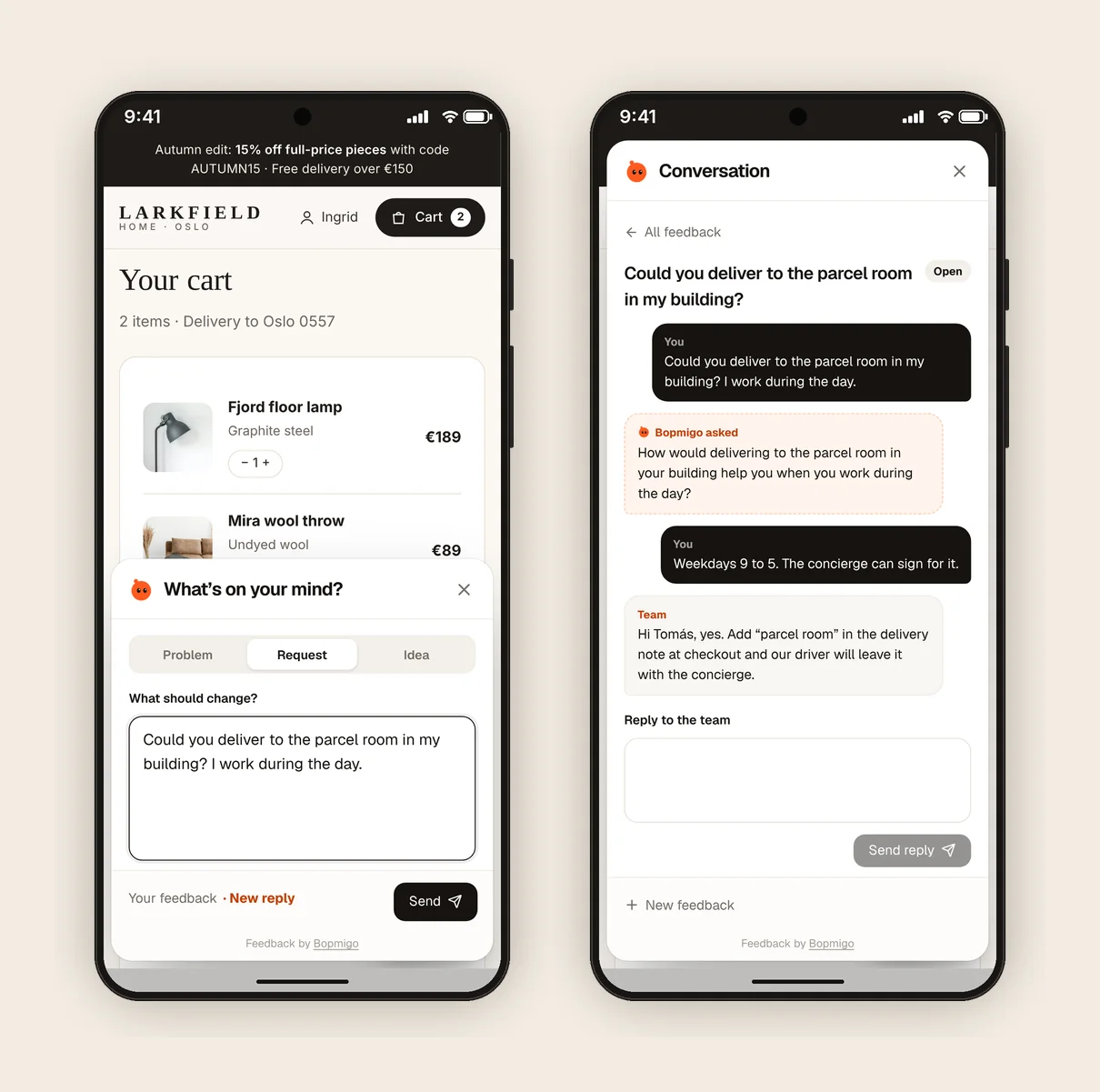
Open the live page, choose Feedback and send a short report. It arrives in your Bopmigo inbox (and by email, if you turned that on). Reply, then open Feedback again to see your answer.
Ghost tips
- Readers can tell you about broken links, typos and paywall problems right where they spot them.
- If you only want it on some posts, use the code injection box on each post instead of the site-wide one.
- Add your Ghost address and custom domain to the project in Bopmigo.
What you get in your inbox
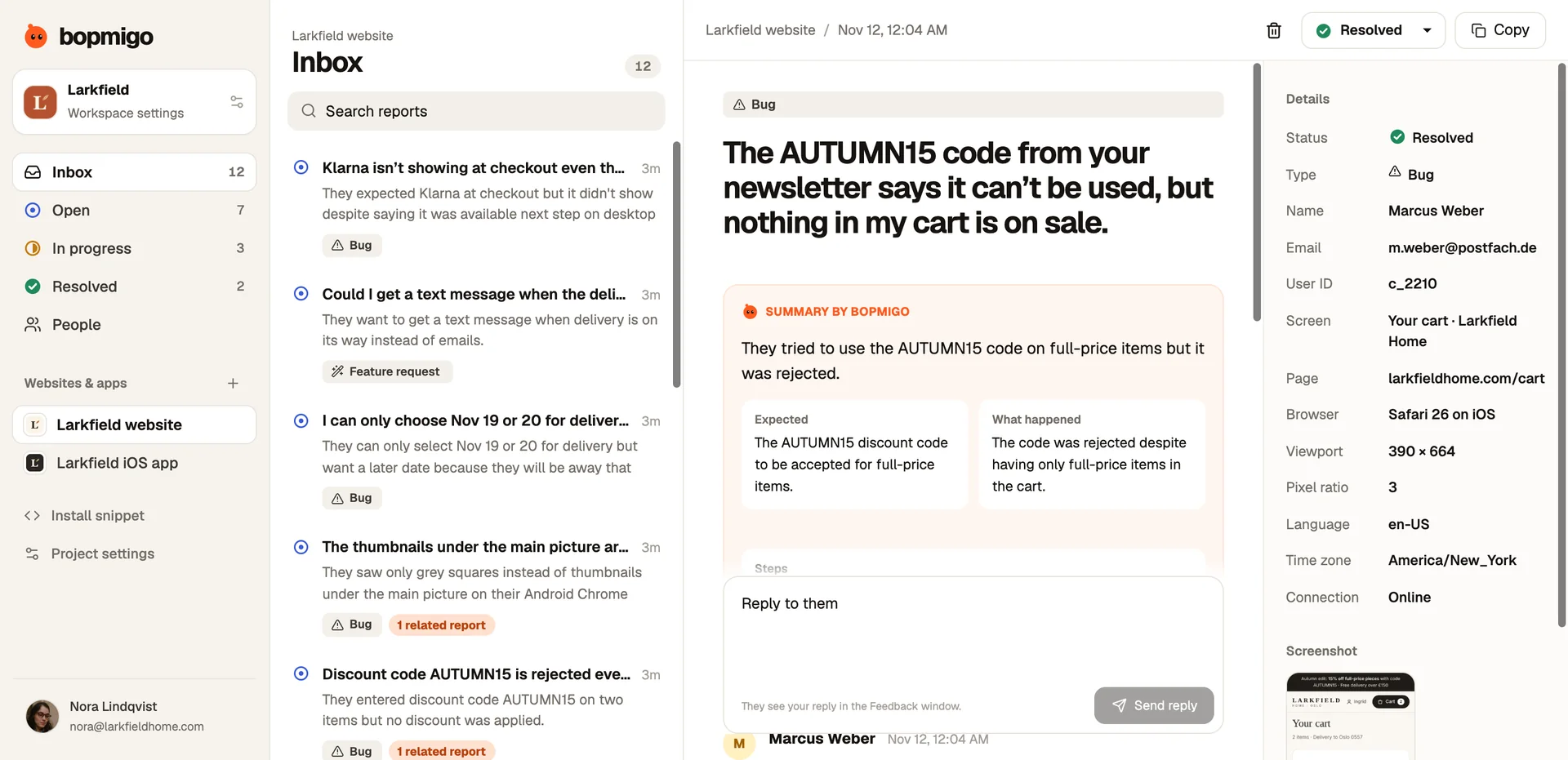
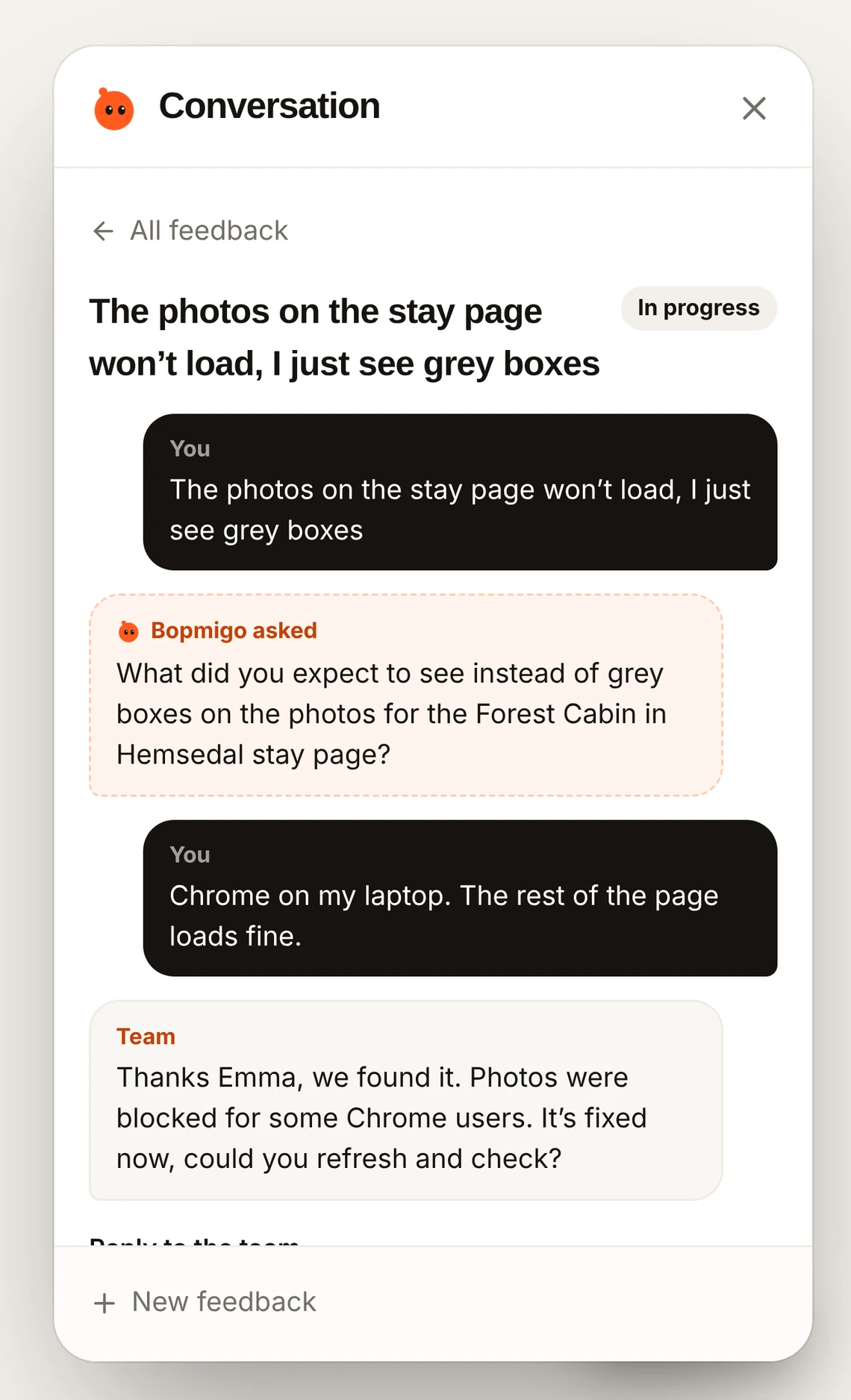
Each report starts with a summary of what happened and what they expected, the page, browser and screenshot. Reply and they see it in the Feedback window next time they open it.
What Ghost users tend to report
- Members who can’t sign in with the magic link.
- Paywalled posts showing the wrong preview.
- Requests for topics readers want next.
Your first week
- 1
Day 1: test from a phone
Most of your visitors are on phones. Send a report from yours and check the screenshot and page are right.
- 2
Days 2 to 5: watch your key pages
Forms, pricing and checkout pages tell you the most. Reply to every report, even with a short thanks.
- 3
Days 6 and 7: fix the top three
Group what you heard by page, fix what is quick, and note the rest for next week.
Questions
Can members and non-members both report?
Yes. Anyone reading can open Feedback.
Can I tell who sent it?
Not by default. You can add who is signed in with a few lines; see website options.
Why doesn’t the button show?
Check that the address you’re on is listed in your Bopmigo project, that the change is live, and open a private window in case of caching. If your site has a Content Security Policy, allow https://bopmigo.com.
More: all install guides · website options · install with a coding agent