Feedback from visitors on phones, not just desktops
Most visits happen on phones, and phone visitors are the least likely to tell you what went wrong. How to make reporting work with a thumb, what to check, and what to do with what you hear.
Short answer: phone visitors hit different problems from desktop visitors, and they are the least likely to email you about them. Put a feedback option on the page itself that fits a phone screen, let people write a line instead of filling in a form, and make sure every report includes the device and screen size. Then test it yourself on a real phone before you trust it.
Why phone visitors stay quiet
Think about what reporting a problem takes on a phone. Find a contact page, switch to an email app, type a description with your thumbs, take a screenshot, find it in your photos, attach it. Most people give up at the first step and simply leave, or try again later on a laptop and never mention the phone problem at all.
That means the problems that only happen on phones are the ones you hear about least, while they affect most of your visitors. A desktop-only view of feedback hides exactly the bugs that cost the most.
Problems that only show up on phones
| Problem | What the visitor experiences | Why you miss it |
|---|---|---|
| Sticky header or cookie banner covering a button | They can’t tap Continue or Pay | It looks fine at desktop widths |
| The keyboard hides the field or the Send button | They type blind or can’t submit | Desktop keyboards don’t cover anything |
| Tap targets too close together | They keep hitting the wrong option | A mouse pointer is precise |
| A date or size picker that won’t open | They can’t choose and give up | It depends on the phone’s browser |
| Images that never finish loading on mobile data | Grey boxes where products should be | Your office Wi-Fi is fast |
| A payment step that fails in an in-app browser | The payment window closes or loops | You test in a normal browser |
What a good phone reporting flow looks like
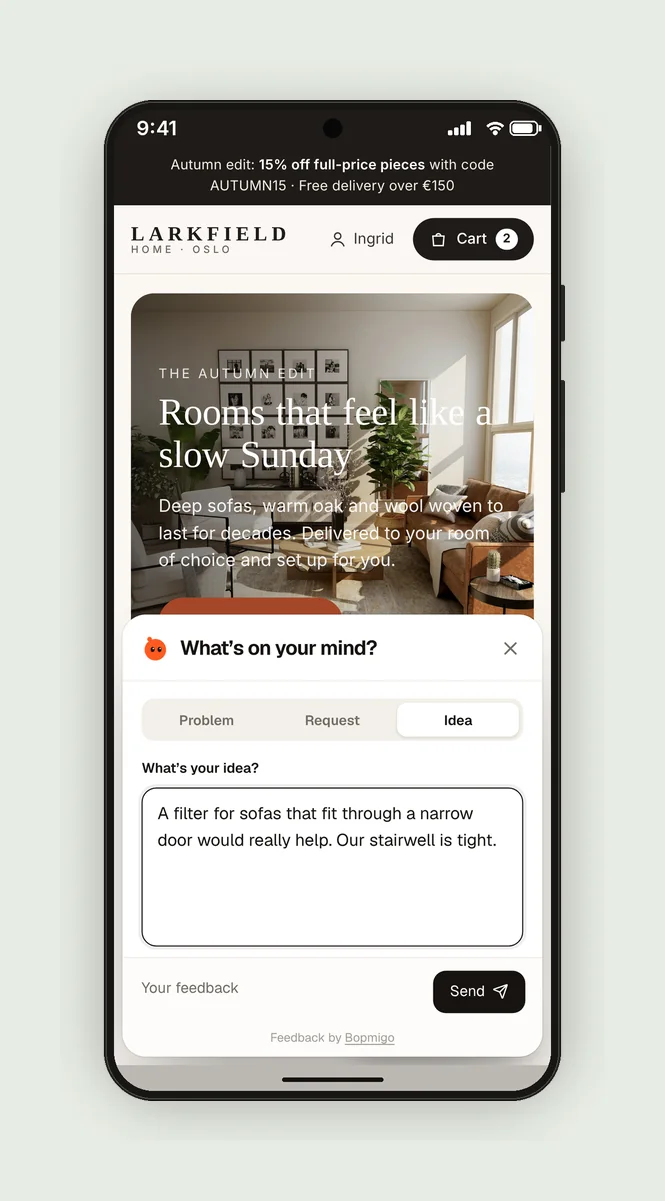
- A small button that stays out of the way. It must not cover your own buttons, chat bubble or cookie banner.
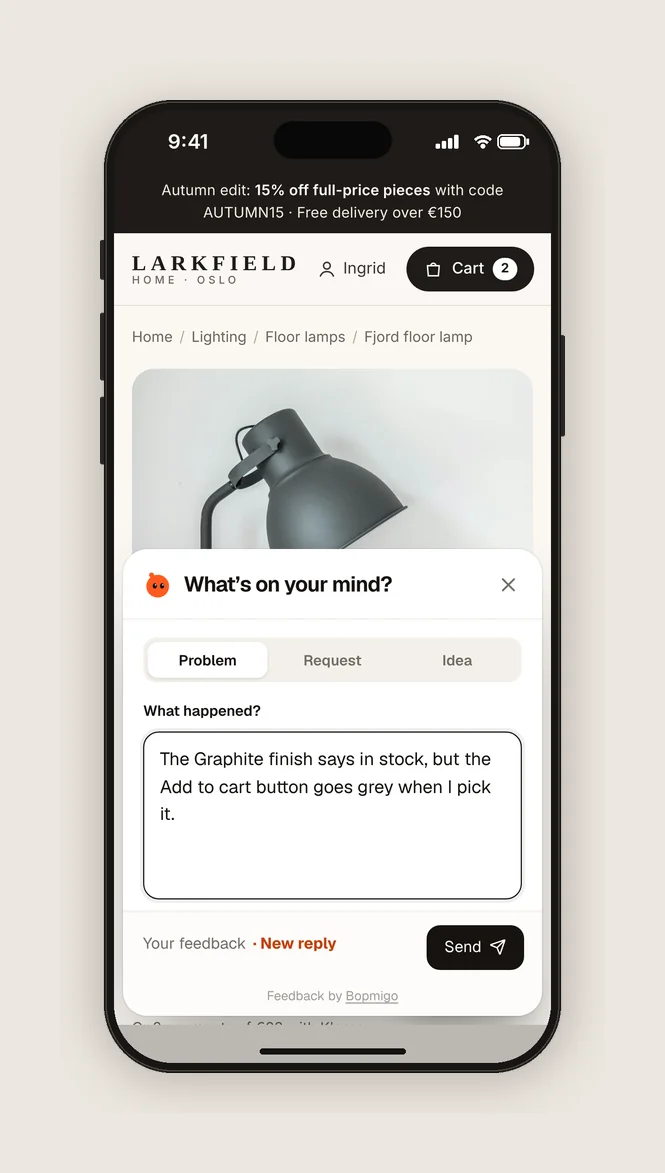
- A window that fits the screen without zooming, with the text box and Send button visible while the keyboard is open.
- One line is enough. Visitors pick Problem, Request or Idea and write a sentence. No required fields, no account.
- Details captured for them: the page, the phone and browser, the screen size and a screenshot, with typed-in fields covered.
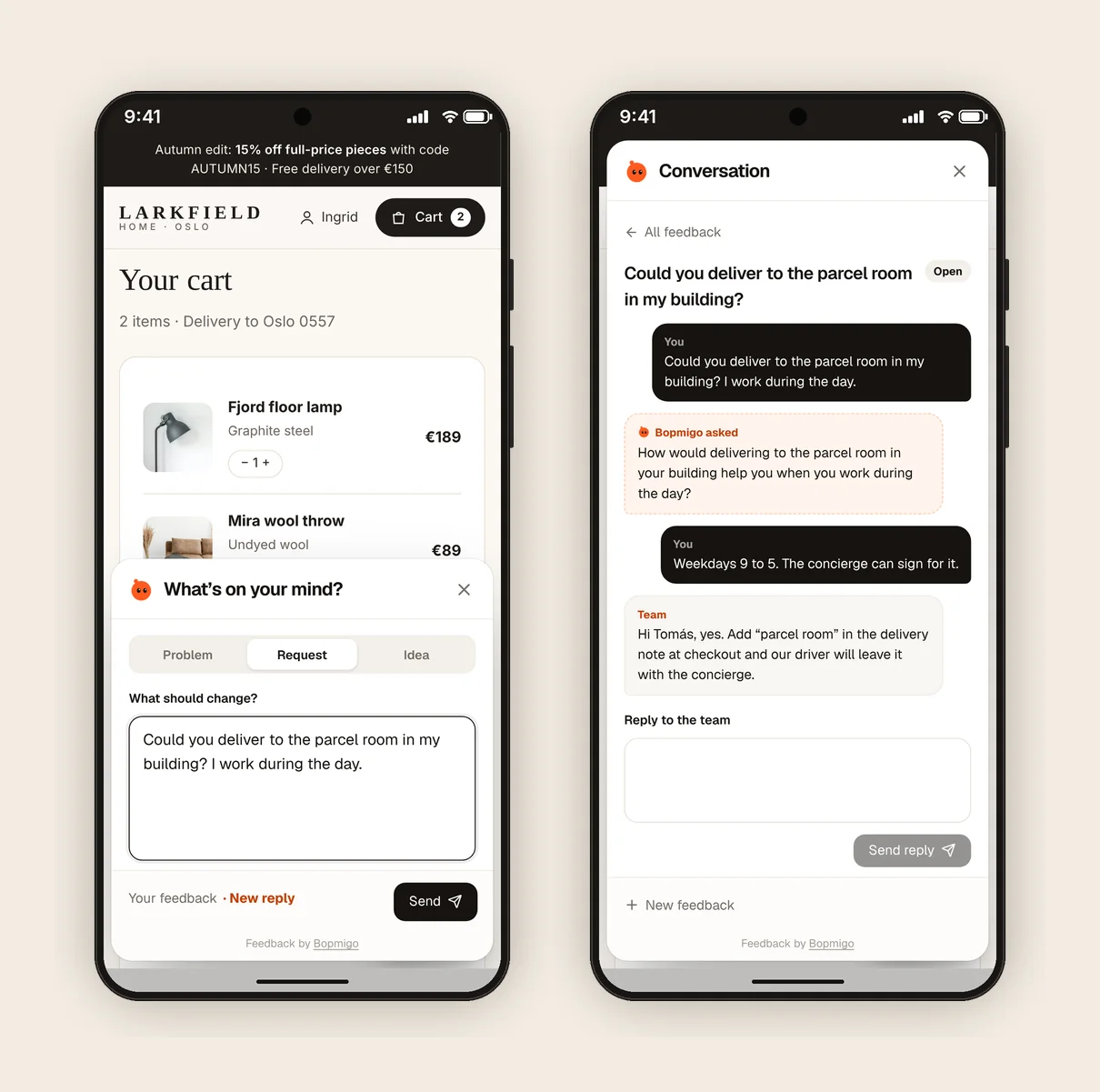
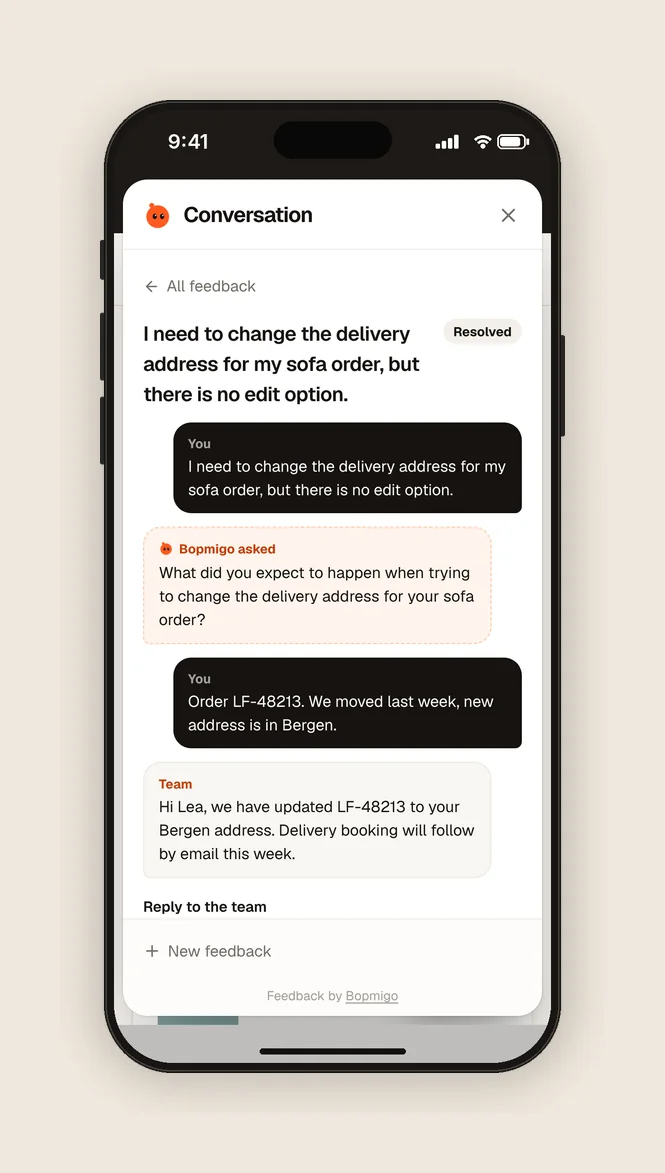
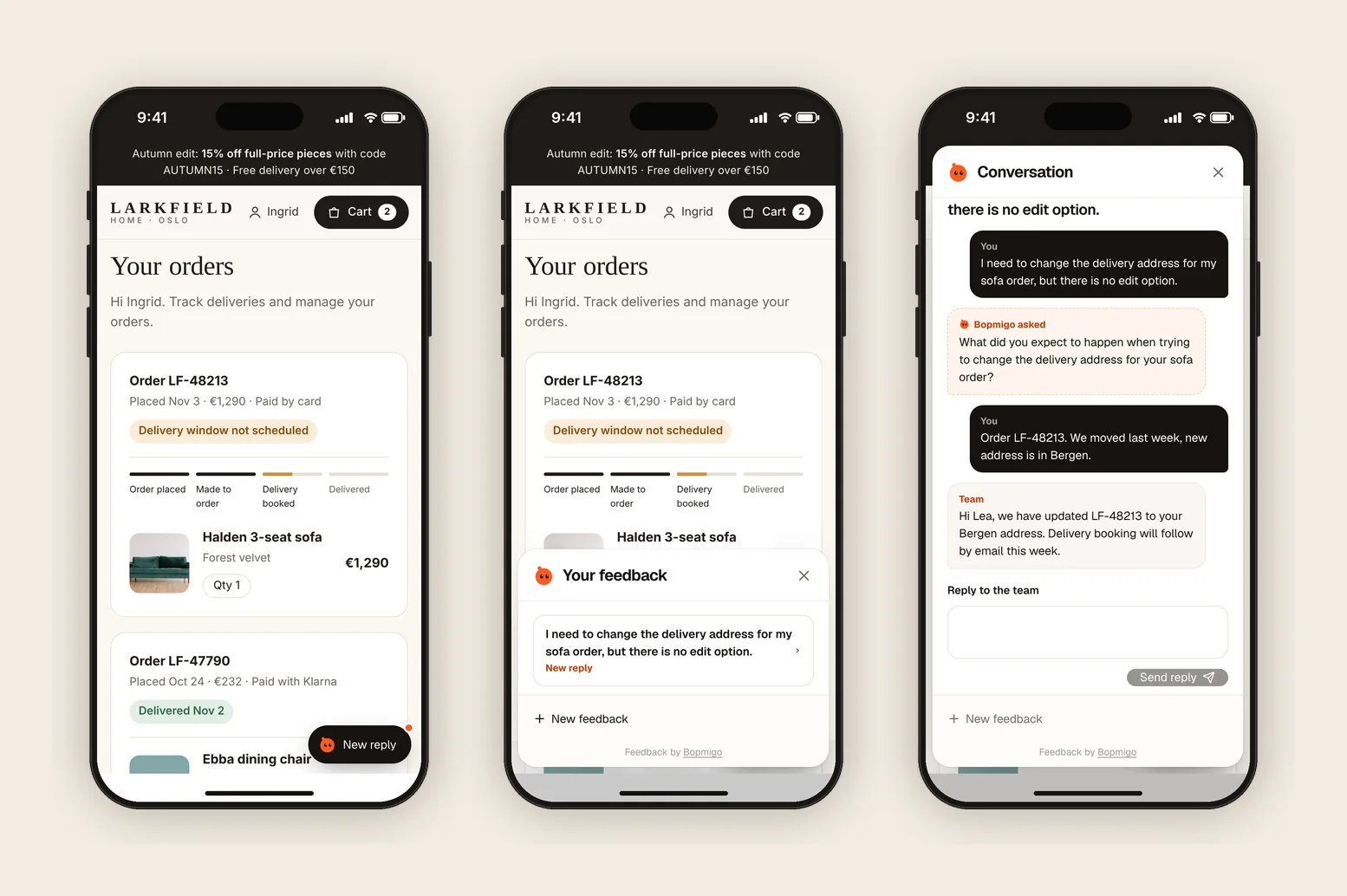
- A short follow-up when something is missing, answered in a few words while they are still on the page.
- A way to see your reply on the same site, without giving you their email address.
Test it on a real phone in ten minutes
- 1
Open your busiest page on your own phone
Use mobile data, not Wi-Fi, and your phone’s normal browser. Note anything that is slow or awkward before you even open feedback.
- 2
Open the feedback option
Check that it doesn’t cover anything important and that the window fits the screen.
- 3
Write a report with the keyboard open
Make sure you can still see what you type and reach Send without closing the keyboard.
- 4
Read what arrived
The report should show the page, your phone and browser, the screen size and a screenshot. If any of those are missing, you will be guessing with real visitors.
- 5
Reply and check it on the phone
Send a reply from your inbox and open the site again on the phone. The reply should be waiting where you reported.
Reading phone reports well
- Check the screen size first. 390 × 664 means a phone held upright. Test at that width before anything else.
- Look at the screenshot before asking anything. It often shows the banner covering a button or the empty picker.
- Group by page. Three reports from the same checkout page on different phones point to one fix.
- Note the browser. Problems in Instagram’s or Facebook’s in-app browser are common and easy to miss.
What not to do
- Don’t show a pop-up survey to phone visitors on arrival. It covers the page they came for.
- Don’t ask them to email you a screenshot. Almost nobody will.
- Don’t rely on a desktop browser extension for feedback. Phone visitors can’t install it.
- Don’t treat silence from phone visitors as “no problems”.
How Bopmigo helps
Bopmigo adds a Feedback button to your website that works the same on phones and desktops. Visitors write a line, and you get the page, the phone and browser, the screen size and a screenshot with private details covered. If something important is missing, it asks a short follow-up. You reply from your inbox, and they read it in the Feedback window next time they open it. If you also have an iPhone or Flutter app, reports from it land in the same inbox.
Does it work in in-app browsers like Instagram’s?
It runs on the page itself, so it opens wherever your site opens. Test it in the in-app browsers your visitors use most, since those are where odd payment and login problems show up.
Will it cover my own buttons on small screens?
Check on a real phone. If your page has a button in the same corner, open Feedback from your own link or menu instead.
Do visitors need to give their email?
No. They can read your reply in the Feedback window on the same phone and browser.