How to add user feedback to a Lovable app (with a prompt you can paste)
Paste one prompt into Lovable to add a Feedback button to the app it built, so your first users can report problems and ideas while you iterate.
Short answer: paste a short prompt into Lovable asking it to add your Bopmigo line to index.html, just before </body>. Publish, and a Feedback button appears on every page of your app.
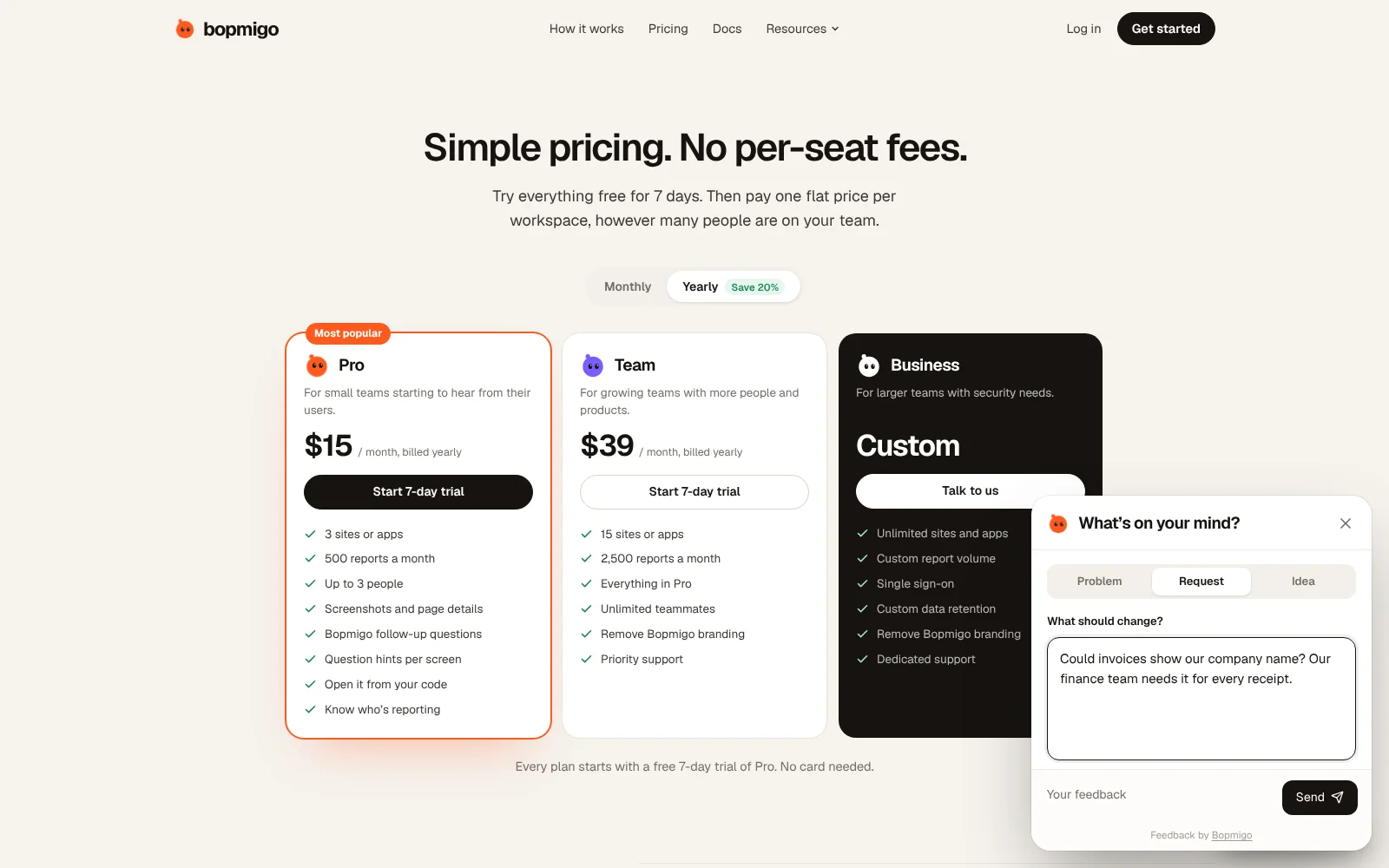
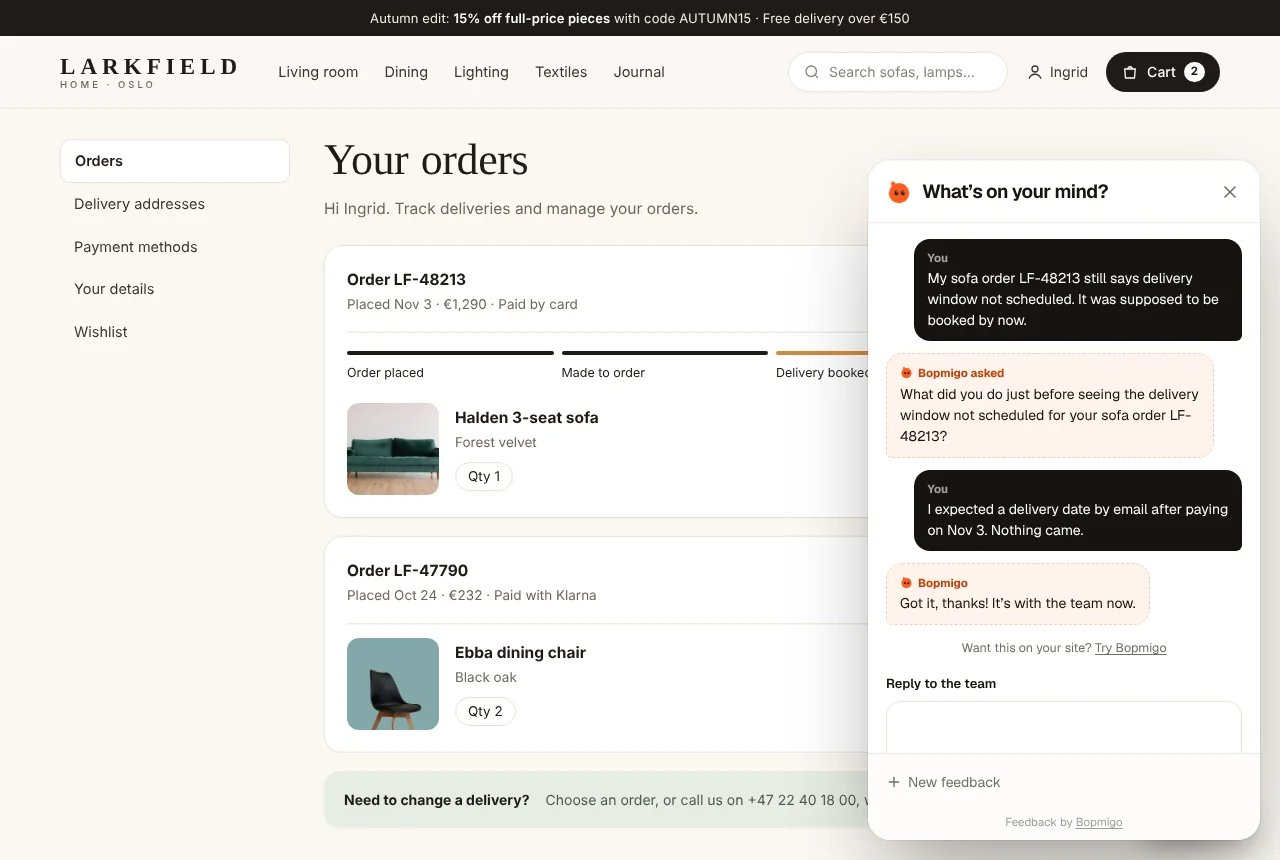
Add it to your Lovable app
- 1
Create your Bopmigo project
Sign up at bopmigo.com, choose Website, and add your Lovable address (for example
yourapp.lovable.app). Copy your line from Install snippet:HTML<script src="https://bopmigo.com/widget.js" data-project="YOUR-PROJECT-ID" defer></script> - 2
Paste the prompt
Paste the prompt into the Lovable chat, with your own project ID.
PromptAdd this script tag to index.html, just before the closing </body> tag, so it loads on every page. Don’t change anything else. <script src="https://bopmigo.com/widget.js" data-project="YOUR-PROJECT-ID" defer></script> - 3
Check the change
Check the change: Lovable should only edit
index.html. If you use the code editor, you can paste the line there yourself instead. - 4
Publish
Publish, then open your published app.
- 5
Send yourself a test
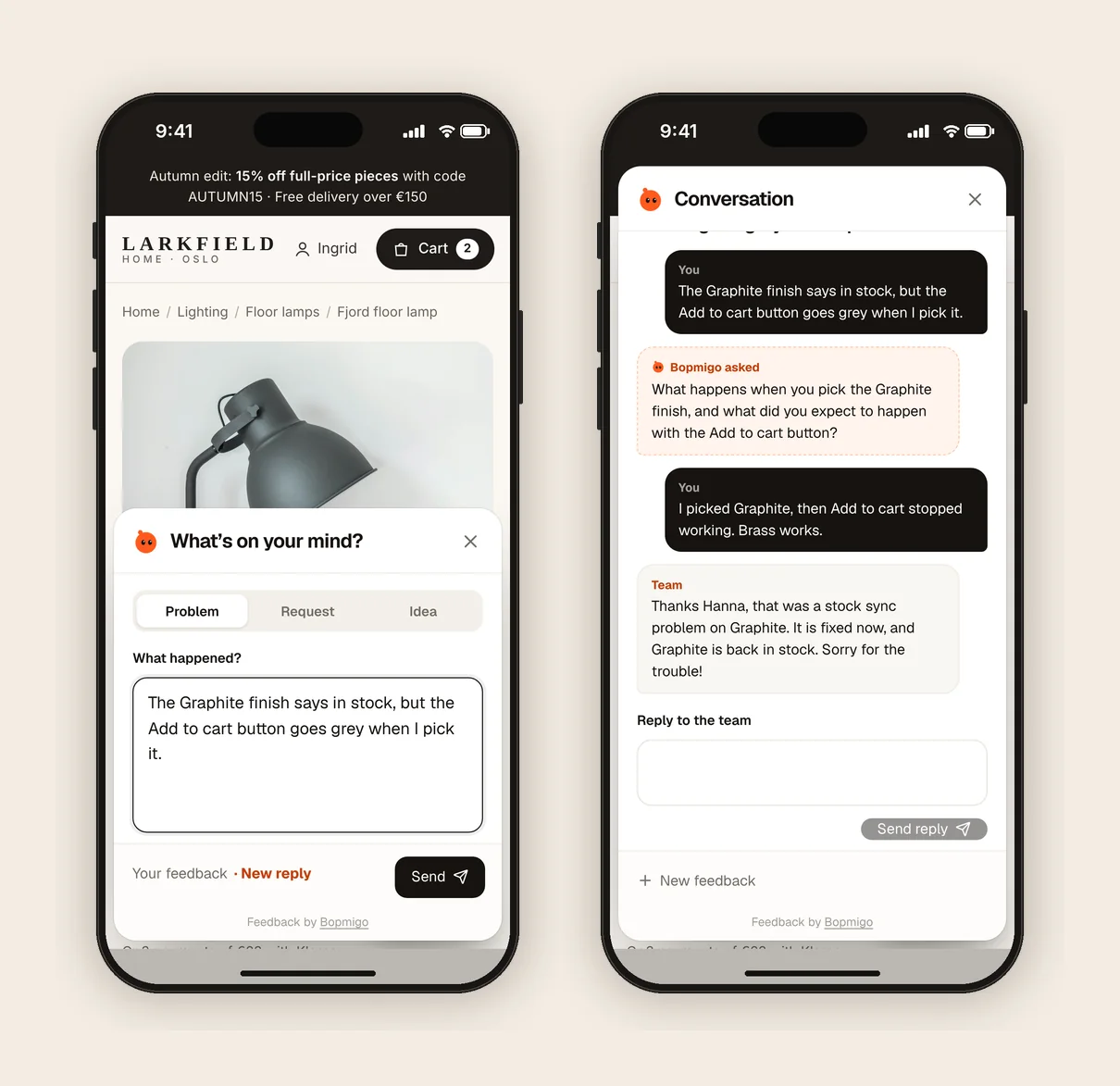
Open the live page, choose Feedback and send a short report. It arrives in your Bopmigo inbox (and by email, if you turned that on). Reply, then open Feedback again to see your answer.
Lovable tips
- Add both your preview address and your published address (for example
yourapp.lovable.appand your custom domain) to the project in Bopmigo. - If Lovable adds the script inside a React component instead, ask it to move it to
index.html. Loading it once is enough. - Keep your project ID in the line as it is: it isn’t secret, it only says which project the reports belong to.
Why an app built with AI needs this early
AI builders get you to a working app in hours, which also means nobody has clicked through every path yet. Your first users will. A Feedback button means you hear about the broken button or the confusing step while they’re looking at it, with the page it happened on, instead of from a one-star review or silence.
More on this: feedback from your first users and how I’d set up a SaaS in 2026.
What Lovable users tend to report
- Buttons the AI wired to nothing, which only show up when a real user taps them.
- Sign-up and sign-in steps that fail for some email providers.
- Screens that look right on desktop but overflow on a phone.
Your first week
- 1
Day 1: send three test reports yourself
One problem, one request, one idea, from a phone and a laptop. Check each arrives with the page and a screenshot.
- 2
Days 2 to 5: invite your first users
Tell them about the Feedback button in your welcome message. Early users are happy to help if it takes a sentence.
- 3
Days 6 and 7: fix and reply
Fix the most repeated problem, reply to everyone who reported it, and ask them to try again.
Questions
Will the AI change other things while adding it?
Ask it not to, as in the prompt above, and check the diff before publishing. It’s a one-line change.
Does it work with Lovable’s Supabase sign-in?
Yes. The Feedback button works for signed-in and signed-out visitors. If you want reports to show who sent them, see website options.
Why doesn’t the button show?
Check that the address you’re on is listed in your Bopmigo project, that the change is live, and open a private window in case of caching. If your site has a Content Security Policy, allow https://bopmigo.com.
More: all install guides · website options · install with a coding agent