How to add a feedback button to your React site
Add a Feedback button to React in a few minutes, so visitors can report bugs and ideas with a screenshot, and you get the whole story.

Short answer: create a free Bopmigo project for your React site, copy the one line it gives you, and paste it into index.html, just before the closing body tag. Deploy, and a Feedback button appears on every page.
What your visitors get
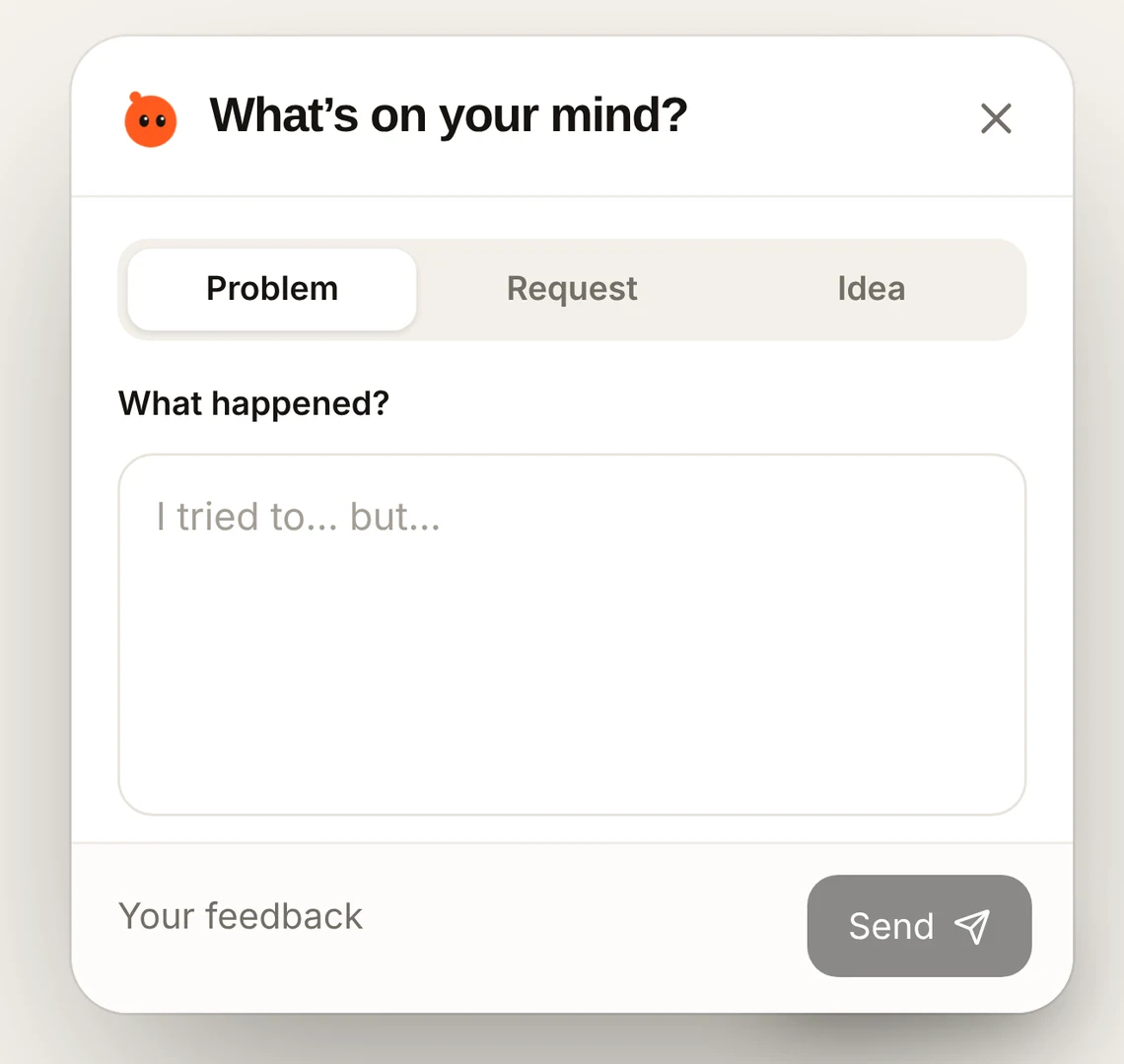
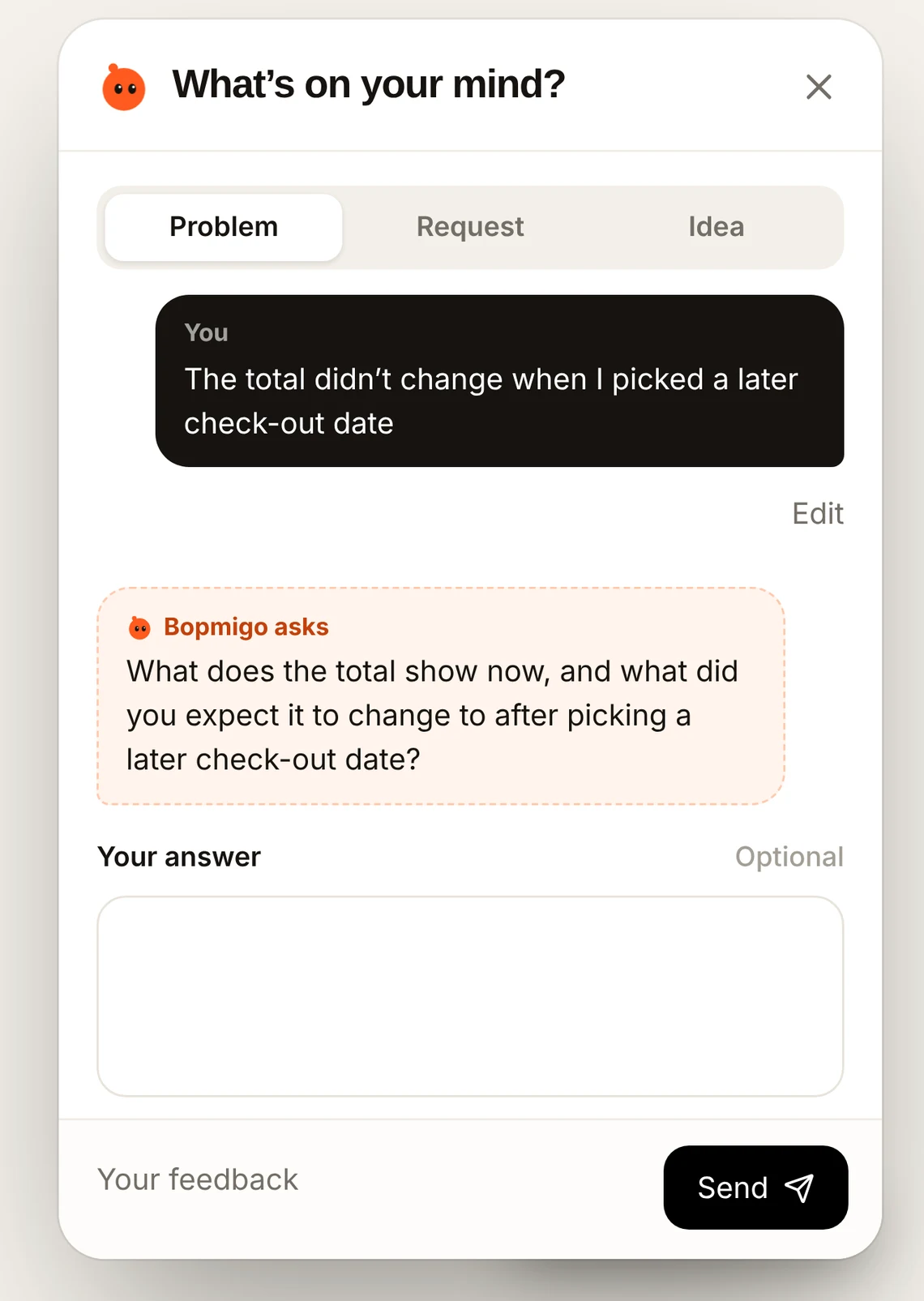
A small Feedback button in the corner. They pick Problem, Request or Idea and write a line. Bopmigo adds a screenshot with private details covered, and asks a short follow-up when something important is missing, so you don’t have to chase them.
Add it to React
- 1
Create your project
Sign up at bopmigo.com, choose Website and add your React address (and
localhost:5173if you test there). - 2
Copy your line
Bopmigo shows your install line under Install snippet:
HTML<script src="https://bopmigo.com/widget.js" data-project="YOUR-PROJECT-ID" defer></script> - 3
Open your project
Open the
index.htmlyour app is served from (in Vite, at the project root; in Create React App, inpublic/). - 4
Paste it
Paste your Bopmigo line just before
</body>. - 5
Save and go live
Deploy.
- 6
Send a test report
Open the published page from a phone or another browser. Choose Feedback and send a short report using sample information. Open it in your Bopmigo inbox and check the message, page address and available screenshot.
- 7
Check the reply
Reply from your inbox. Return to the browser that sent the report and open Feedback to read the response. If you enabled email delivery, check that destination too.
If the button doesn’t show
- Check that the address you’re on is listed in your Bopmigo project. Reports are only accepted from addresses you add.
- Make sure the React site was deployed after you added the line.
- Open the site in a private window, in case an old version is cached.
- If your site has a Content Security Policy, allow
https://bopmigo.com. See which parts.
Answer people where they reported
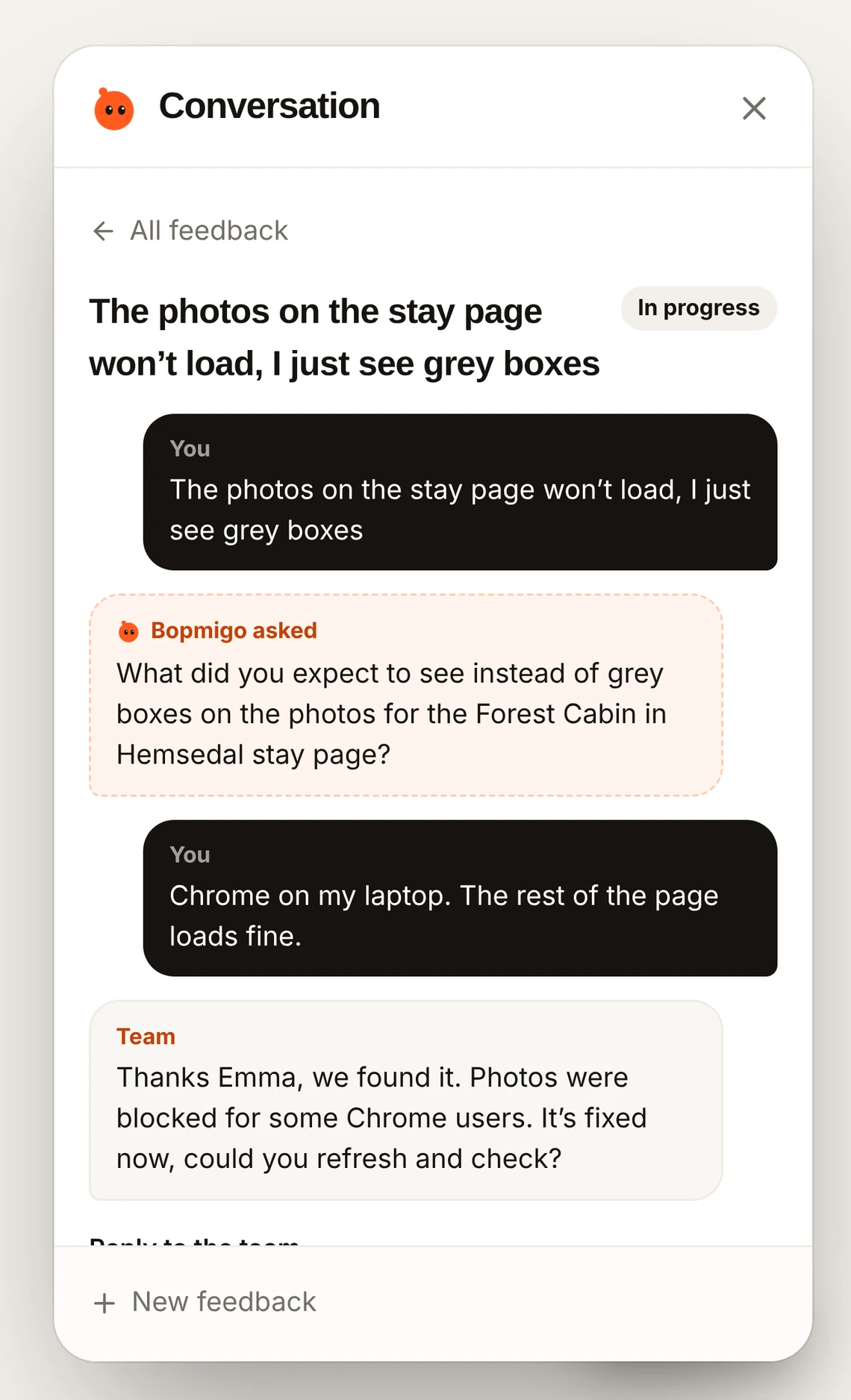
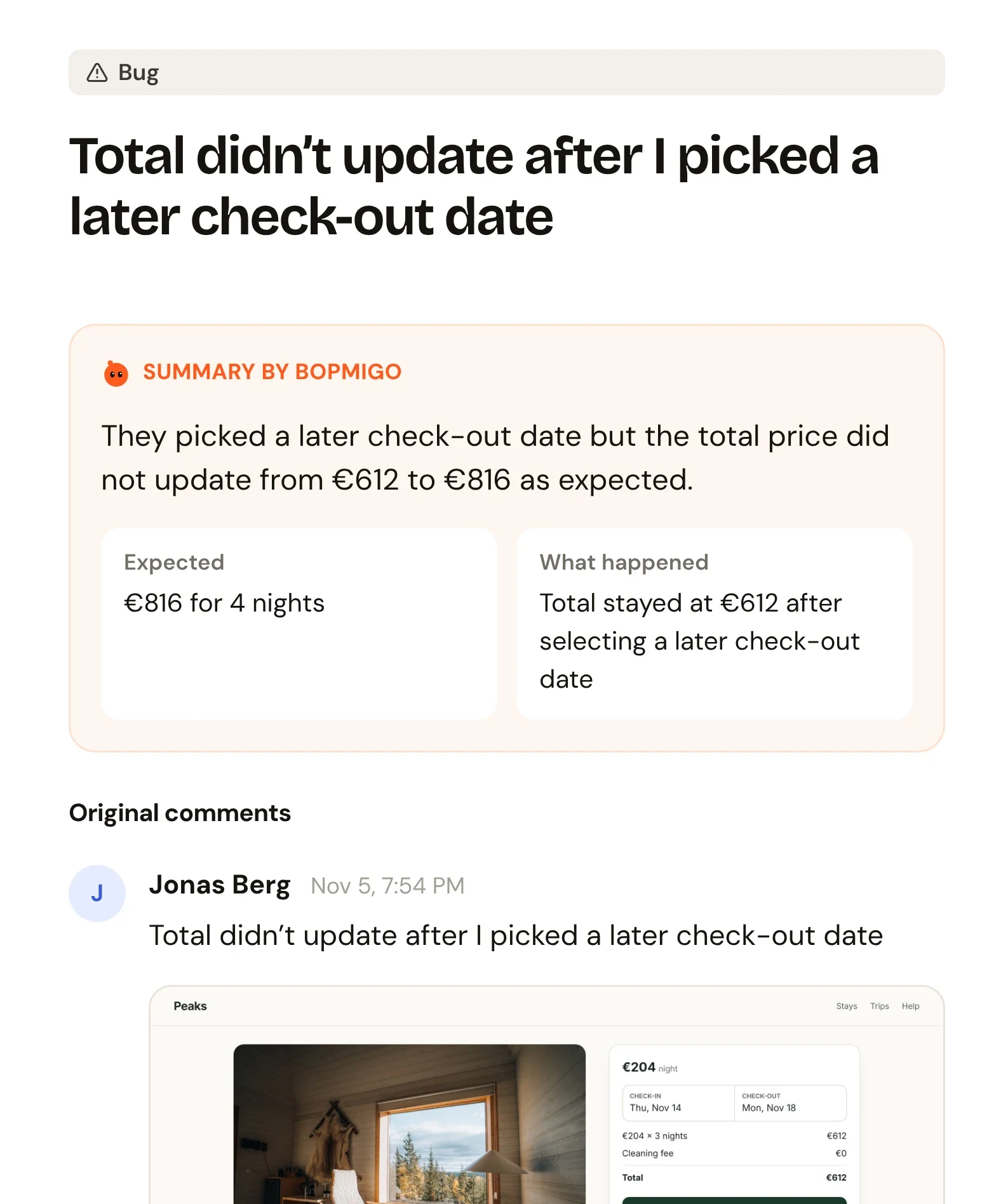
Reply from your inbox or straight from the email. Your reply appears in their Feedback window the next time they open it.
More: every website builder in one place · website options · collect feedback without code