How to add user feedback to a Replit app (with a prompt you can paste)
Paste one prompt into Replit to add a Feedback button to the app it built, so your first users can report problems and ideas while you iterate.
Short answer: ask Replit Agent to add your Bopmigo line to the HTML template every page uses, just before </body>. Deploy, and a Feedback button appears on every page.
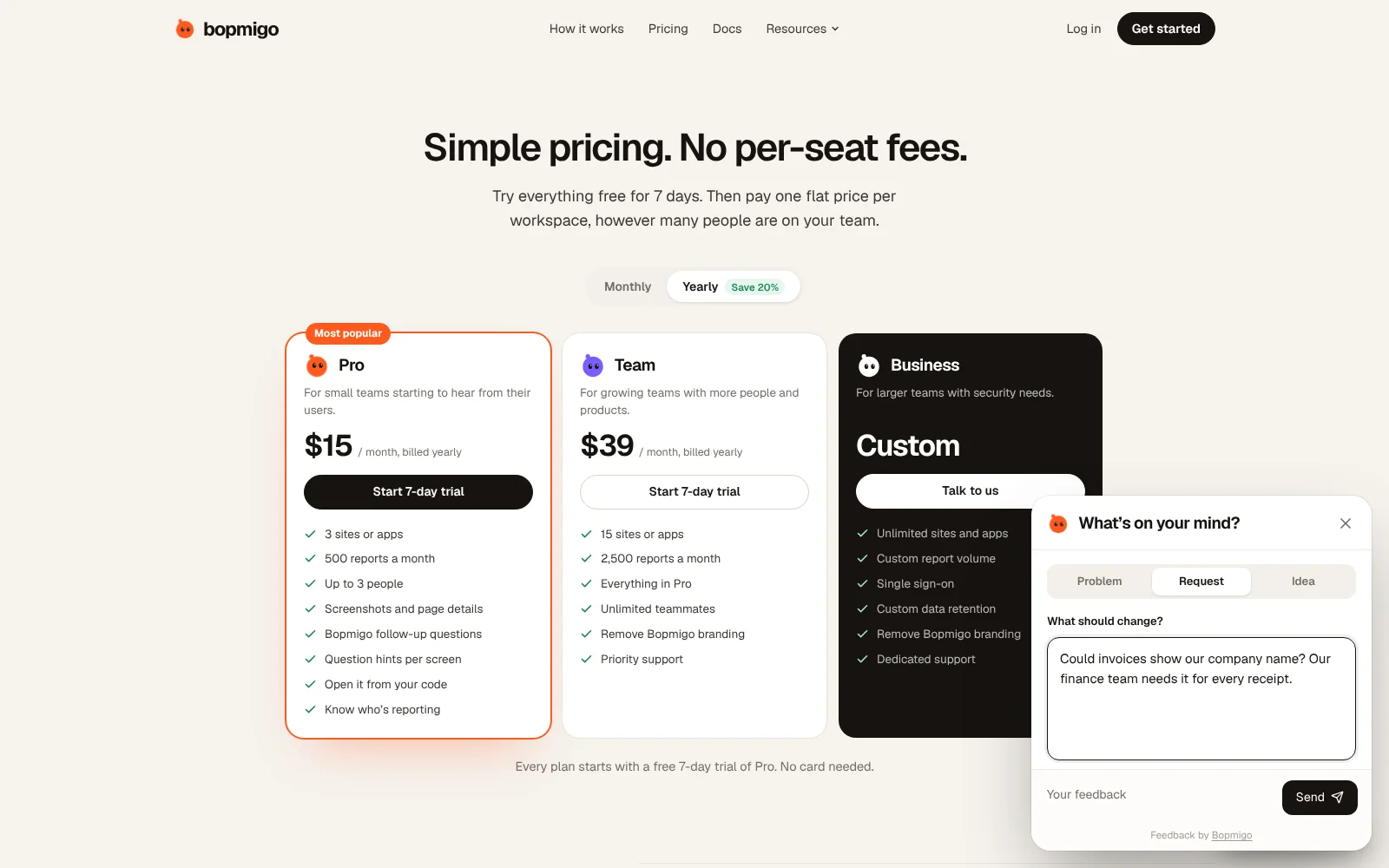
Add it to your Replit app
- 1
Create your Bopmigo project
Sign up at bopmigo.com, choose Website, and add your Replit address (for example
yourapp.replit.app). Copy your line from Install snippet:HTML<script src="https://bopmigo.com/widget.js" data-project="YOUR-PROJECT-ID" defer></script> - 2
Paste the prompt
Paste the prompt into Replit Agent with your own project ID.
PromptAdd this script tag to the HTML that every page uses (index.html or the base template), just before </body>. Don’t change anything else. <script src="https://bopmigo.com/widget.js" data-project="YOUR-PROJECT-ID" defer></script> - 3
Check the change
Check which file it changed. For Flask or Django apps that’s usually the base template; for Vite or React apps,
index.html. - 4
Publish
Redeploy and open your
.replit.appaddress. - 5
Send yourself a test
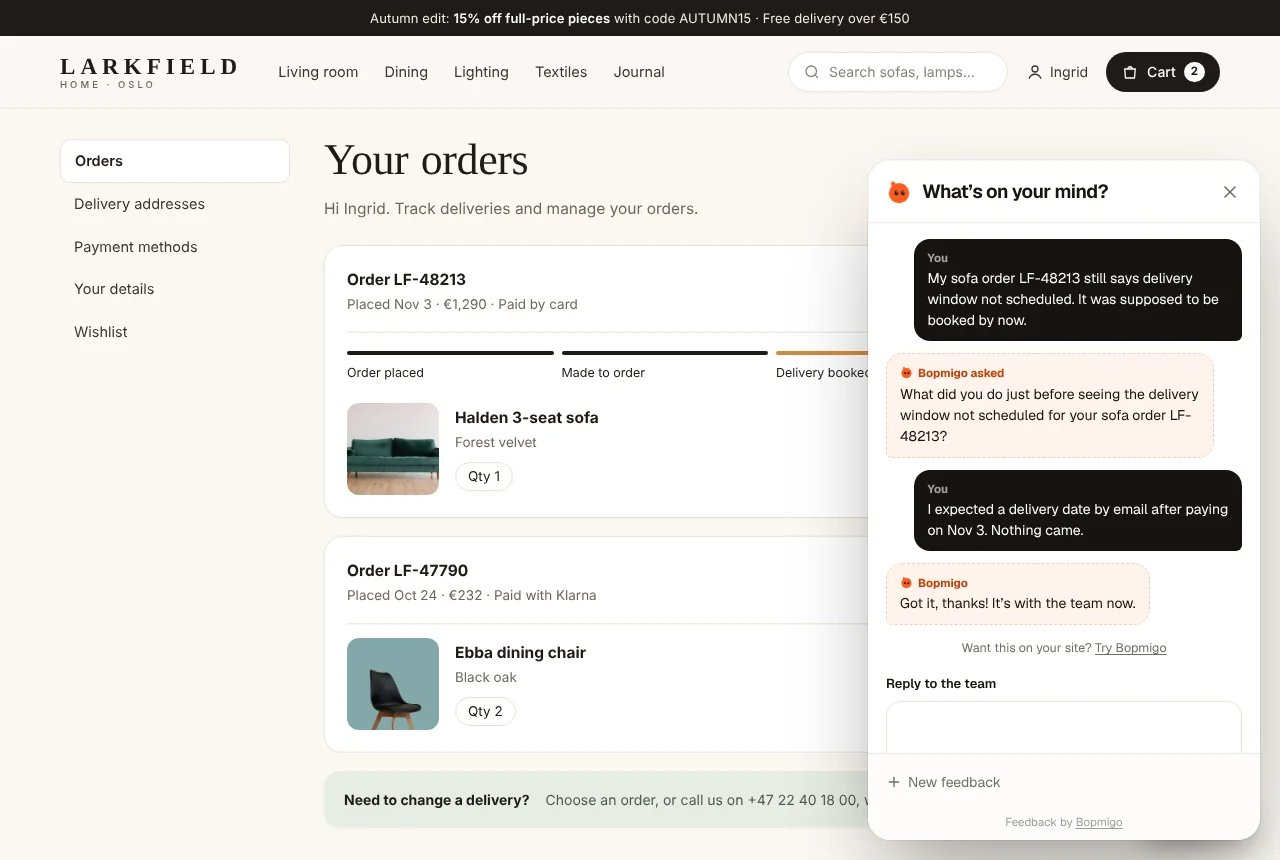
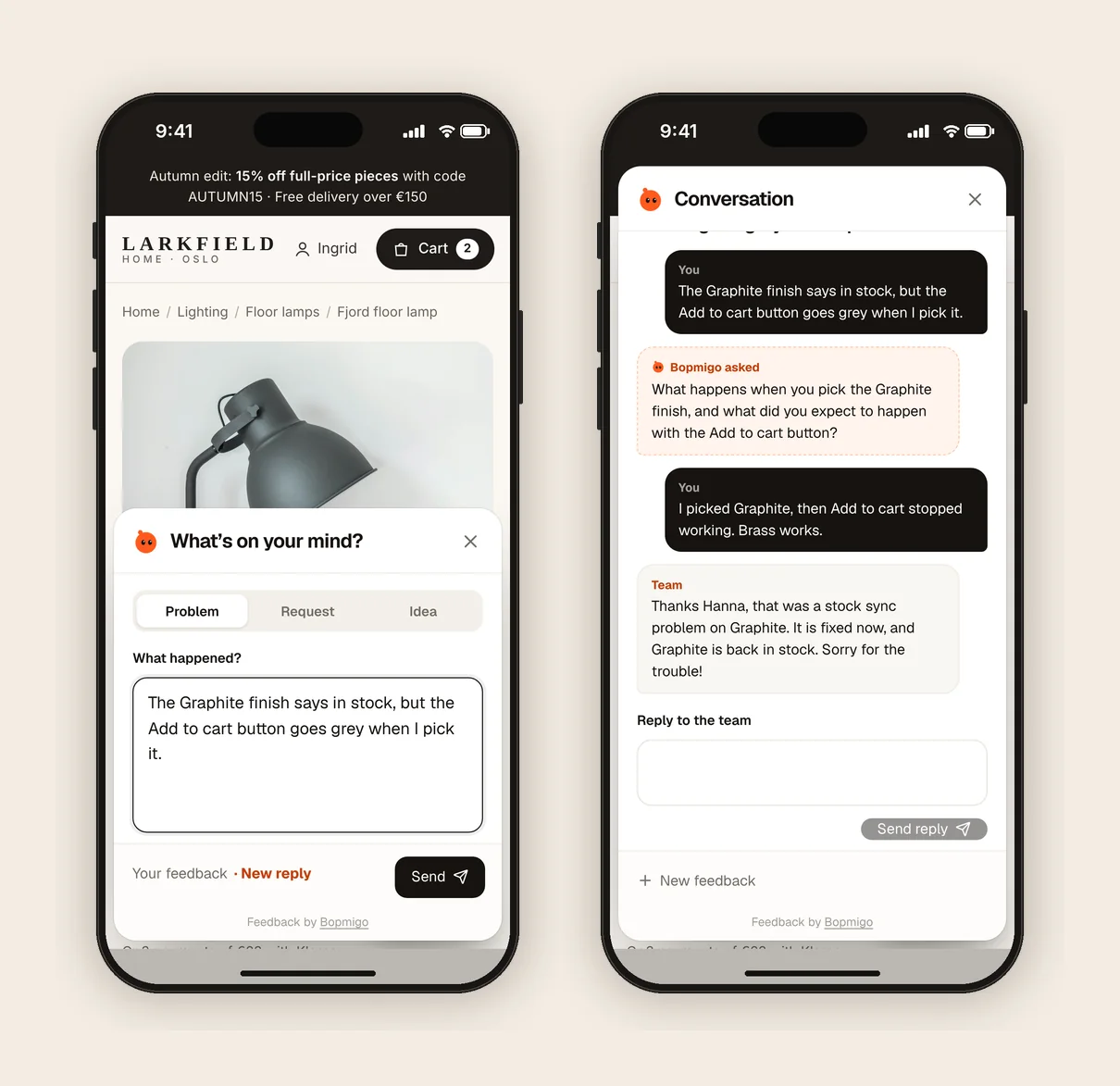
Open the live page, choose Feedback and send a short report. It arrives in your Bopmigo inbox (and by email, if you turned that on). Reply, then open Feedback again to see your answer.
Replit tips
- Add your development address (
.replit.dev) and your deployed address (.replit.app) to the project in Bopmigo if you want to test on both. - If your app has several templates that don’t share a base, the line has to go in each one, or better, ask the Agent to make them share one.
- Redeploy after the change: the deployed app doesn’t update on its own.
Why an app built with AI needs this early
AI builders get you to a working app in hours, which also means nobody has clicked through every path yet. Your first users will. A Feedback button means you hear about the broken button or the confusing step while they’re looking at it, with the page it happened on, instead of from a one-star review or silence.
More on this: feedback from your first users and how I’d set up a SaaS in 2026.
What Replit users tend to report
- Errors that appear only when several people use the app at once.
- Slow first loads after the app has been idle.
- Requests for features your first users expected to find.
Your first week
- 1
Day 1: send three test reports yourself
One problem, one request, one idea, from a phone and a laptop. Check each arrives with the page and a screenshot.
- 2
Days 2 to 5: invite your first users
Tell them about the Feedback button in your welcome message. Early users are happy to help if it takes a sentence.
- 3
Days 6 and 7: fix and reply
Fix the most repeated problem, reply to everyone who reported it, and ask them to try again.
Questions
Does this work for a Python backend?
Yes. Bopmigo runs in the browser, so it works with any backend that serves HTML.
Can testers report bugs from the dev URL?
Yes, once you add that address to your project.
Why doesn’t the button show?
Check that the address you’re on is listed in your Bopmigo project, that the change is live, and open a private window in case of caching. If your site has a Content Security Policy, allow https://bopmigo.com.
More: all install guides · website options · install with a coding agent