Knowing which signed-in user sent a report
Anonymous reports are hard to follow up. How to attach the signed-in user to every report, what to send and what to leave out.
Short answer: when someone is signed in to your app, tell your feedback tool who they are: an id, and an email if you want to reply by email. With Bopmigo that’s one line. Nothing about the person is sent unless you add it.
Connect the signed-in account
Bopmigo.identify({ id: user.id, email: user.email, name: user.name })Call this after the widget has loaded, using the account from your app’s sign-in system. If the script is still loading, listen for bopmigo:ready before calling it. Call it again whenever the signed-in account changes.
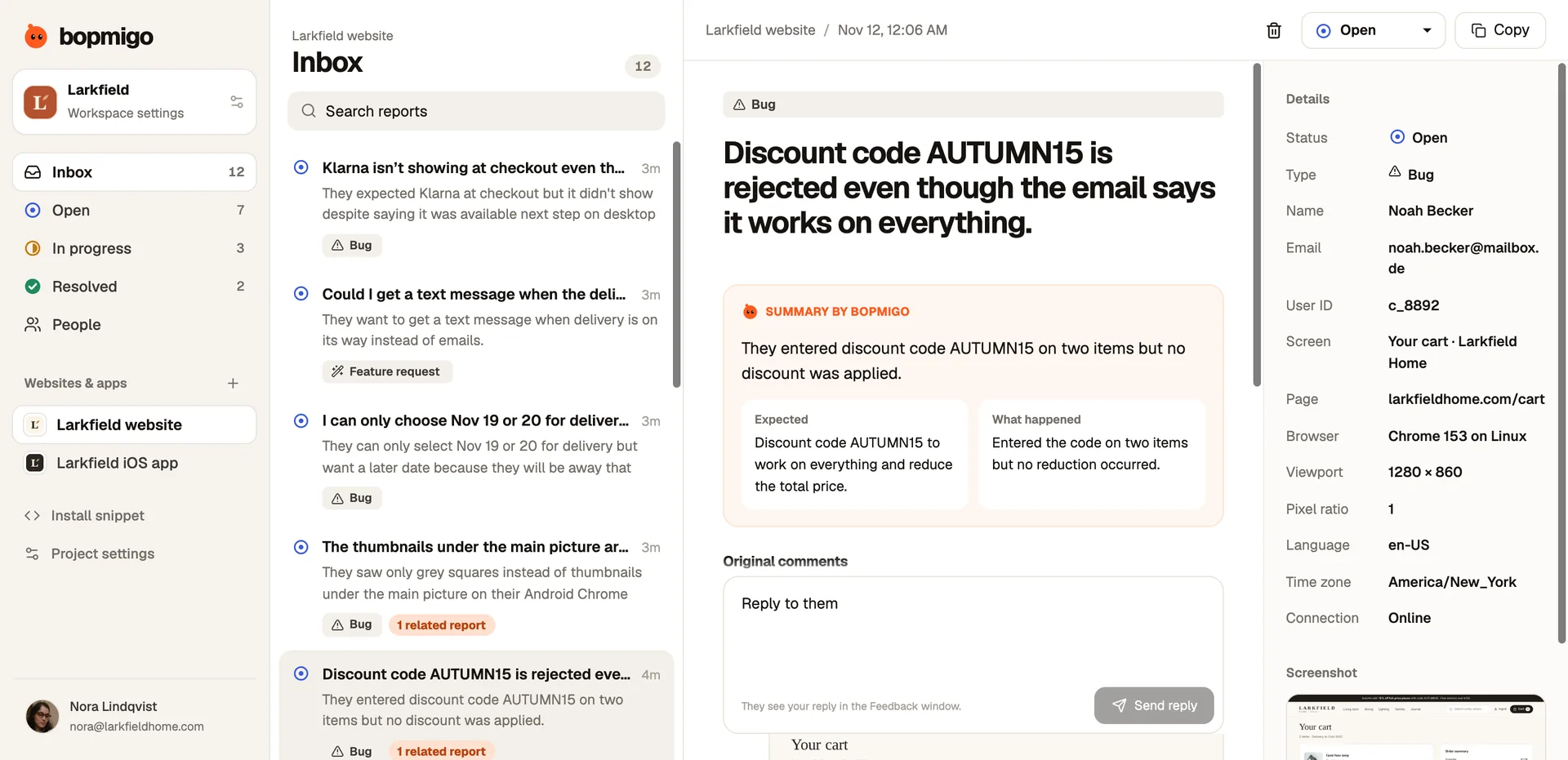
Reports then show the account you supplied. Your team can reply from the inbox, or reply by email when the account includes an email address.
Handle sign-out and shared browsers
Bopmigo.identify({})Call this when someone signs out. It puts their conversation away on that browser. When another person signs in, identify their account before they use Feedback.
Check the first conversation
- 1
Send a report while signed in
Open Feedback and describe a problem on the current page. Check the report in your Bopmigo inbox for the account name and email you supplied.
- 2
Send a message back
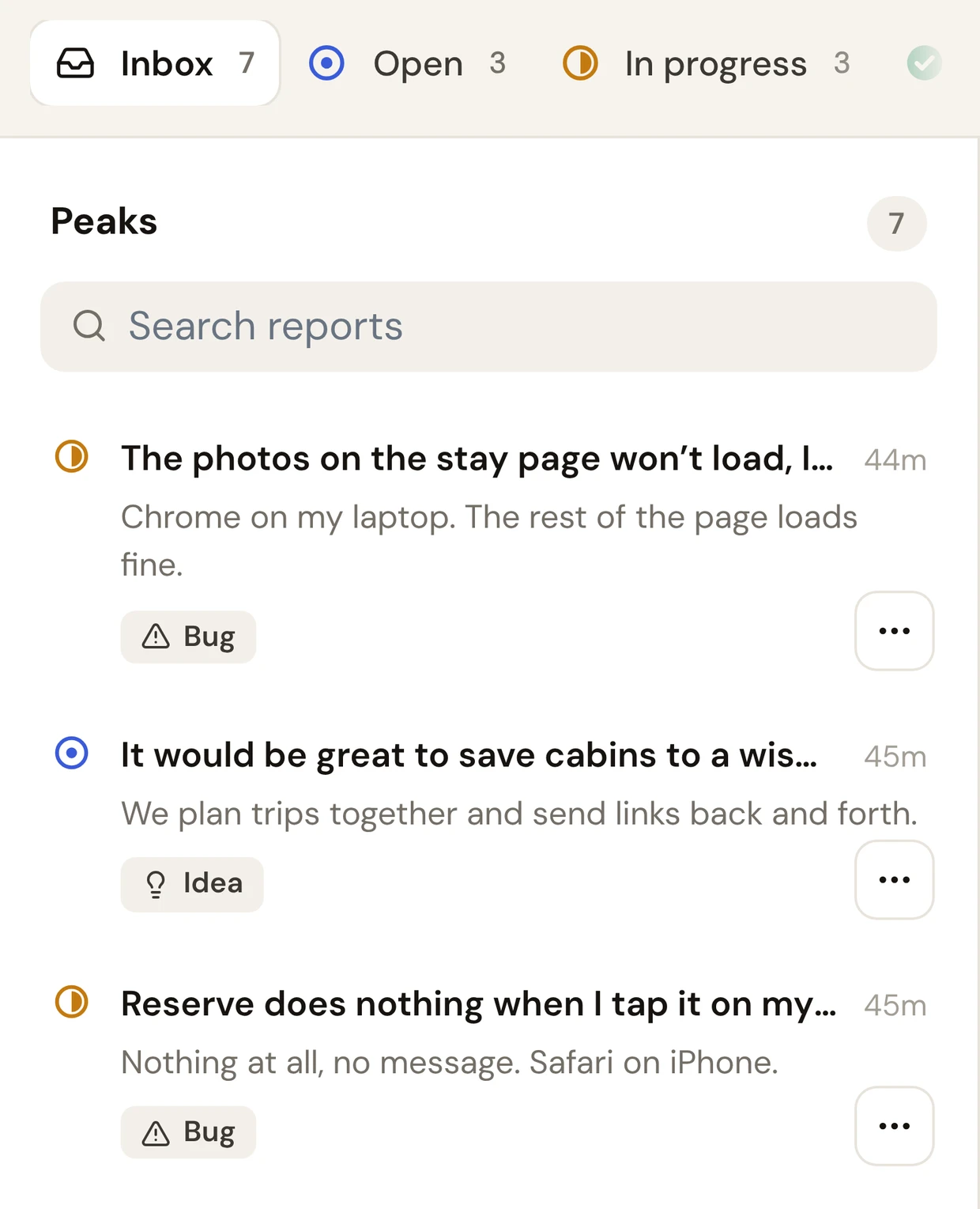
Reply to the report, then open Feedback on the same browser to read the reply. For a team-started conversation, open People and message your own test account.
- 3
Switch accounts
Sign out, then sign in with a second test account. Open Feedback and check that the first account’s conversation is put away.
Use the website identity options and message people on your site guides for the full setup.
What to send, and what not to
| Send | Don’t send |
|---|---|
| Your user id | Passwords or tokens |
| Email, if you’ll reply by email | Payment details |
| Name | Private messages or health data |
| Plan or account type, as context | Anything you wouldn’t show a support agent |
Extra context like plan or cart total can be added as short values and appears in the report’s details.
Is identifying users required?
No. Reports work without it; you just can’t reply by email to anonymous visitors.
iPhone apps?
Use Bopmigo.setUser(id:email:) in the Swift package. See iOS options.