iPhone app options
Choose who sees the screenshot prompt, open feedback from your own button, name screens and hide private views.
Who sees “Report a problem?”
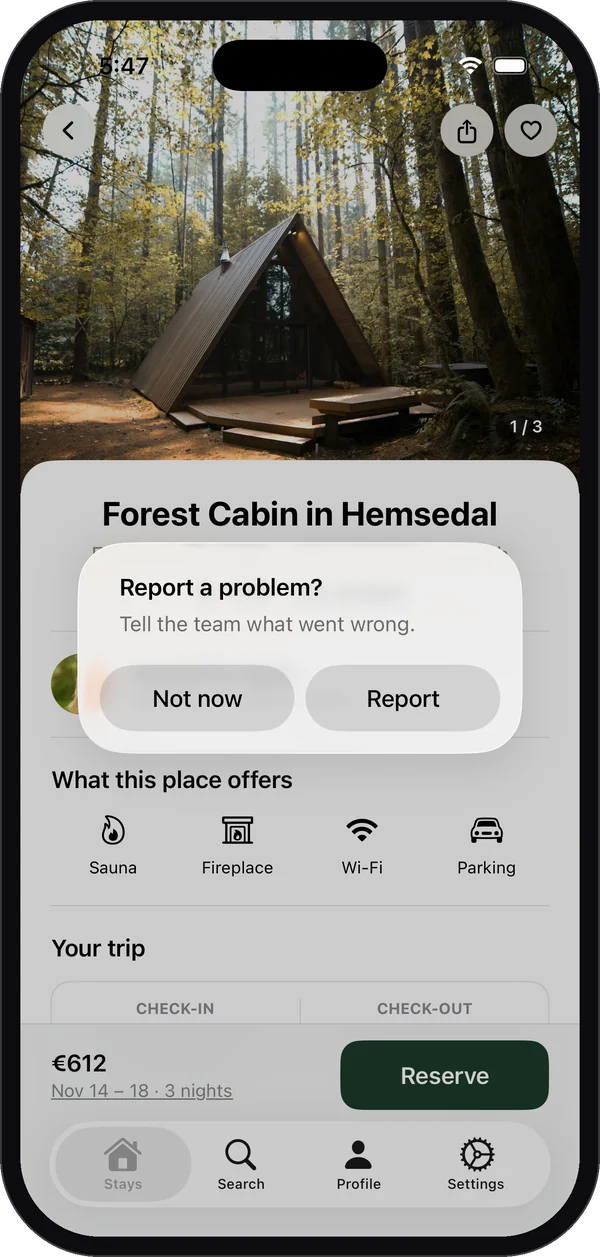
When someone takes a screenshot, Bopmigo can offer to send it as a report. You choose who gets that offer:
Bopmigo.configure(siteID: "YOUR-APP-ID", screenshotPrompt: .testersOnly) // default
Bopmigo.configure(siteID: "YOUR-APP-ID", screenshotPrompt: .always)
Bopmigo.configure(siteID: "YOUR-APP-ID", screenshotPrompt: .never).testersOnly(default): only in builds from Xcode and TestFlight. People who download your app from the App Store are never asked..always: everyone who takes a screenshot is asked..never: no offer after screenshots. People open feedback from your own button instead.
Replies from your team
When you reply from your inbox, the person sees The team replied the next time they open your app. They can read the conversation and answer back. They can also find everything they sent under Your feedback and replies in the feedback sheet.
To open that list from your own button:
Button("My feedback") { Bopmigo.showReplies() }Open feedback from your own button
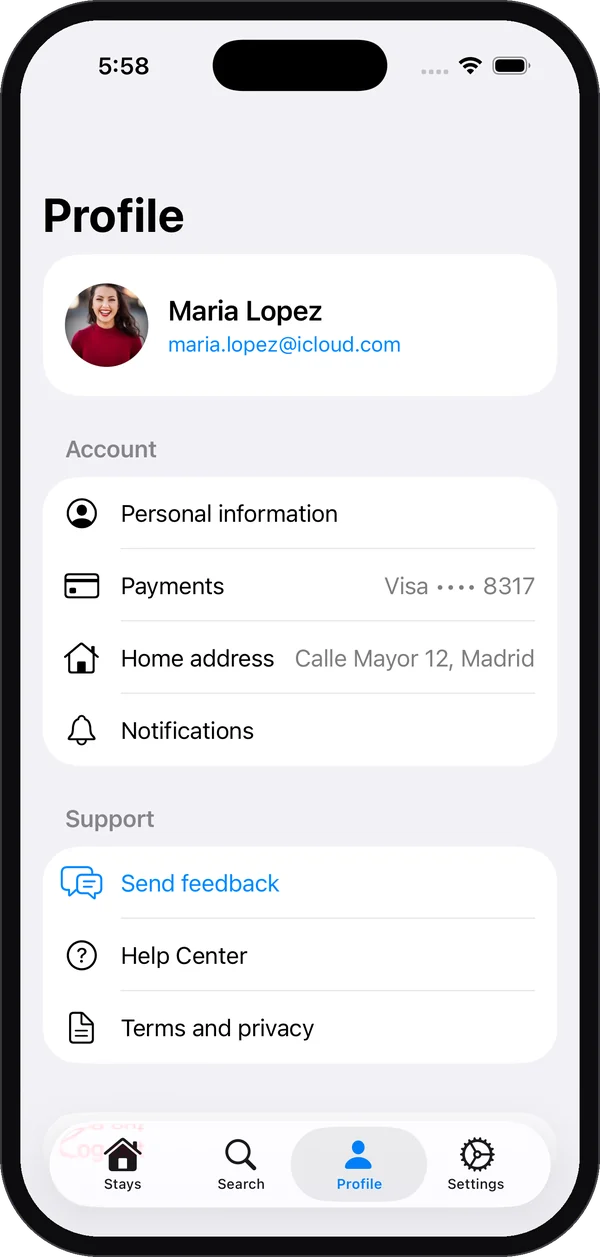
People can also send feedback any time, without a screenshot, from a button you place in your app, such as a Send feedback row in your profile or settings screen.
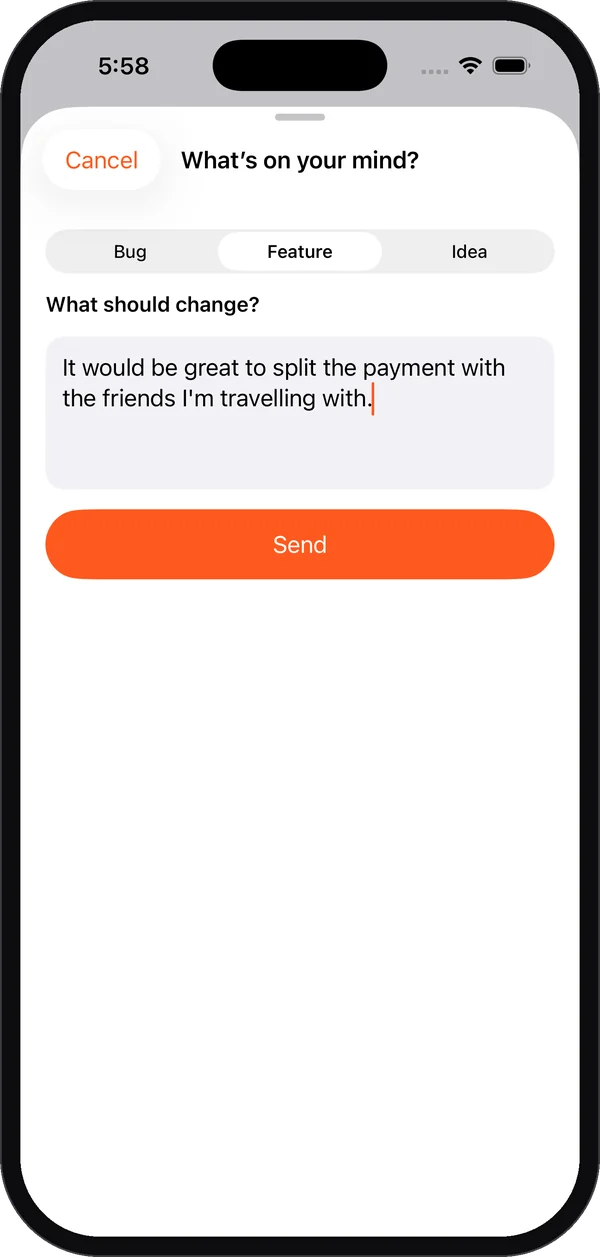
Button("Send feedback") { Bopmigo.show() }Name your screens
Reports then say which screen they came from, and Bopmigo can ask better questions there.
CheckoutView().bopmigoScreen("Checkout")
// or, anywhere:
Bopmigo.setScreen("Checkout")
Hide private views
Password fields are always covered. Cover anything else that is private:
Text(user.email).bopmigoPrivate()   // SwiftUI
cardLabel.bopmigoPrivate = true     // UIKit
For apps where every word is sensitive, cover all text in screenshots:
Bopmigo.setHideAllText(true)You can also turn on Hide all text in screenshots in your app’s settings in Bopmigo.
Say who is reporting
Nothing about the person is sent unless you add it. If you include an email address, you can reply to them straight from the report email.
Bopmigo.setUser(id: user.id, email: user.email, name: user.name)Add your own details
Bopmigo.setContext("plan", "pro")
Bopmigo.setContext("plan", nil)   // remove
Don’t add passwords, tokens or private messages.
When the connection drops
If a report can’t be sent, it is kept on the device and sent automatically when the connection is back. Sending a report never depends on your app’s own sign-in or servers.
NextWebsite options →