Screenshots with no explanation
A screenshot with no words is half a report. How to read it, what to ask, and how to get screenshots that come with the page, the device and a sentence.
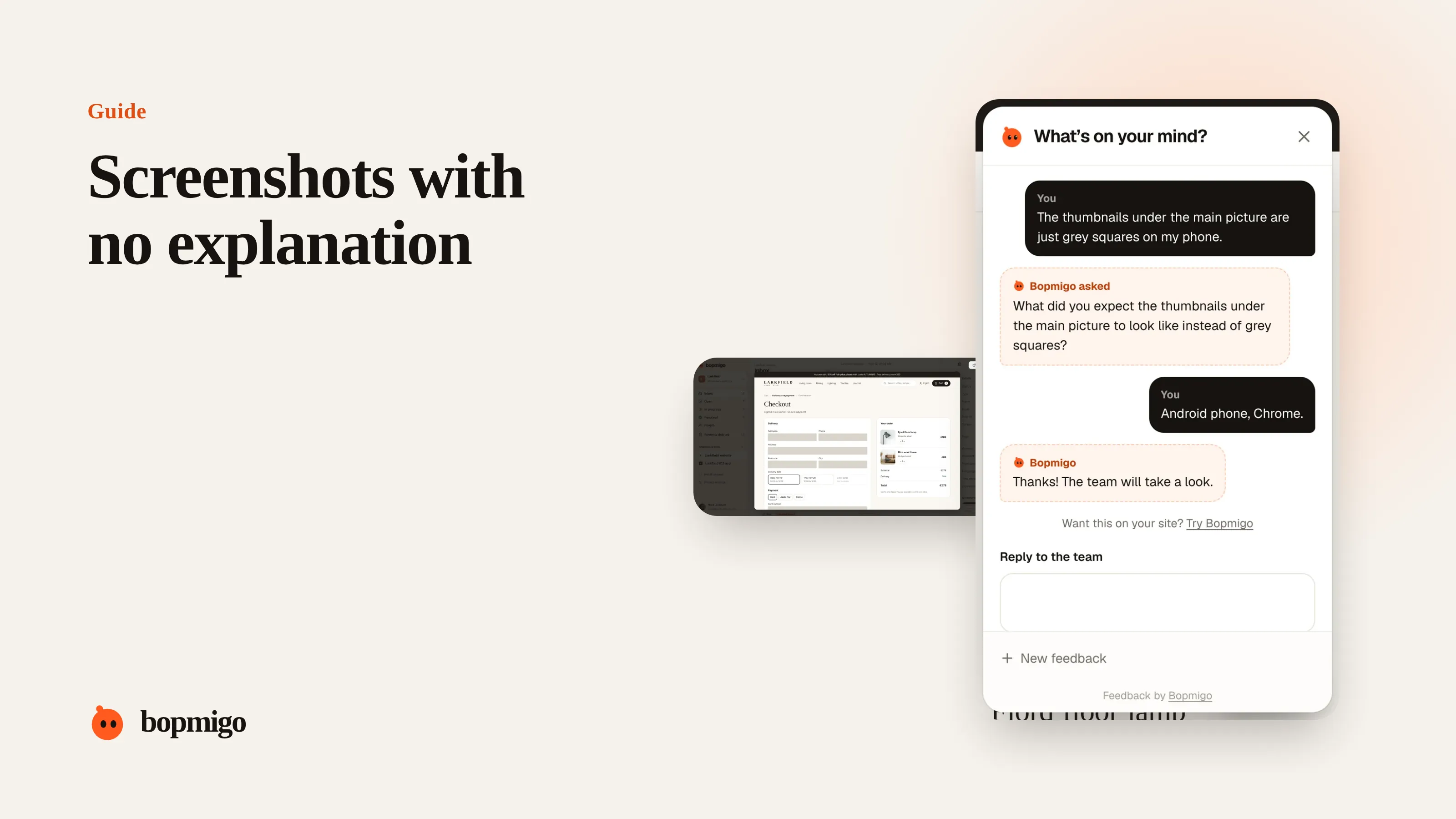
Short answer: a bare screenshot tells you what they saw but not what they expected, what they did, or where it was. Read it for clues first (error text, URL, device, what’s highlighted), ask one short question, and next time let people report from the page so the screenshot arrives with the page, device and their own sentence.
Read the screenshot first
| Look for | What it tells you |
|---|---|
| Error messages or red text | Often the whole problem |
| The address bar or screen title | Which page or screen |
| The status bar or browser frame | Phone or desktop, sometimes the browser |
| Something circled or crossed out | What they want you to notice |
| Empty areas, grey boxes, spinners | Something failed to load |
| Overlapping text or cut-off buttons | A layout problem on that screen size |
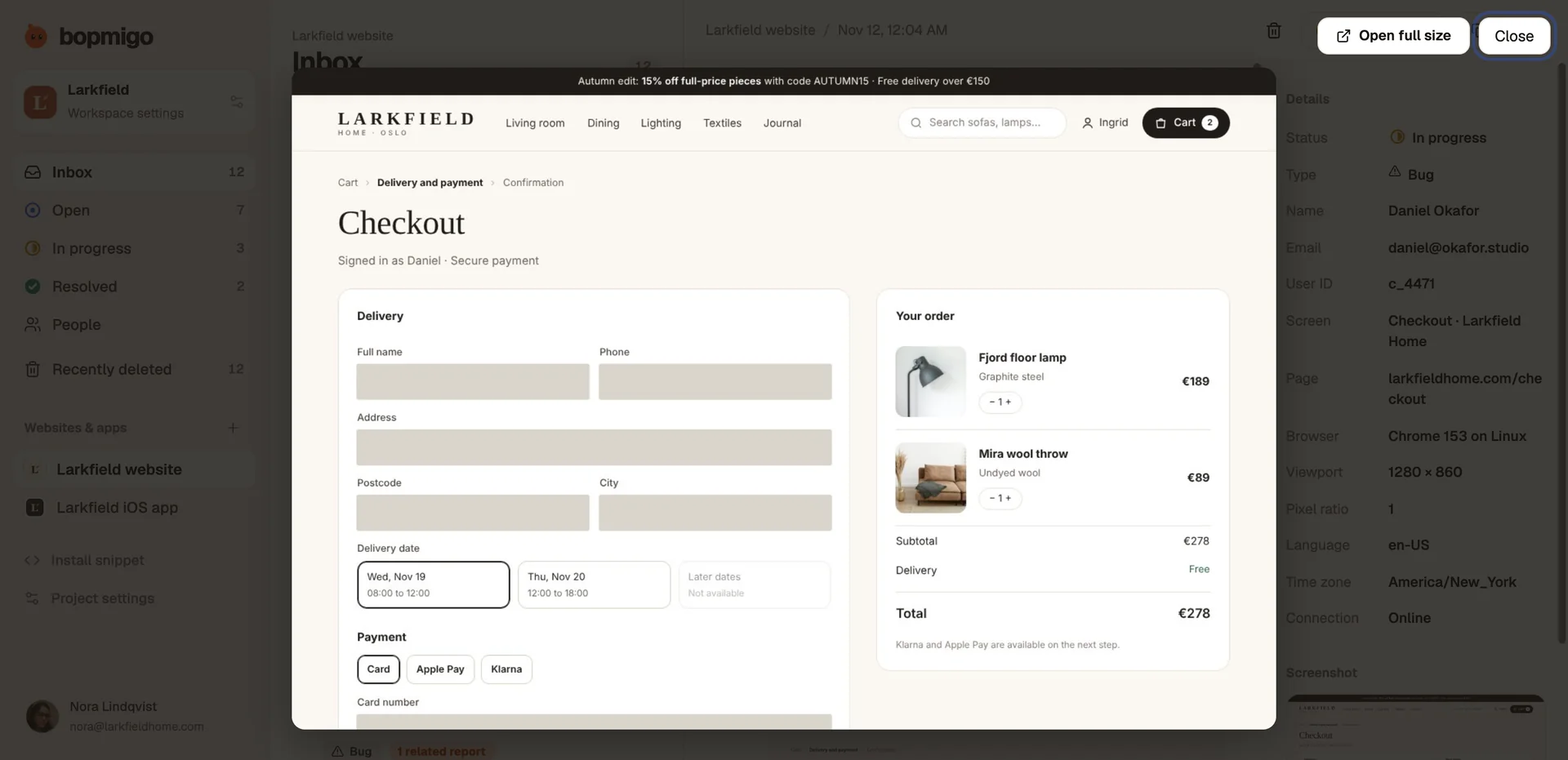
Then ask one question
- “Thanks! What did you expect to see here?”
- “Is it the price in the top right you mean?”
- “Did this appear after you pressed something?”
Why people send screenshots alone
- It’s quicker than typing, especially on a phone.
- They assume the problem is obvious.
- They don’t know the right words for what they see.
- The channel encourages it, such as a chat app or social media.
Make every screenshot come with context
- 1
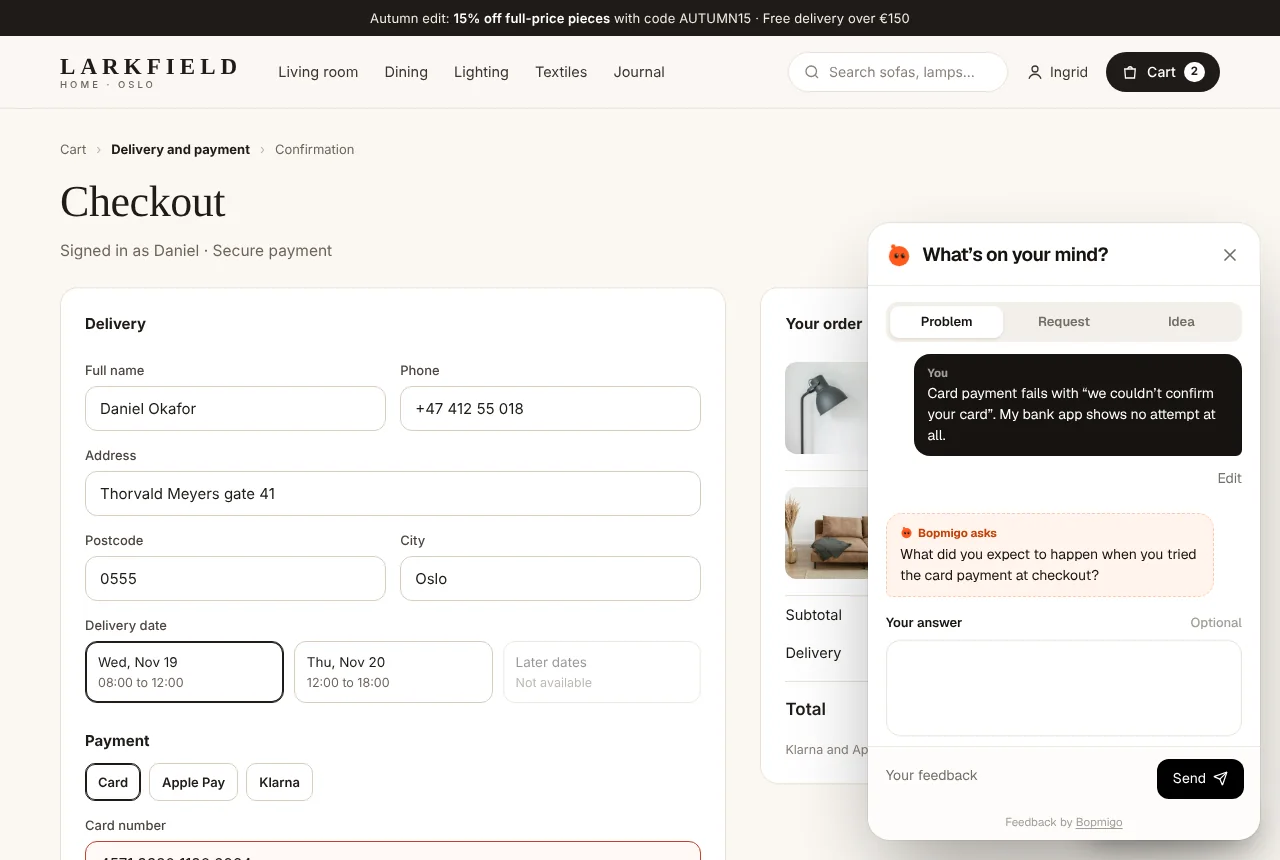
Let people report from the page
The screenshot is taken for them, with the page, device and browser attached.
- 2
Ask for a line, not a description
“What happened?” is enough. One sentence plus the screenshot beats a paragraph alone.
- 3
Cover private details automatically
People send screenshots more willingly when they know card numbers and personal fields are hidden.
- 4
Ask a short follow-up when it’s still unclear
While they’re still on the page, not a day later.
Privacy when people send their own screenshots
Screenshots sent by email or chat often include names, addresses or other people’s messages. Store them carefully, share only what your team needs, and delete them when the problem is fixed. A feedback tool that covers private fields before sending saves you from handling that data at all. Privacy and your data.
A worked example
A client sends a screenshot of their homepage on a phone with no message. Reading it: the menu button overlaps the logo, and the cookie banner covers the bottom third. The status bar shows an iPhone. The team replies: “Thanks! Is it the menu button overlapping the logo you mean, or the cookie banner?” The client says “The menu, I can’t tap it.” Fixed the same day, in one exchange instead of three.
Screenshots that mislead
- Cropped screenshots hide the address bar, the device and the surroundings. Ask for the page if you can’t tell.
- Old screenshots show a problem you may already have fixed. Check the date.
- Screenshots from another tool or site sometimes arrive by mistake. Make sure it is your product.
- Edited screenshots with arrows can hide the problem underneath. Ask for an unmarked one if needed.
Organise incoming screenshots
- 1
Keep them with the report
A screenshot in a chat thread gets lost. Attach it to the report or ticket.
- 2
Note the page and device
Write them down even if you worked them out from the image.
- 3
Group similar screenshots
Three screenshots of the same broken layout are one bug with three examples.
- 4
Remove them when done
Delete screenshots with personal details once the problem is fixed.
When a screen recording helps more
For problems that happen over several steps, a short recording beats a screenshot. Most people can record their phone screen, but asking for one is a big request. Ask only when a screenshot and one question haven’t been enough.
Questions to ask about your own setup
- Where do screenshots arrive today: email, chat, social media?
- Who keeps track of them, and where?
- Do screenshots you receive contain personal details you don’t need?
- Can people report from the page so the screenshot is taken for them?
Should I ask people to annotate screenshots?
Only if your tool makes it easy. A sentence plus the screenshot is usually enough.
Are screenshots enough without a description?
Sometimes, when an error is visible. Often you still need what they expected, which only they can tell you.
How long should I keep screenshots?
Until the problem is fixed, unless you have a reason to keep them longer.
Reply templates by screenshot type
| The screenshot shows | Reply |
|---|---|
| An error message | “Thanks, we see the error. Were you doing anything special just before, like changing a setting?” |
| A layout problem | “Thanks! Is it the overlapping button you mean? Which phone are you using?” (skip if you know) |
| Something that looks normal | “Thanks for sending this. What did you expect to see here instead?” |
| A price or number | “Is it this amount that looks wrong? What should it be?” |
| Several things at once | “Which part of this is the problem? Happy to look at each.” |
Each reply asks about the one thing the image can’t tell you, and shows you’ve looked.
How Bopmigo helps
Bopmigo takes the screenshot for people when they report from your website, with typed-in fields and anything you mark private covered first. They add a sentence, and you get the page, device and browser with it. When the sentence is too short to act on, it asks a short follow-up. Collect bug reports with screenshots.