In-app feedback for Android apps built with Flutter
One Flutter package for Android and iPhone: reports from inside the app, a short follow-up, and replies people see in the app.
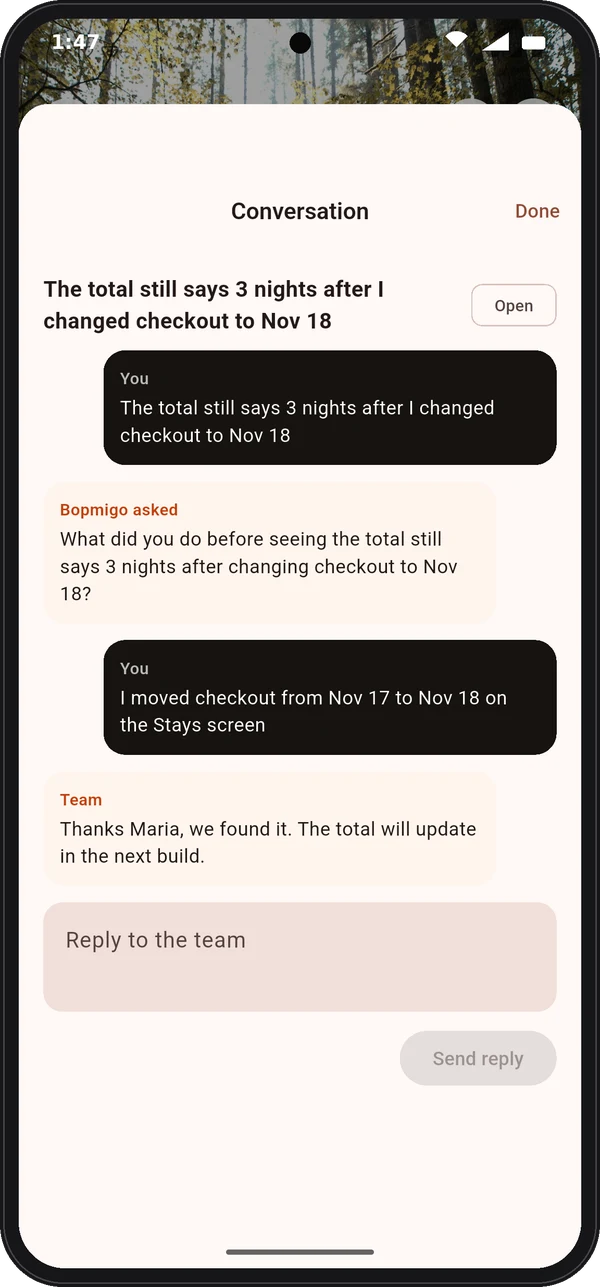
Short answer: add the Bopmigo Flutter package, configure it with your app ID, and Android users can report from your own button or, for testers, right after a screenshot. You get the screen, device and app version with each report, and your reply appears in the app.
flutter pub add bopmigo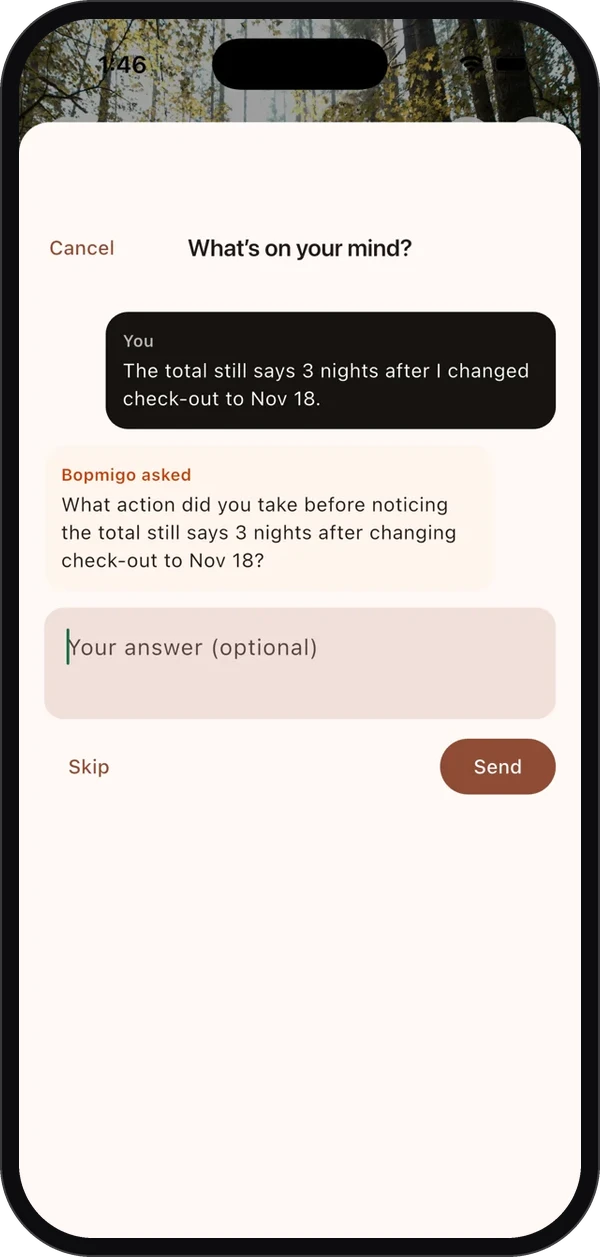
Who sees the screenshot offer on Android
- By default: debug builds and installs that didn’t come from Google Play, which covers your testers.
- People who installed from Google Play aren’t asked; they use your own button.
- You can change this to everyone, or turn it off.
Same inbox as your website and iPhone app
Reports from Android, iPhone and your website land in one inbox, and requests about the same thing are grouped across all of them.
Is it native Android (Kotlin)?
Bopmigo supports Android through Flutter. React Native is planned.
Does it work with CupertinoApp or WidgetsApp?
Yes, as well as MaterialApp. See Flutter options.
Why Android needs its own attention
Android runs on thousands of phone models, screen sizes and system versions. A layout that looks right on your test phone can clip on a smaller screen, a button can hide behind the gesture bar, and a font setting can push text off the screen. Android users who hit these problems usually leave a review or uninstall. Few of them email you.
| Common Android problem | What a report needs to show |
|---|---|
| Layout clipped on small or very tall screens | Device model, screen and a screenshot |
| Content hidden by the gesture bar or keyboard | The screen name and a screenshot |
| Large font setting breaks a row | The screenshot shows it at once |
| Works on Android 14, fails on Android 12 | The system version |
| Only after an update | The app version and build |
Set it up well
- 1
Add the package and configure it once
Run
flutter pub add bopmigo, then callBopmigo.configurewith your app ID beforerunApp, and add the builder to your app. Quick start. - 2
Add a Send feedback row
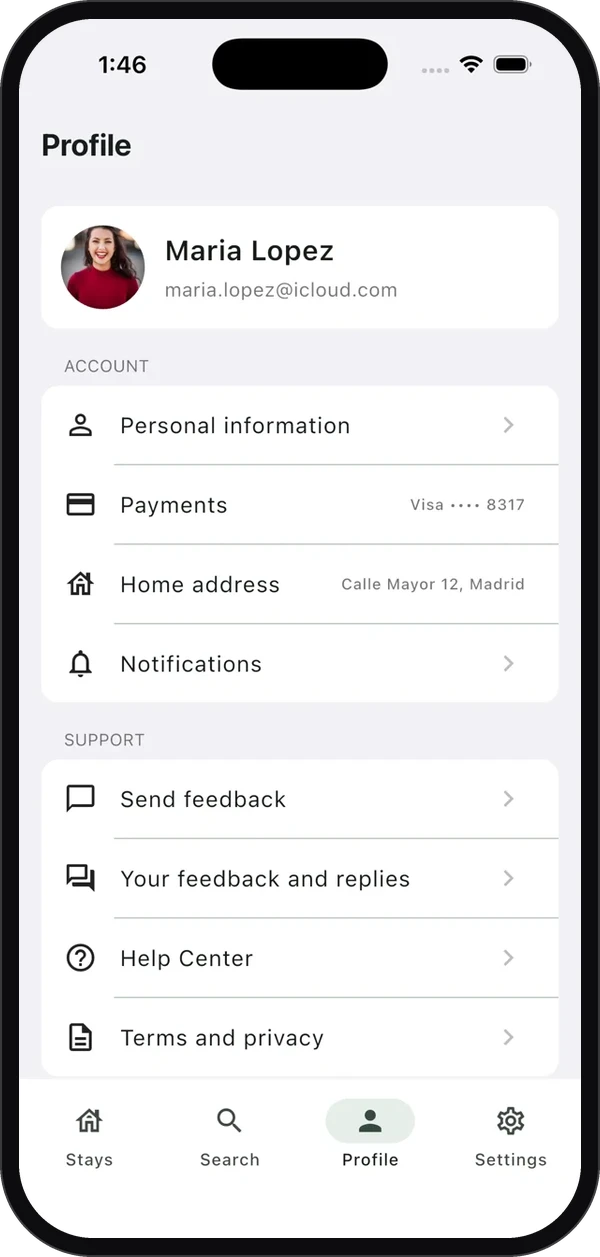
Put it where people look for help: Settings, Profile or a help menu. Add a second row for Your feedback and replies so people can find your answers.
- 3
Name your screens
Name your routes and add
Bopmigo.navigatorObserver, or callBopmigo.setScreen. Reports then say “Checkout” instead of a widget path. - 4
Cover anything private
Wrap sensitive widgets in
BopmigoPrivate. Password fields are always covered. For very sensitive apps, cover all text withBopmigo.setHideAllText(true). - 5
Say who is reporting, if they are signed in
Call
Bopmigo.setUserwith an ID, and an email if you want to reply by email. Nothing about the person is sent unless you do. - 6
Send a test from a real Android phone
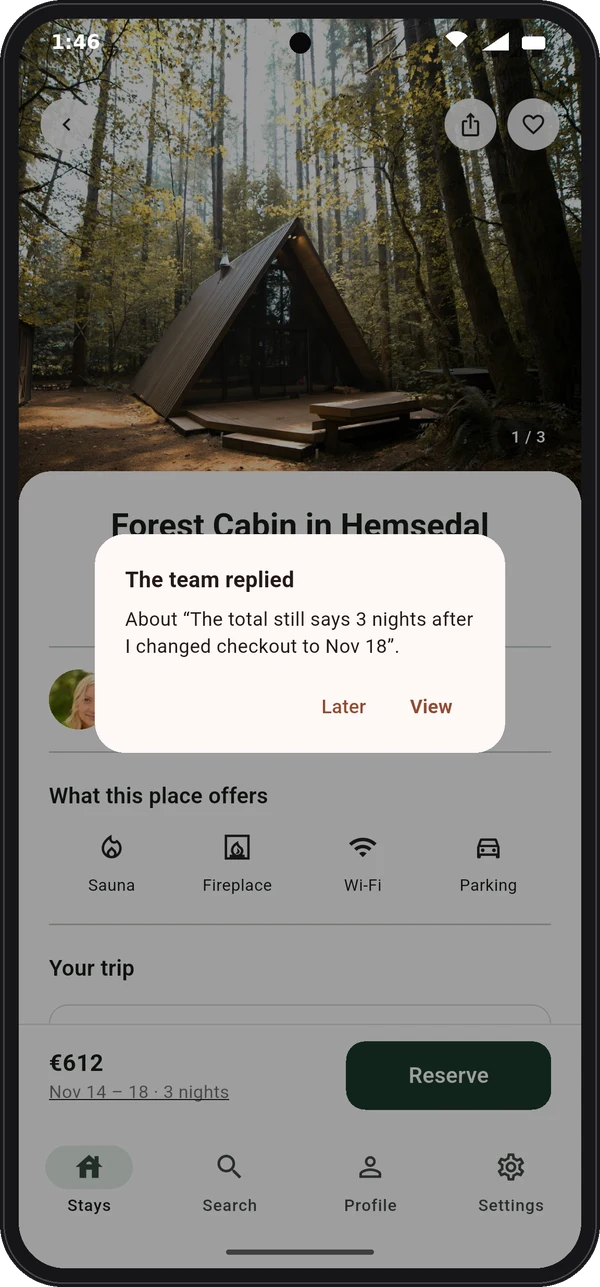
Check the report shows the screen, device, Android version and app version, then reply and confirm The team replied appears in the app.
Screenshots on Android
Android tells apps about screenshots from Android 14. On those phones, testers can be offered “Report a problem?” right after taking one. On older versions, everyone uses your own button, so keep it easy to find.
When the connection drops
If a report can’t be sent, it is kept on the phone and sent the next time the app opens. People on trains and in basements still get heard.
Setup: Quick start: Flutter app