In-app feedback and bug reports for iPad apps
iPad layouts break in their own ways: split view, rotation, keyboards. How to get reports from iPad users with the screen and device attached.

Short answer: add a feedback option inside the app, so iPad users can report from the screen they’re on. Bopmigo’s Swift package works in iPhone and iPad apps (iOS 16 or later): people report from your button or right after a screenshot, and you get the screen, device and app version with each report.
iPad problems people run into
| Situation | Why reports help |
|---|---|
| Split View and Slide Over | Layouts that only break at certain widths |
| Rotation | Content that jumps or clips when turned |
| External keyboard and pointer | Shortcuts and hover states that don’t respond |
| Apple Pencil | Input that works on one screen and not another |
Setup
Add the Swift package, configure it with your app ID, and send a test report. The same package covers iPhone and iPad. Quick start: iPhone app.
Do testers and App Store users both see it?
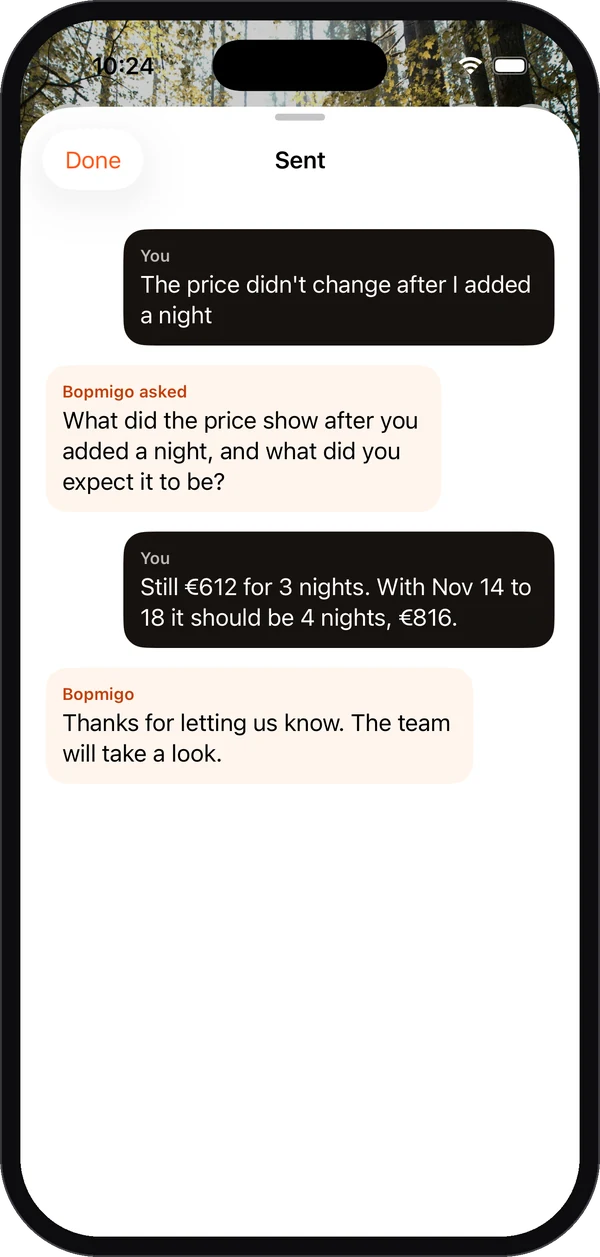
By default the screenshot offer only appears in Xcode and TestFlight builds. Everyone can use your own Send feedback button. See iOS options.
Are private details covered?
Yes. Mark private fields and they’re covered in screenshots before anything is sent.
Set it up for iPad users
- 1
Add the Swift package
In Xcode, choose File, Add Package Dependencies, and paste the package address from Install snippet. The same package covers iPhone and iPad.
- 2
Configure it once with your app ID
Call
Bopmigo.configurewhen your app starts. Find your app ID. - 3
Add a Send feedback button
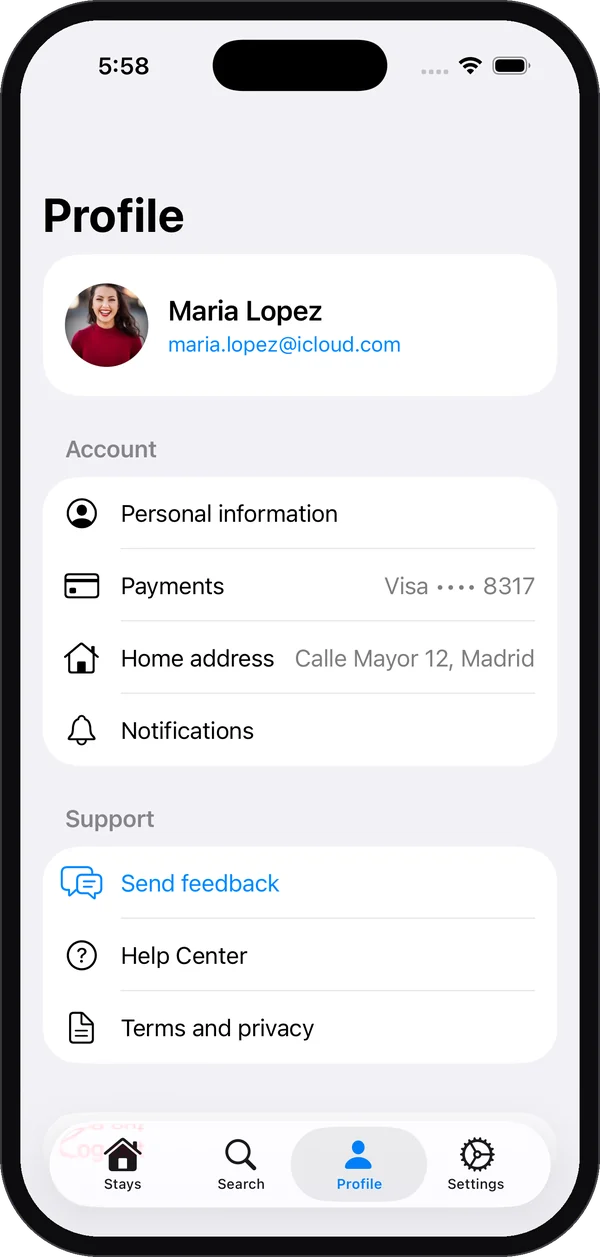
On iPad, a toolbar button or a row in your sidebar or settings is easy to find. App Store users rely on it, because the screenshot offer is for testers by default.
- 4
Name screens and cover private views
Name your screens so reports say “Invoice editor”, not a view controller. Mark private views with
.bopmigoPrivate()in SwiftUI. Password fields are always covered. - 5
Test in Split View and both orientations
Send a report with the app at half width and turned sideways. Check that the screenshot and screen size match what you see.
Who reports on iPad
| Who | How they usually report |
|---|---|
| Testers on TestFlight | Right after a screenshot, with “Report a problem?” |
| Professional users (sales, field teams, teachers) | From your Send feedback button, between tasks |
| Families and casual users | Rarely, unless it takes a sentence |
iPad users often use your app for work. A problem that interrupts them costs them time, so a quick way to report it, and a reply when it is fixed, matters more than on a phone.
Read iPad reports well
- Check the screen size and orientation before anything else. Many iPad bugs only happen at one width.
- Look for an external keyboard or pointer in the description. Hover and shortcuts behave differently.
- Group reports by screen, so a layout problem seen by several people becomes one fix.