Find your project ID
Where to find the project ID or app ID Bopmigo needs, and what to check when a report goes to the wrong project.
Each website or app you connect gets its own ID. It tells Bopmigo which inbox a report belongs to. You only need it when you install by hand or when a coding agent asks for it.
For a website
Open Install snippet. The ID is the value of data-project in the script tag:
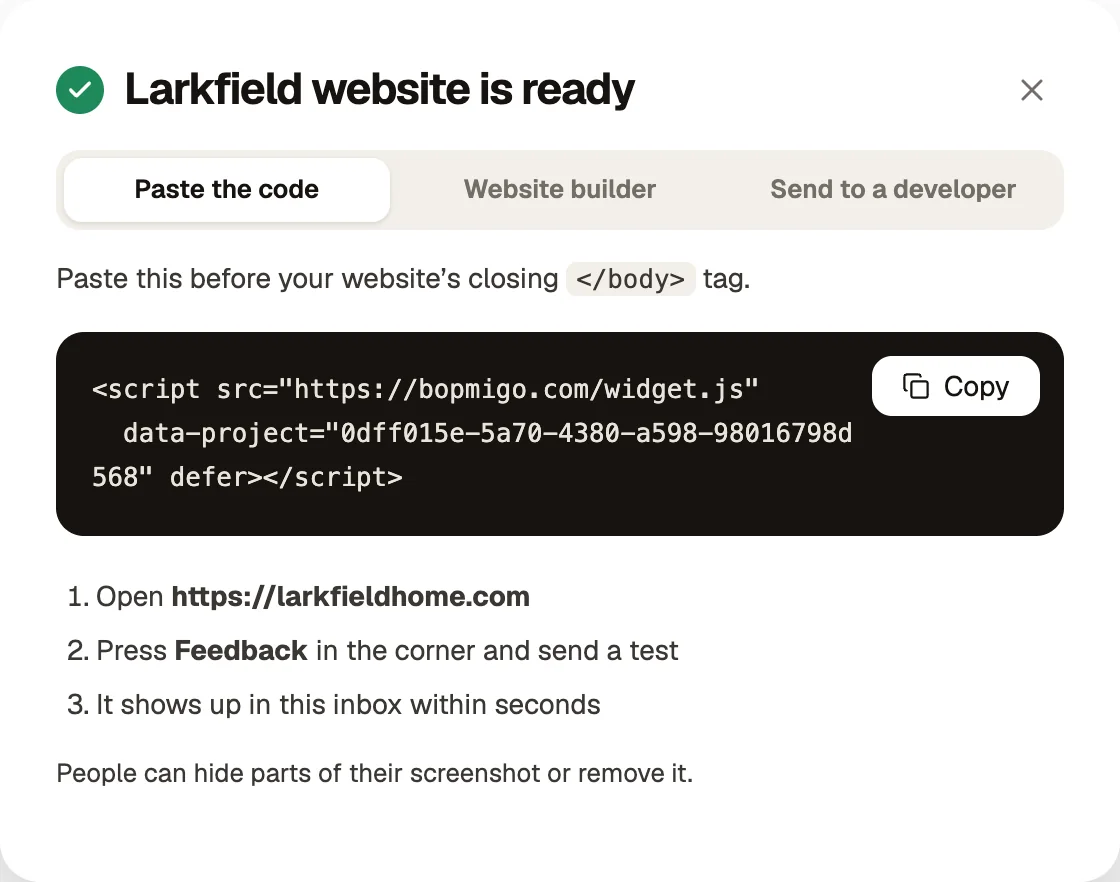
HTML
<script src="https://bopmigo.com/widget.js"
  data-project="YOUR-PROJECT-ID" defer></script>
For an iPhone or Flutter app
Open Install snippet for the app. The ID is the appId in the setup code:
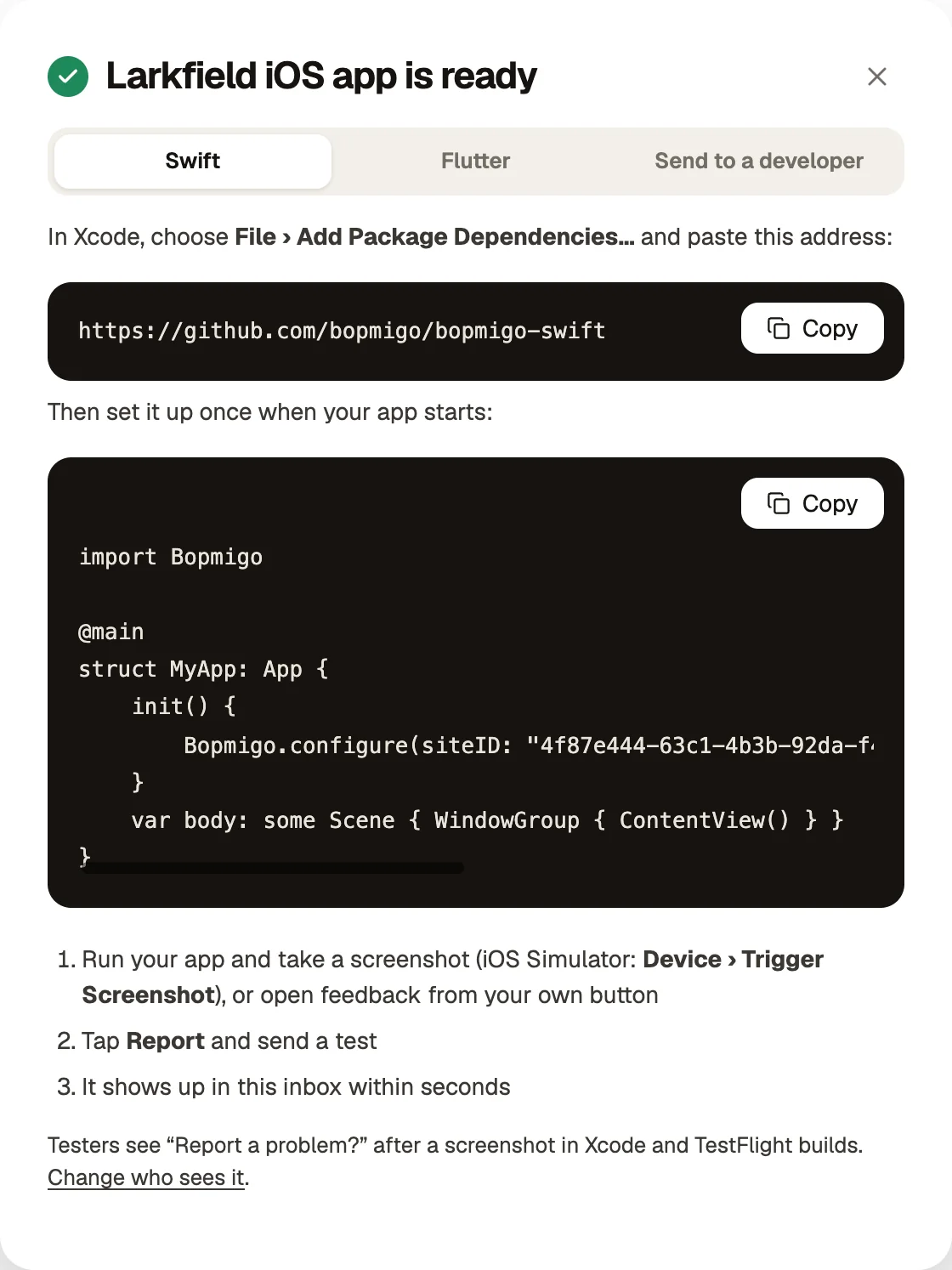
Dart
Bopmigo.configure(appId: "YOUR-APP-ID")Using a coding agent
Give the agent the ID and the install guide for agents. It will add the snippet or package in the right place.
If reports land in the wrong inbox
- Check the ID in your site or app matches the project you expect. Copying a snippet from another project is the usual cause.
- Each site or app should have its own project, so staging and production can share one, but two different products should not.
- If a website sends nothing at all, check that its address is listed in Website addresses.
The ID is not a secret. It only accepts reports from the addresses you allow, so it is fine in your page source.
NextAdd your logo and project icons →