Add your logo and project icons
Upload a workspace logo and an icon for each website or app so your team can tell them apart at a glance.
A logo and icons make the sidebar easier to scan, especially when you run several sites or apps. Your team sees them. People who send feedback do not.
Workspace logo
- 1
Open Workspace settings
Select your workspace name at the top of the sidebar, then the General tab.
- 2
Upload
Choose Change next to Logo and pick a square image. It appears at once at the top of the sidebar. Remove goes back to the first letter of your workspace name.
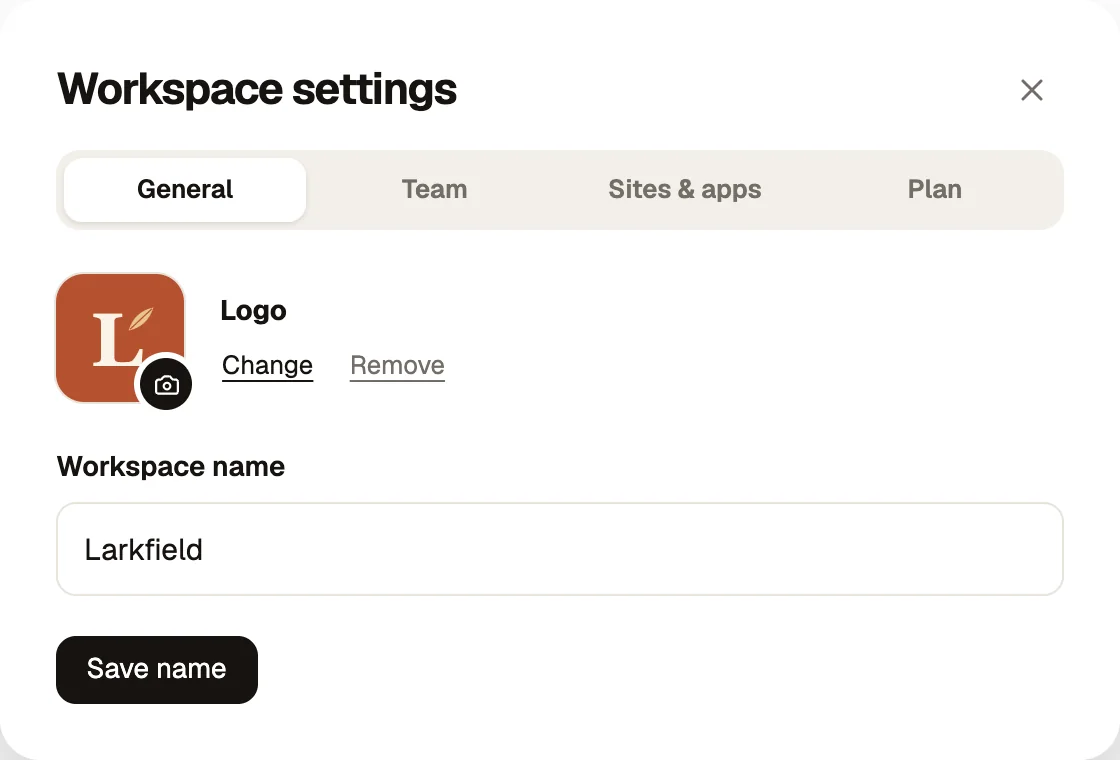
Only owners can change the logo and name. Members see the setting but cannot edit it.
Website and app icons
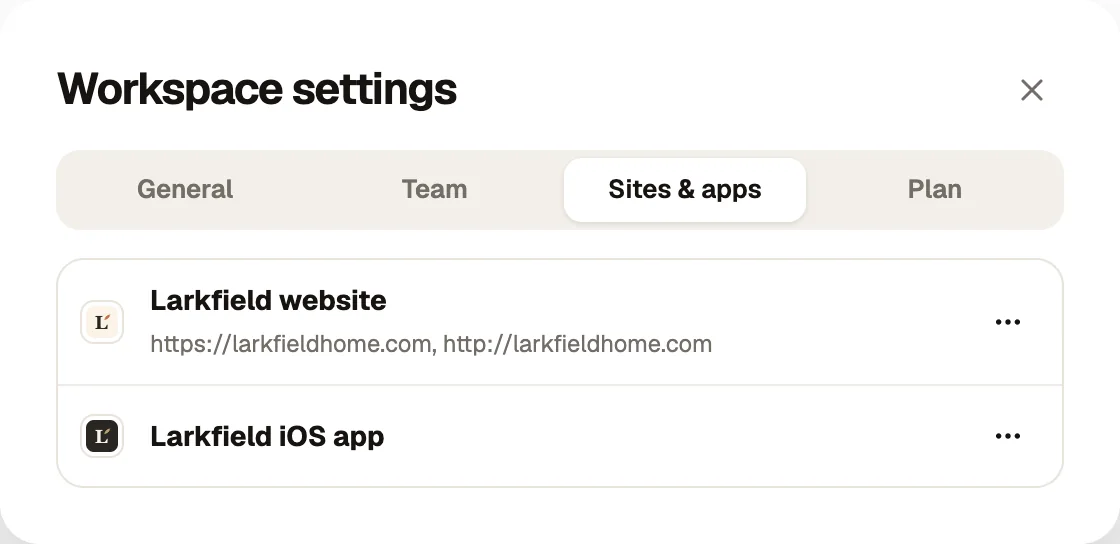
Websites show their own site icon automatically once Bopmigo can see it. To use a different one, or to add an icon for an app:
- 1
Open Project settings
Choose Project settings in the sidebar while that project is selected.
- 2
Change the icon
Under Icon, choose Change and upload an image. Remove goes back to the site’s own icon.
Good images to use
- Square, at least 256 × 256 pixels.
- A simple mark rather than a full wordmark, since it shows small.
- Different colours for a website and an app of the same product, so they are easy to tell apart.