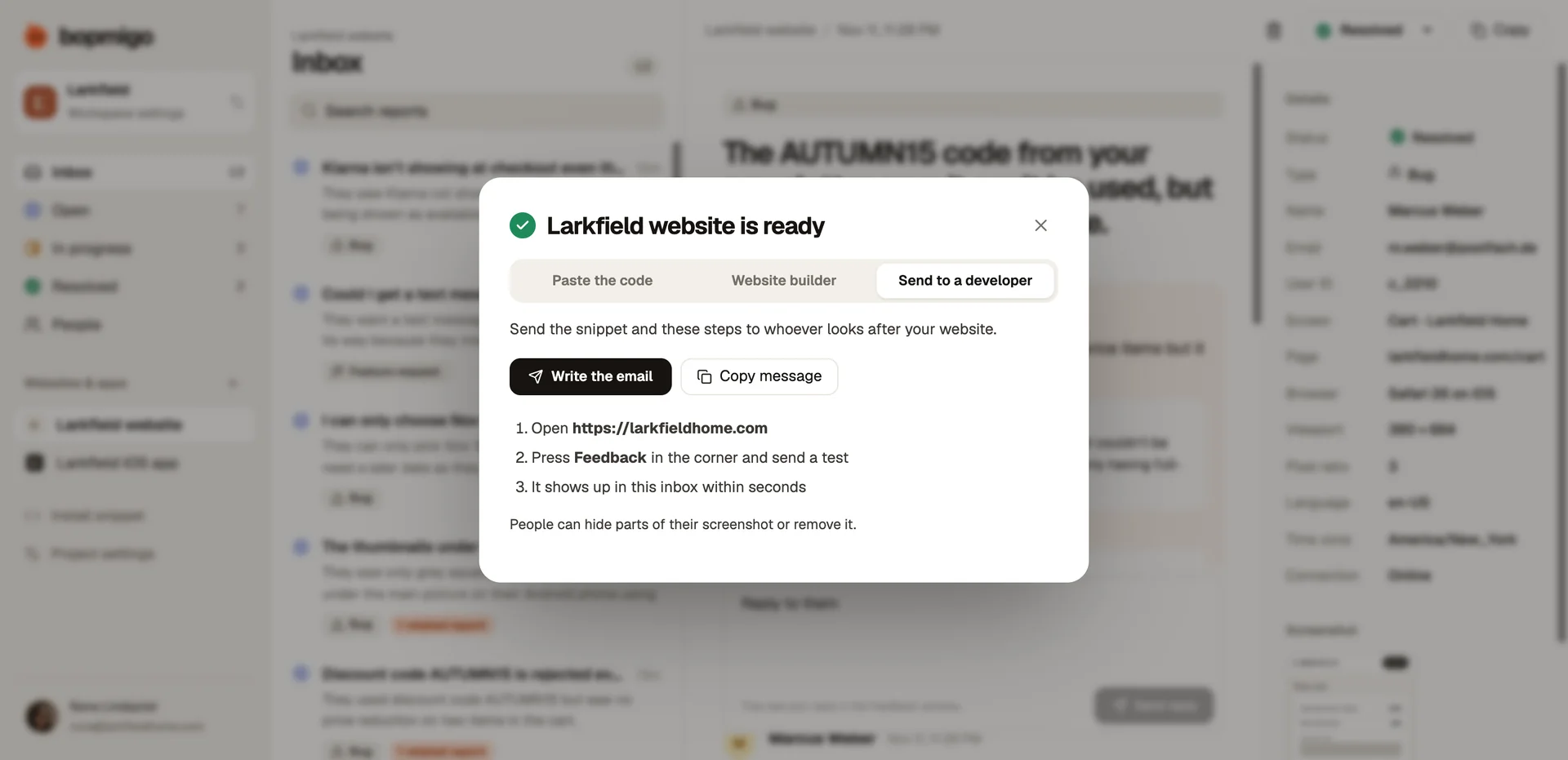
Send the setup to a developer
Hand the install over to whoever manages your site or app, with the code and the steps in one message.
If someone else looks after your website or app, you do not need to copy code yourself. Bopmigo writes the instructions for you, with your project already filled in.
Send it
- 1
Open Install snippet
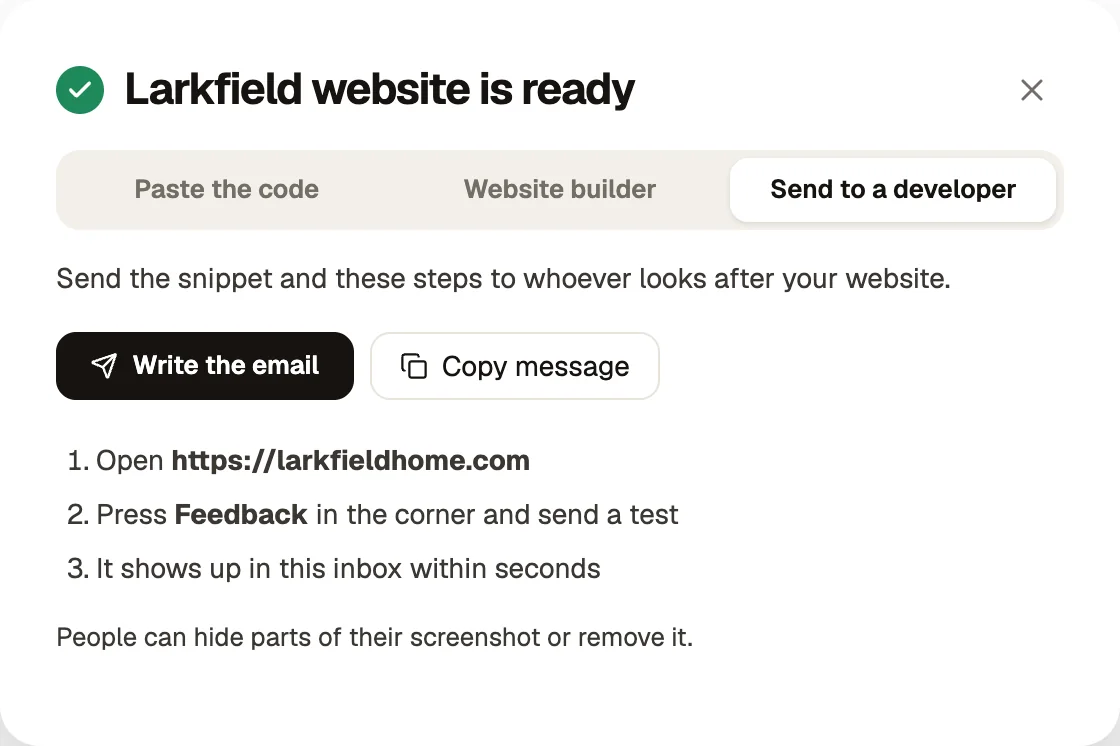
In the sidebar choose Install snippet for the website or app, then the Send to a developer tab.
- 2
Choose how to send it
Write the email opens your email app with the message ready. Copy message puts the same text on your clipboard for Slack, Teams or a ticket.
- 3
Wait for the first report
When they are done, the first test report appears in your inbox. Until then the inbox says it is waiting for the first report.
What the message contains
- Websites: the script tag with your project ID and the address it should go on, before the closing
</body>tag. - iPhone apps: the Swift package address and the setup line with your app ID.
- Flutter apps: the package to add and the setup code with your app ID.
The message has no passwords or keys. The project ID only lets reports in from the addresses you listed, so it is safe to send by email.
Before you send it
Check the Website addresses in project settings. If the developer will test on a staging address or on their own computer, add those too, for example https://staging.yoursite.com and http://localhost:3000. Managing website addresses.