Find and manage feedback
Search a project’s reports, use statuses, review related requests and recover a deleted report.
Use the inbox to turn incoming reports into conversations your team can act on. Start by selecting the website or app, then choose the reports that need attention.
Find the right report
- 1
Select the website or app
Choose the project from the sidebar or the phone project switcher. Search and status filters apply to the project you are viewing.
- 2
Search or filter
Use Search reports to find a distinctive phrase from the feedback. Choose Open, In progress or Resolved to narrow the list. Clear the search and return to Inbox if the result you expect is missing.
- 3
Read the source conversation
Open the report and compare the original comments with the summary. Check the screenshot and available page, device or app details. Ask for a missing step when the cause is still unclear.
Use statuses consistently
| Status | When to use it |
|---|---|
| Open | The team still needs to review or decide what to do. |
| In progress | Someone is investigating or making the change. |
| Resolved | The team has addressed the reported issue and is closing its investigation. |
Change the status from the report’s status control. Reopen a report if later feedback shows the problem continues. A status change helps organize the team’s work. Send a reply when the person needs to know what changed or needs to test again.
Review related requests
Bopmigo shows related reports alongside the current feedback. Read each original request before deciding that the same change addresses them. In the currency example below, displaying prices in another currency and accepting payment in that currency may require different work.
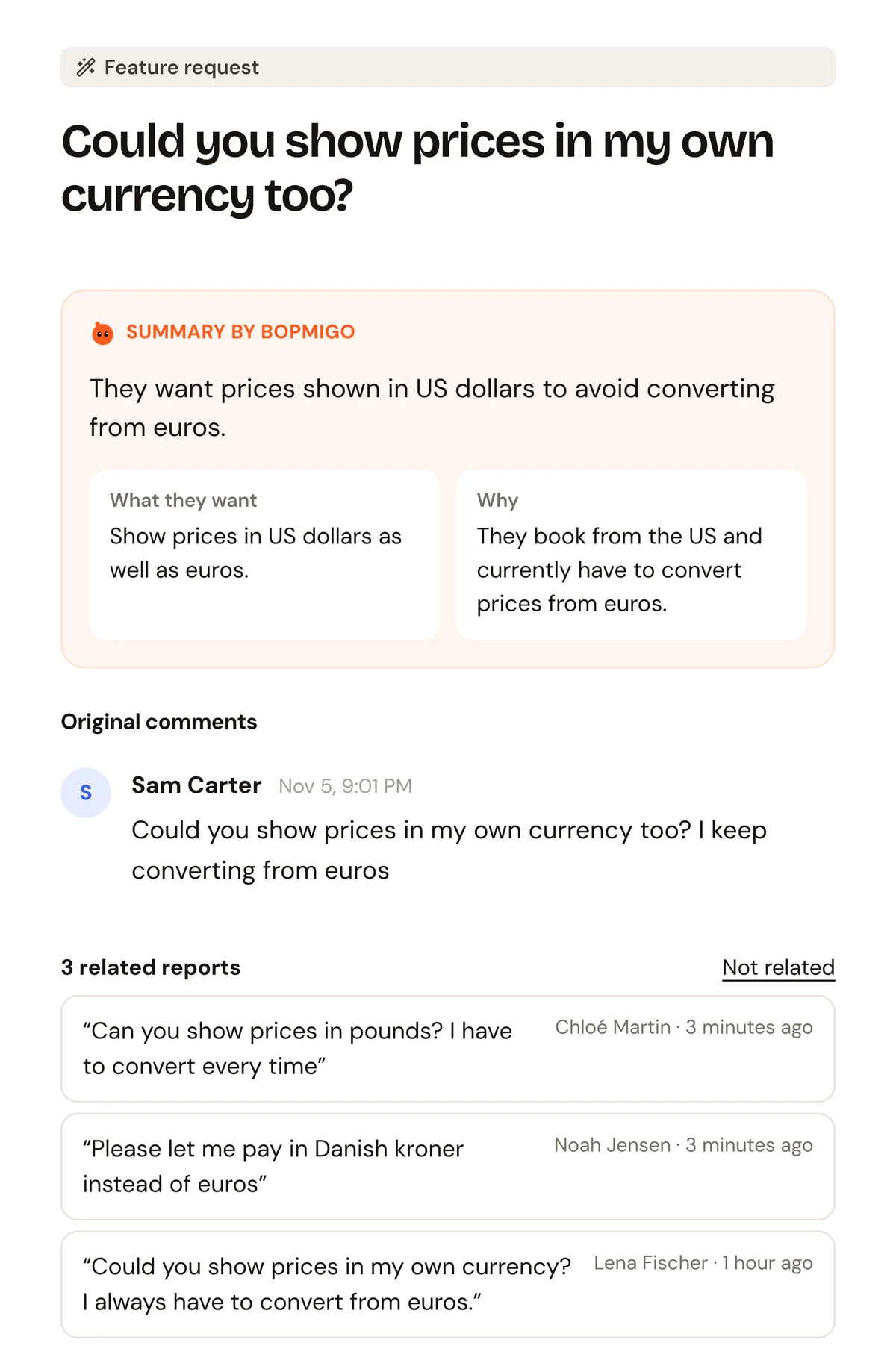
If a suggestion is unrelated, use Not related to remove that association. Group feature requests and prioritize them when you need a wider product decision.
Reply and check the result
Write a specific response in the report. Ask about the action that remains unclear, or explain the change and invite a re-test. The person can read and answer in the Feedback window. Check how replies reach people.
Recover an accidental deletion
Deleting a report moves it to Recently deleted and briefly offers Undo. An owner can restore a report from Recently deleted during the 30-day recovery period. Erasing it permanently removes that recovery option. Use Resolved when the work is finished and you want to keep the conversation available.
If the report is locked
Open Workspace settings → Plan and check the plan and report allowance. New reports can be held when the monthly allowance is reached or access has ended. See what happens to held reports.
NextYour account and workspace →