Your account and workspace
Update your name and photo, rename the workspace, and understand where personal settings and team settings live.
Your account represents you. The workspace holds the team, websites, apps and shared inbox. Use your profile for personal details and Workspace settings for the company or team.
Change your profile
- 1
Open your profile
Press your avatar in the inbox. On a phone it is in the top bar.
- 2
Update your name or photo
Edit Name and choose Save. Use the photo controls to upload, change or remove your image.
- 3
Check the result
Close and reopen your profile to confirm the name and photo. Your team sees your name on replies. People who submit feedback see the sender as Your team.
The email shown in your profile is read-only. If you need help with the sign-in address, contact hello@bopmigo.com from the address associated with your account.
Rename the workspace
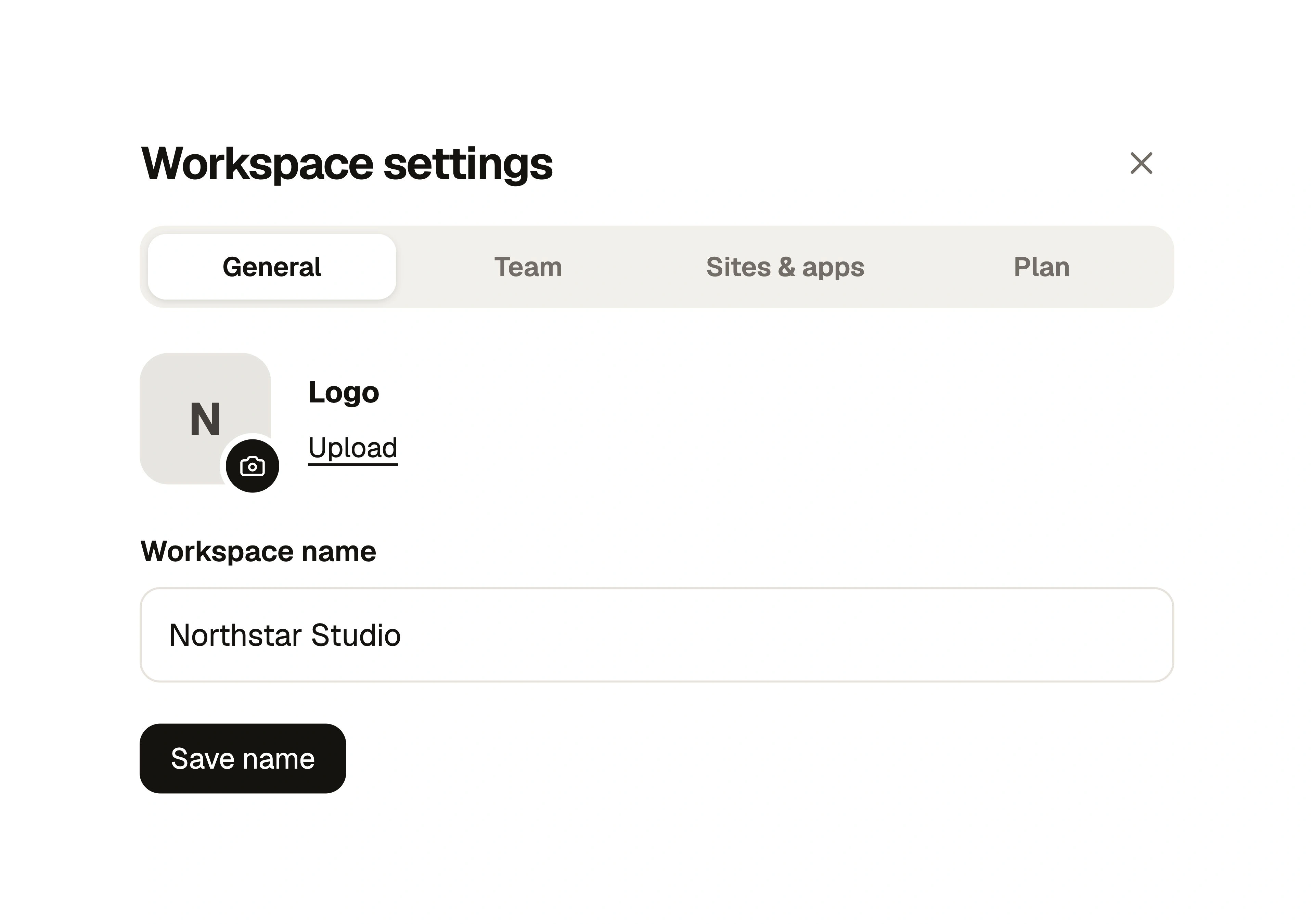
An owner opens Workspace settings → General, edits Workspace name and chooses Save name. The logo controls in the same tab update the workspace image. Give the workspace a recognizable team or company name so invitations and the inbox are easy to identify.
Find the setting you need
| Setting | Where to open it |
|---|---|
| Your name, photo and sign-out | Your profile |
| Workspace name and logo | Workspace settings → General |
| Invitations and roles | Workspace settings → Team |
| Connected products and restoration | Workspace settings → Sites & apps |
| Subscription and report usage | Workspace settings → Plan |
| Allowed website addresses, screenshot controls and report email | Project settings for the selected website or app |
Use settings on a phone
Settings open in a sheet from the bottom of the inbox. The close control stays in the header while you scroll, and the save action stays available near the bottom. After saving, check the success message before closing. Use the project name above the report list to switch websites or open project settings.
Sign out or leave the team
Choose Sign out from your profile and confirm it to end the current Bopmigo sign-in. Leaving a workspace is a separate action under Workspace settings → Team. An owner can invite you again after you leave. The last owner must give another teammate ownership first.
For removing team access, follow Invite and manage teammates. For report retention and deletion, see Privacy and your data.
NextPlans, trials and report limits →