Report details explained
What the page, browser, viewport, pixel ratio, language, time zone and connection details on a report tell you, and how to use them to reproduce a bug.
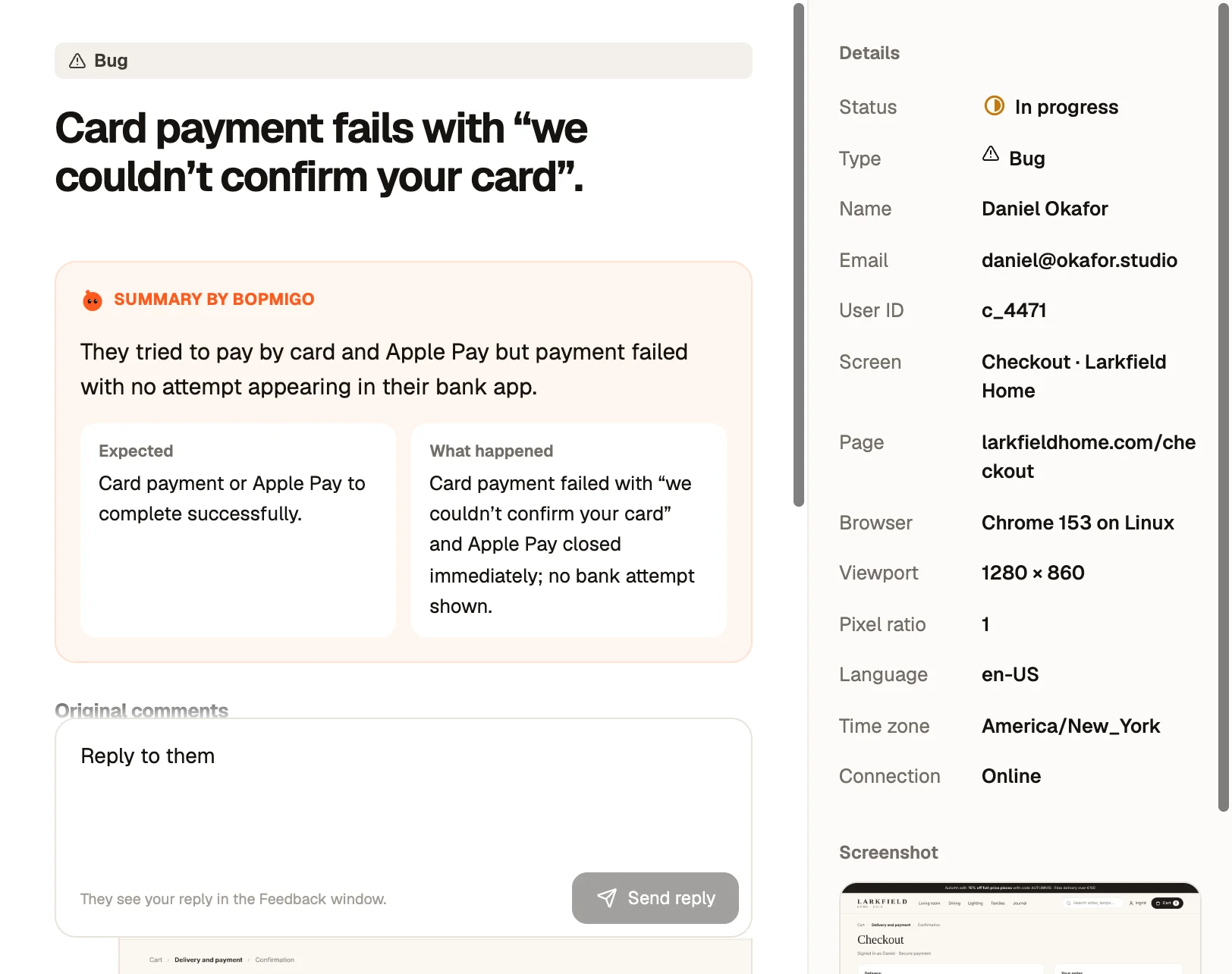
Next to every report is a Details panel. It answers the questions you would otherwise have to ask: where were they, on what, and in which state. Here is what each line means and when it matters.
Who and where
| Detail | What it tells you |
|---|---|
| Name, Email, User ID | Only shown when your site or app says who is signed in. A basic install never collects them. |
| Screen | The name you gave this screen, or the page title. It is what Bopmigo uses when it decides what to ask. |
| Page | The address they were on, without query strings. Open it first when you reproduce the problem. |
| Release | The app version and build, for iPhone and Flutter reports. |
Their device
| Detail | What it tells you |
|---|---|
| Browser or Device | For example Safari 26 on iOS, or an iPhone model. Many bugs only appear in one engine. |
| Viewport | The visible size of the page in CSS pixels. 390 × 664 means a phone held upright, so test at that width. |
| Pixel ratio | 1 on most desktop screens, 2 or 3 on phones and Retina screens. Blurry images or hairline borders often depend on it. |
| Language and Time zone | Useful for dates, currencies and translated text. A delivery date that looks wrong is often a time zone issue. |
| Connection | Online or Offline at the moment they reported. An Offline report from an iPhone app was kept on the device and sent later. |
Details you add yourself
Anything your site or app passes with setContext, such as a plan name or order number, shows here with its own label. Choose More details to see the full list when a report has many.
“The reporter removed the technical details”
People can choose not to send technical details from the Feedback window. When they do, the panel shows this line instead of a list. You still get what they wrote and any screenshot they kept. Reply and ask for the one thing you need, such as the page or the device, rather than for everything.
Use the details to reproduce
- 1
Match the setup
Open the same page in the same browser, at the same viewport width. Your browser’s device toolbar can set width and pixel ratio.
- 2
Follow their steps
Use the steps in the Summary by Bopmigo and the follow-up answer, if there is one.
- 3
Compare with the screenshot
If what you see differs from their screenshot, the difference is usually the bug. Viewing screenshots.