Copy a report into your tracker
Copy a whole report, with the follow-up answer and the conversation, into Linear, Jira, GitHub or a team chat in one click.
Most teams fix bugs from a tracker, not from their feedback inbox. Until reports can be sent to your tracker automatically, Copy gives you the full story as plain text, ready to paste into a new issue.
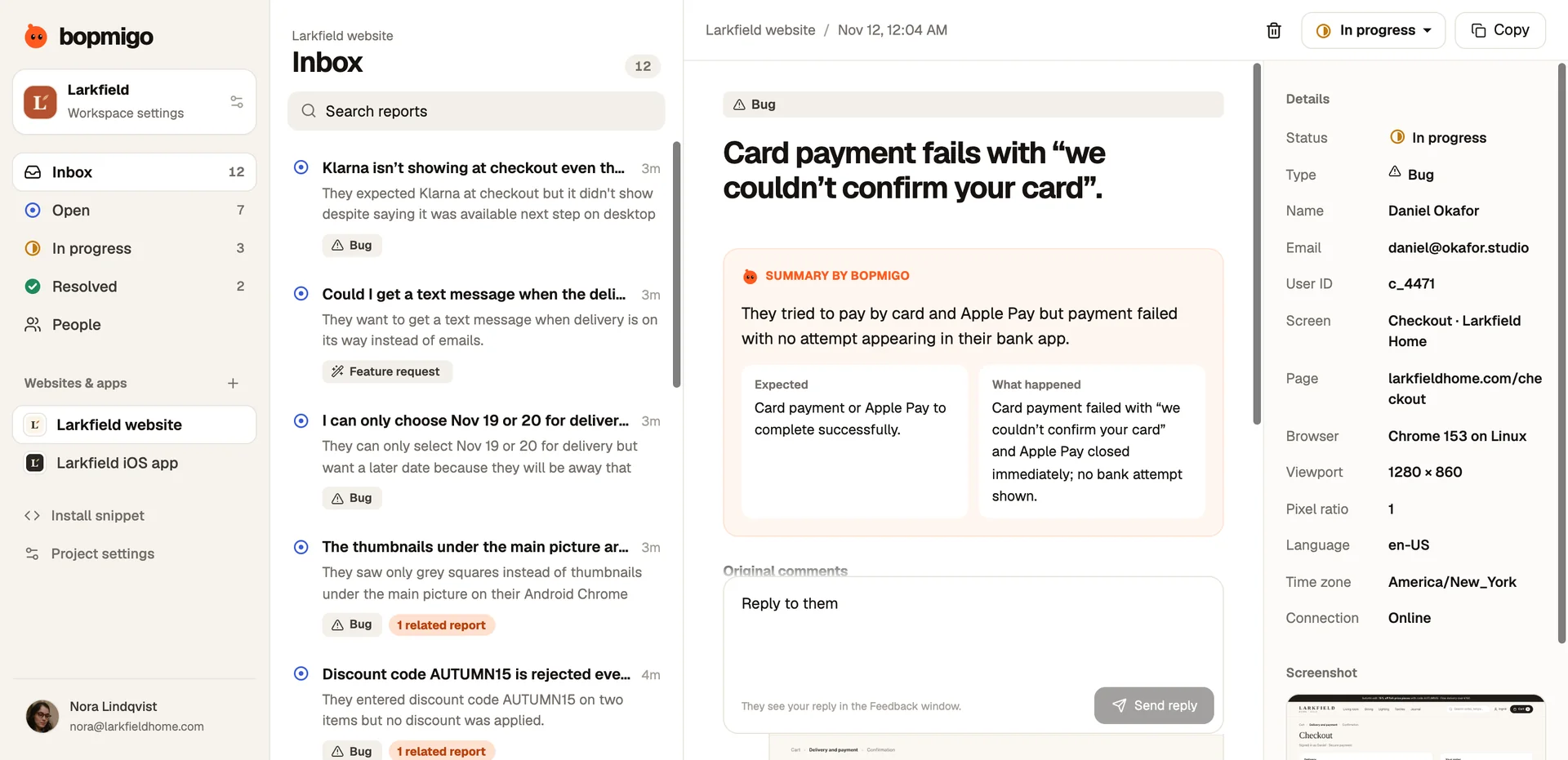
Copy the whole report
- 1
Open the report
Pick it from the inbox. Check the summary first so you know the issue is worth a ticket.
- 2
Press Copy
The button changes to Copied. You now have the title, what the person wrote, the follow-up question and their answer (as
Q:andA:), and every message in the conversation, each starting with who wrote it. - 3
Paste it into the issue
Paste into the description of a new Linear, Jira or GitHub issue, or into a Slack or Teams thread. Add a link back to the report so whoever picks it up can see the screenshot and details.
Copy just the words
In the report list, open the ⋯ menu on any row and choose Copy text. That copies only the title and what the person wrote, without opening the report. It is handy when you are collecting several short requests into one planning note.
What to add by hand
Copy includes the written report and the conversation. The screenshot and the Details panel are left out. People sometimes type an email address or an order number into a report, so read the text before you share it. Then add what the developer needs from the details:
- Page or screen, so they open the right place first.
- Browser or device and viewport, if the bug looks layout related.
- Release, for app reports, so they test the same build.
See what each detail means for help choosing.
Keep the report and the issue in step
Set the report to In progress when the issue is created and Resolved when the fix ships. Then reply to the person from the report so they know it is fixed. How replies reach people.
NextReport details explained →