Use the inbox on your phone
Read, reply to and sort feedback from your phone browser, with the same inbox you use on a computer.
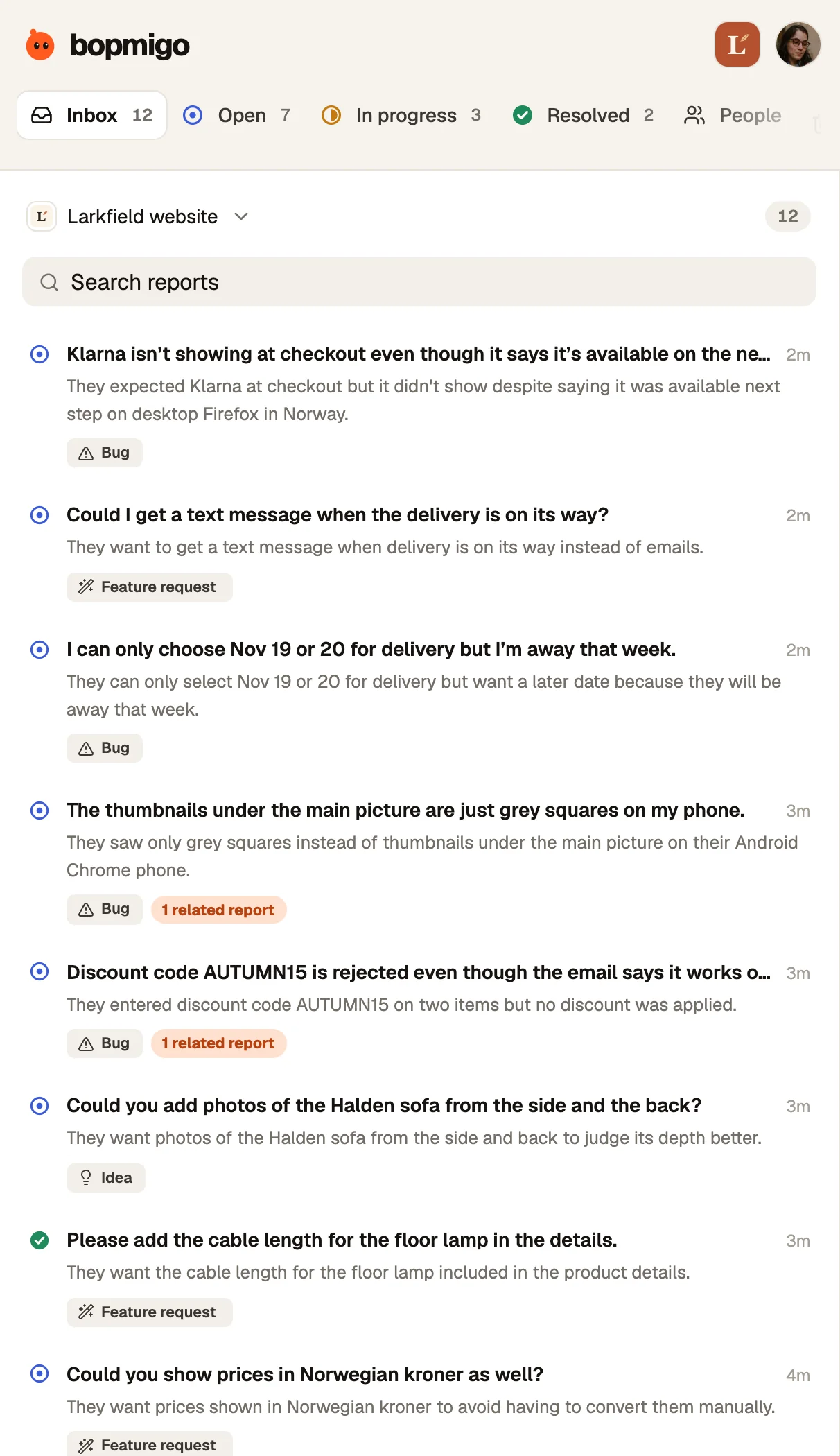
There is no app to install. Sign in at bopmigo.com in your phone’s browser and the inbox fits the screen: the list first, then the report when you tap it.
A quick daily pass
- 1
Pick the website or app
The list at the top switches between your projects. Counts show how many reports are open, in progress or resolved.
- 2
Read the summary
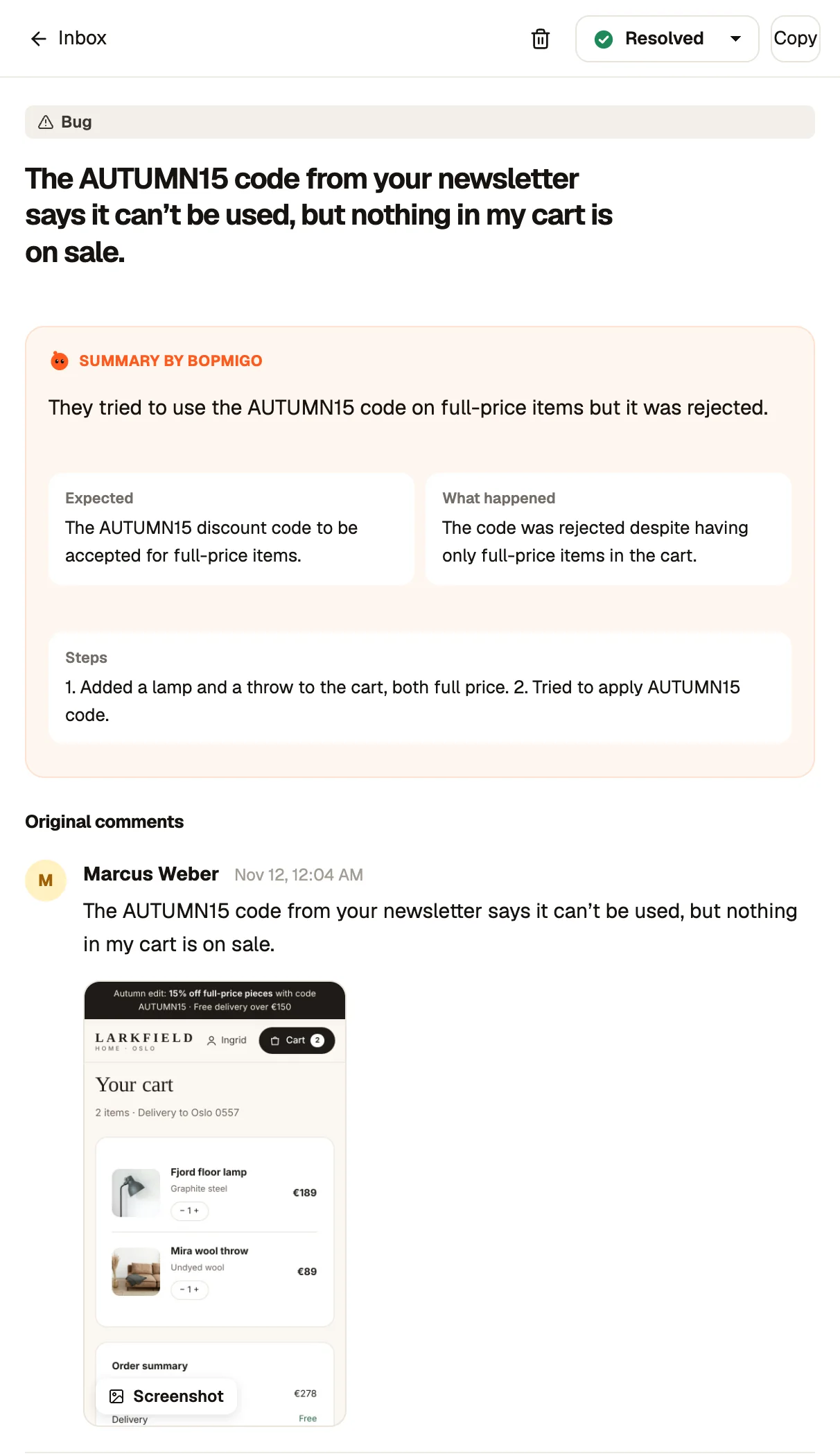
Tap a report. The summary tells you what they expected and what happened, so you can decide in seconds whether it needs you today.
- 3
Set a status or reply
Change the status at the top, or write a short reply at the bottom. Replies reach people in the Feedback window or in your app.
- 4
Go back
Tap Inbox at the top left to return to the list where you left it.
Add it to your home screen
In Safari, tap Share, then Add to Home Screen. In Chrome on Android, open the menu and choose Add to Home screen. Bopmigo then opens like an app, already signed in.
What works better on a computer
- Reading long conversations next to the details panel.
- Comparing a screenshot with your own screen.
- Installing on a new site and changing project settings.
Settings and the plan are still there on a phone. Workspace settings on a phone.
NextSend the setup to a developer →