View a report’s screenshot
Open a report’s screenshot full size, understand covered areas, and know why some reports have no screenshot.
Most reports arrive with a screenshot of what the person was looking at. You will find a small preview at the bottom of the Details panel and, for phone reports, in the conversation itself.
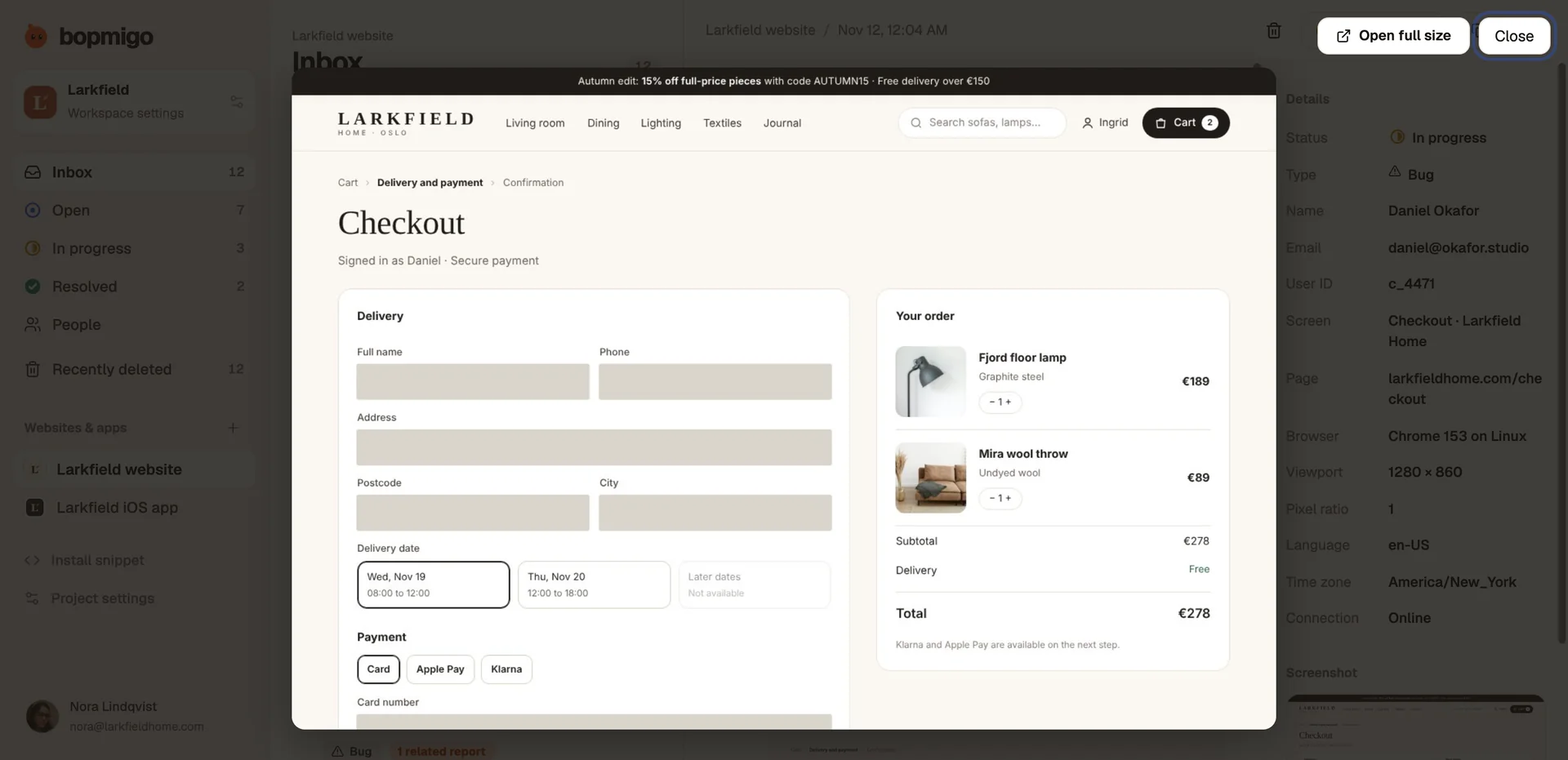
Open it large
- Select the preview to open the viewer over the report.
- Choose Open full size to open the original image in a new tab, where you can zoom in or save it.
- Choose Close, press Escape, or select outside the image to go back.
Covered areas
Grey blocks are on purpose. Bopmigo covers fields where people type, such as card numbers, passwords and addresses, before the screenshot leaves their device. Your own site or app can mark more areas as private. How to hide private parts.
If you turned on Hide all text in screenshots in project settings, every piece of text is covered and you see only the layout. That is useful for sensitive products, but it makes copy and wording problems harder to judge.
When there is no screenshot
- The person removed it before sending. They can always do that.
- They hid part of it with the hide tool. The rest is still there.
- It is a reply in an existing conversation. The screenshot stays with the original report.
- Reports by email only: if Don’t keep reports in Bopmigo is on, the screenshot is attached to the email and not kept here.
Use it to save a round trip
Before you ask “which page?” or “what did you see?”, check the screenshot. It often shows an error message, an empty field or a stale price that answers the question.
NextUse the inbox on your phone →