Quick start: React Native app
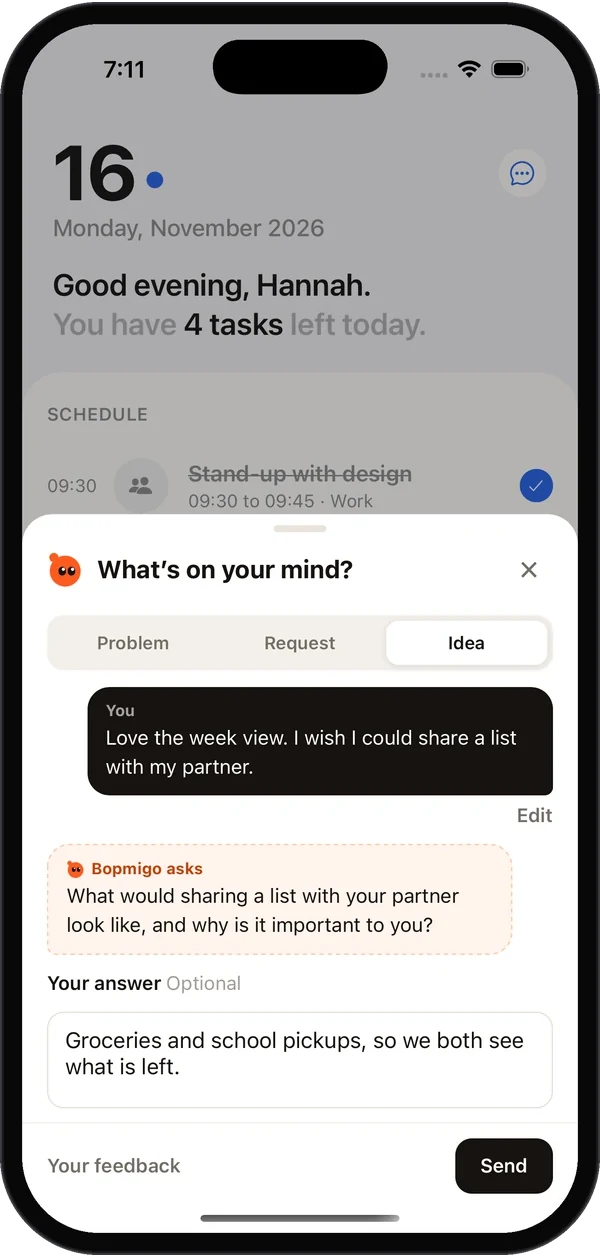
Add the Bopmigo React Native package to an Expo or React Native app on iPhone and Android, so people can report and get replies inside the app.
- 1
Create your workspace
Sign up at bopmigo.com.
- 2
Connect your app
Choose App and give it a name. Bopmigo shows your app ID and the React Native setup.
- 3
Add the package
Terminalnpx expo install bopmigo-react-native @react-native-async-storage/async-storageIn a bare React Native app, use
npm installwith the same packages. bopmigo-react-native on npm · Source and sample app on GitHub - 4
Configure it once
When your app starts, and wrap your app near the root:
Swiftimport Bopmigo, { BopmigoProvider } from 'bopmigo-react-native'; Bopmigo.configure({ appId: 'YOUR-APP-ID' }); export default function App() { return ( <BopmigoProvider> <YourApp /> </BopmigoProvider> ); } - 5
Send a test report
Run the app and tap Feedback in the corner, or call
Bopmigo.open()from your own button. It shows up in your inbox within seconds.
Know who wrote
Tell Bopmigo who is signed in, so you can see who wrote and message them. On a shared phone, each person keeps their own conversation.
Bopmigo.identify({ id: user.id, email: user.email, name: user.name });
Bopmigo.setContext({ plan: 'pro' }); // Your own details, shown on the person
Bopmigo.identify(null);              // On sign-out
Add the screen name too, so each report says where it happened. With Expo Router:
const path = usePathname();
useEffect(() => { Bopmigo.setScreen(path); }, [path]);
Your own button, and your own question
Prefer a menu item to the corner button? Use <BopmigoProvider button={false}> and open it yourself. You can also ask your own question at the right moment, for example after someone finishes their first task.
Bopmigo.open();                       // Continue or start feedback
Bopmigo.open({ type: 'problem' });    // 'problem', 'change' or 'idea'
Bopmigo.open({ type: 'idea', message: 'You finished your first task. How was it?' });
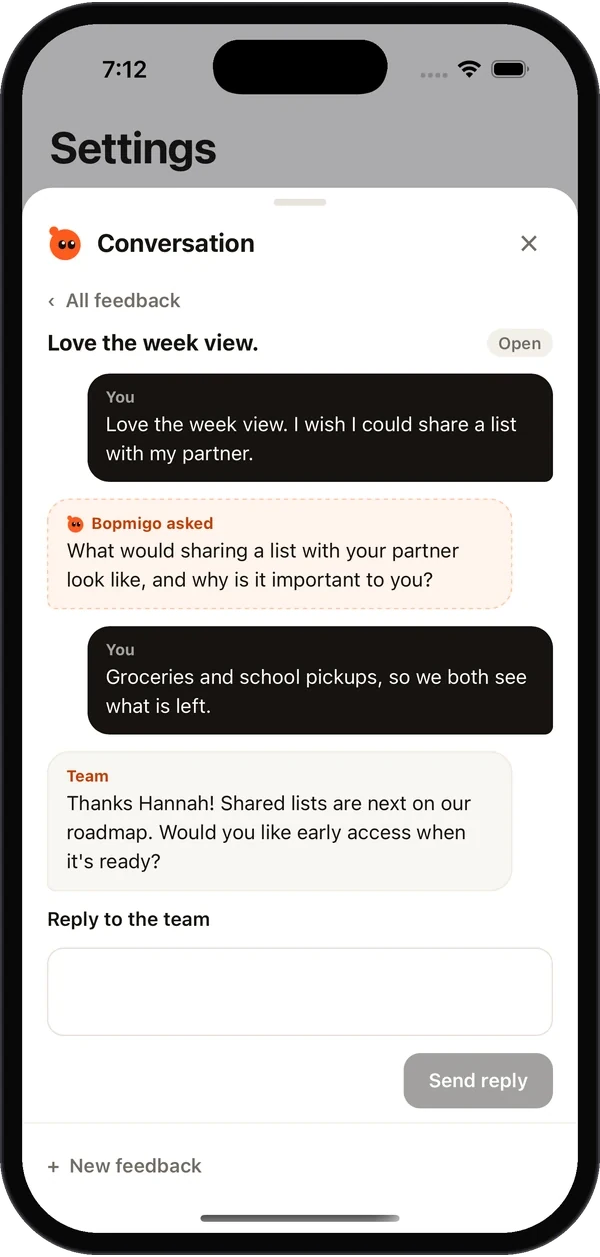
Bopmigo.showReplies();                // Past feedback and your replies
Replies and messages
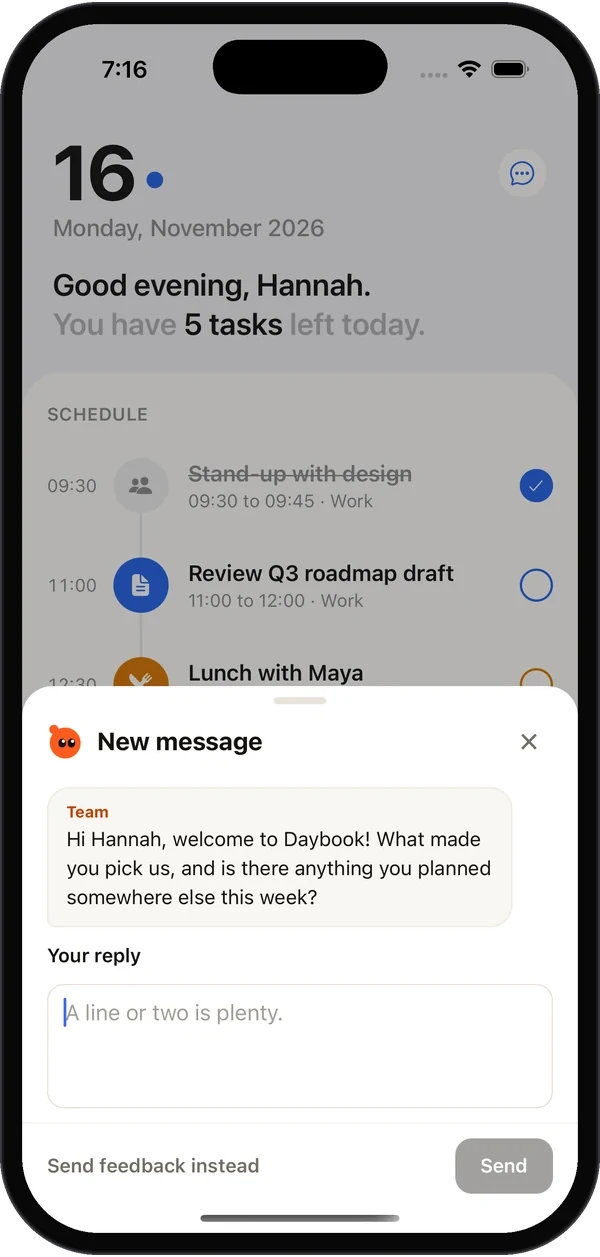
Reply from your inbox and the person sees it in the app. You can also message someone first. The Feedback button shows New reply or New message, and you can show your own badge:
useEffect(() => Bopmigo.on('unread', ({ replies, messages }) => setBadge(replies + messages)), []);Replies arrive while the app is open. A message sent with Open automatically opens the next time the person is in the app.
Screenshots and offline
To add a picture of the screen to each report, also install react-native-view-shot and pass screenshots: true to configure. The picture shows everything on screen, so leave it off if your app shows private details. Reports written offline are kept on the phone and sent when the connection is back.
The package is on npm, with source and a sample app on GitHub.
NextFlutter app options →