Use Bopmigo from Claude and ChatGPT
Connect Bopmigo to Claude, ChatGPT, Claude Code or Codex. Ask what people are reporting, open any report in full, reply, message people and track status from the chat.
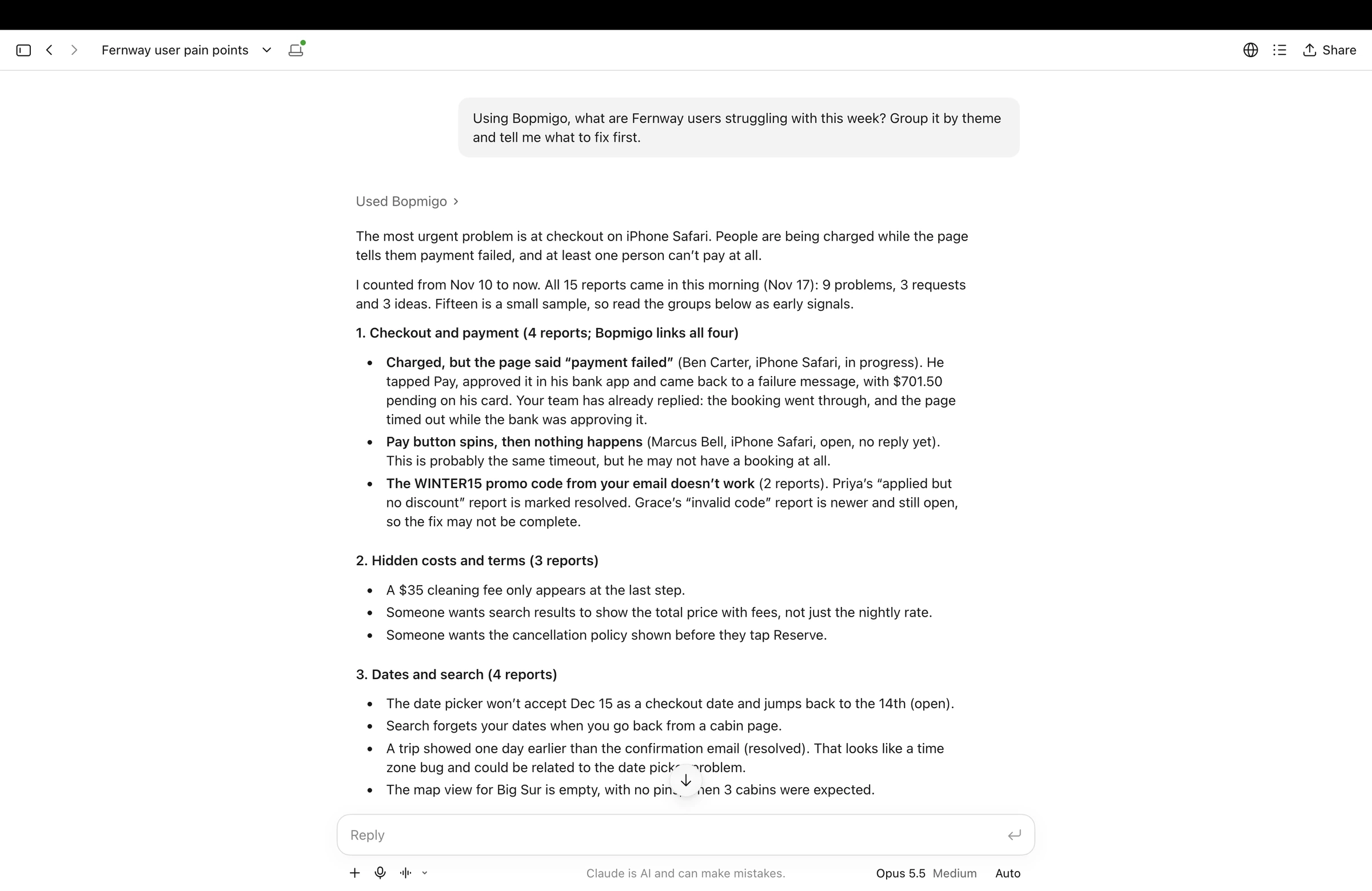
Ask Claude or ChatGPT what people reported this week, what is blocking checkout, or what Maria said last time. Then reply to her, message someone who went quiet, or mark reports resolved, all from the chat. People see your reply in your site or app, exactly as if you had answered from the inbox.
What you can do
| Ask for | What you get |
|---|---|
| A summary of recent feedback | Reports grouped by what they are about, with counts, so you can see what matters most and what to fix first. |
| One report in full | What the person wrote, their answer to the short follow-up, the summary, where it happened, their device and browser, the conversation so far and similar reports. |
| Reports by status or words | Open, in progress or resolved reports in one site or app, newest first, filtered by any words. |
| A person | Who they are, every report they sent, messages your team sent them and how they answered. |
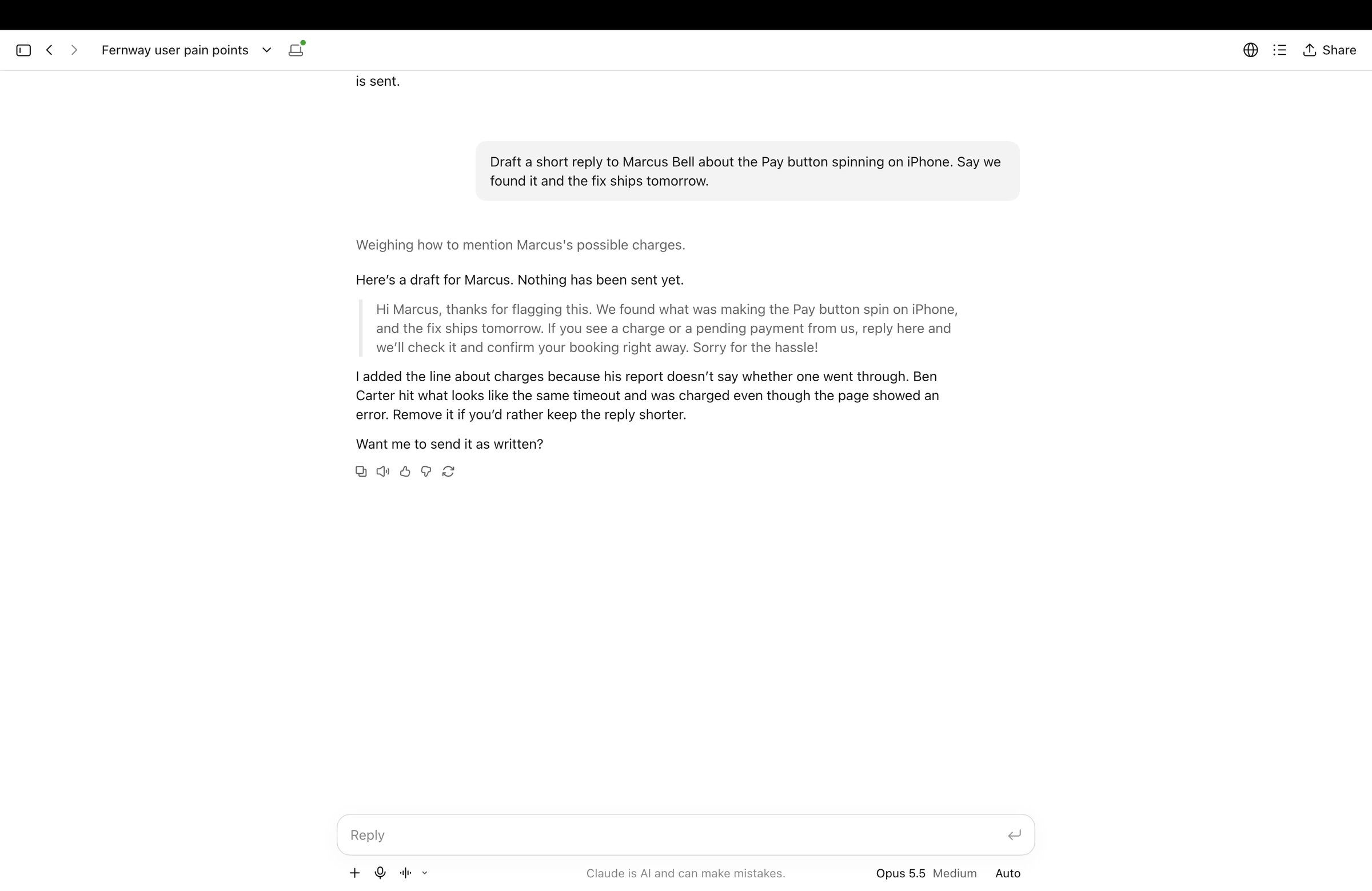
| A reply to a report | Your reply appears in the Feedback window where they reported. The AI tool shows you the exact words first. |
| A message to a person | They see it next time they are in your site or app, even if they never reported anything. You can have it open by itself when they arrive. |
| A status change | Mark reports open, in progress or resolved, one at a time or several in a row. |
Connect it
Every tool uses the same address. You sign in to Bopmigo once and choose Allow; there are no keys to copy.
https://bopmigo.com/mcp- 1
Claude (web, desktop and mobile)
In Claude, open Plugins (or Settings › Connectors), choose Add › Add custom connector, name it Bopmigo and paste the address above. Choose Add, then Connect.
A Bopmigo window opens. Sign in if asked, check the workspace and email shown, and press Allow. You go straight back to Claude, and Bopmigo appears under your connectors. It then works in Claude on the web, the desktop app and the mobile app.
On a Team or Enterprise plan, an owner may need to add the connector for the organization first.
- 2
ChatGPT
In ChatGPT, open Settings › Plugins (shown as Apps & Connectors on some plans), choose Add › Add custom MCP server, name it Bopmigo, paste the address above, keep authentication on OAuth and press Create.
Choose Continue, sign in to Bopmigo and press Allow. If ChatGPT doesn’t use it on its own, turn Bopmigo on for the chat from the tools in the message box.
- 3
Claude Code
Swiftclaude mcp add --transport http bopmigo https://bopmigo.com/mcpThen run
/mcpinside Claude Code, pick bopmigo and choose Authenticate. Your browser opens the Bopmigo Allow screen; when it says you can close the window, go back to the terminal.Add
--scope userto use it in every project, or--scope projectto share it with your team through.mcp.json. Each person still signs in as themselves. - 4
Codex
Swiftcodex mcp add bopmigo --url https://bopmigo.com/mcp codex mcp login bopmigoThe second command opens the Bopmigo Allow screen in your browser. After you allow it, Codex confirms the login and the tools are ready in your next session.
- 5
Other AI tools
Any tool that supports remote MCP servers with OAuth sign-in can use the same address. If the tool asks for a client ID, leave it empty: Bopmigo registers the tool automatically when you allow it.
Things to ask
- “What are people on the website struggling with this week? Group it by theme and tell me what to fix first.”
- “What did people report in the iPhone app since Monday?”
- “Open the newest report from Maria and tell me what she was doing when it happened.”
- “Are there other reports like this one?”
- “Draft a reply to Maria that it’s fixed in 2.4.2.”
- “Who reported checkout problems this month? Message each of them that it’s fixed.”
- “Ask Sam how the new week view feels, and open it when he’s next in the app.”
- “Mark the three checkout reports as resolved.”
If you have more than one site or app, say which one, or ask Claude to list them first. Names work: “the iPhone app”, “the marketing site”.
Nothing is sent without your yes
Replies and messages reach real people, so Claude and ChatGPT treat them as actions that need your approval. They show you the exact words first, and send only after you confirm. You can edit the draft before saying yes.
Reading reports and changing a report’s status don’t send anything to anyone. Depending on your AI tool’s settings, it may still ask before using them; in Claude you can choose this for each action under the connector’s Permissions.
What it can and can’t do
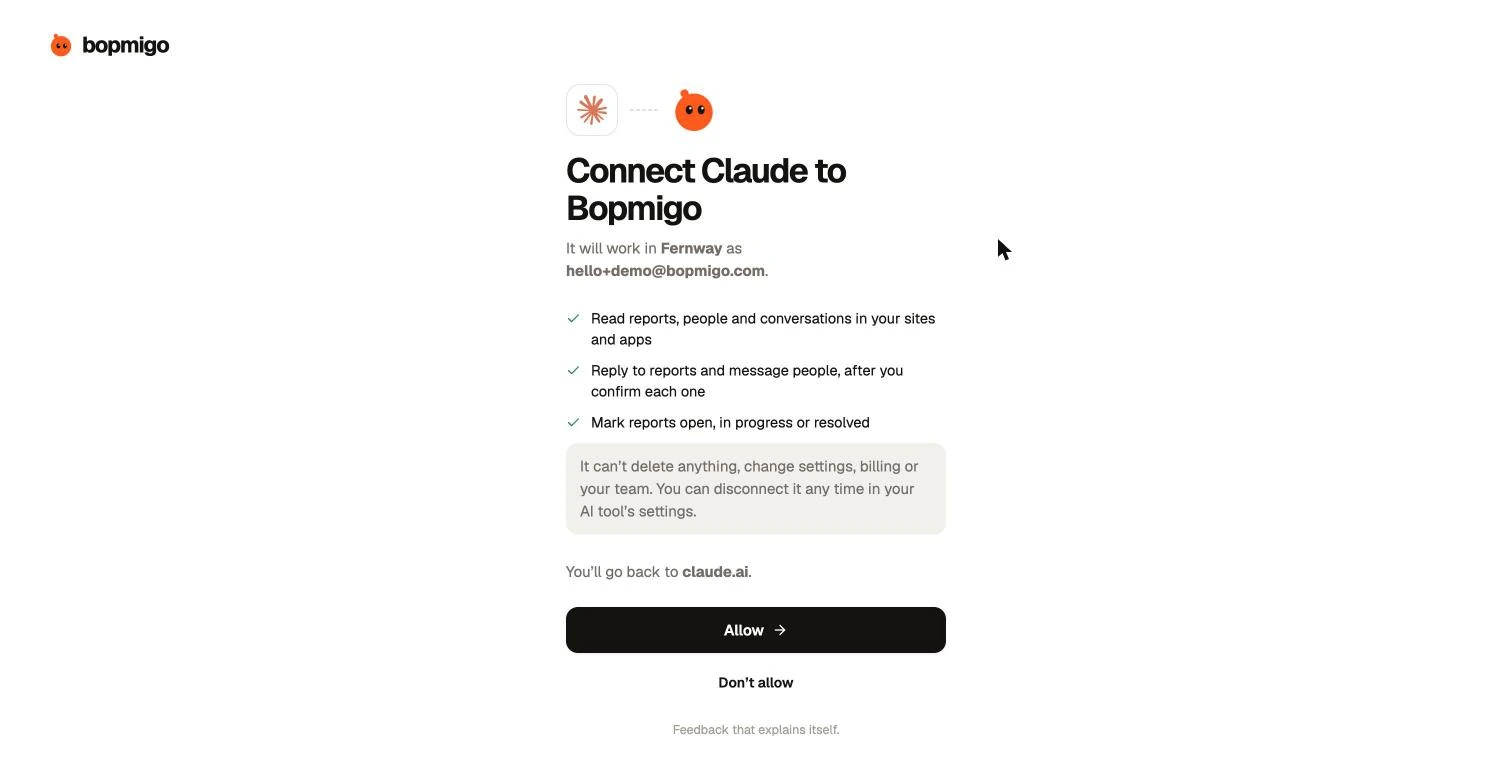
| It can | It can’t |
|---|---|
| Read reports, people and conversations in your sites and apps | Delete reports, people, sites or apps |
| Reply to reports and message people, after you confirm | Change project settings, screenshots or the install |
| Mark reports open, in progress or resolved | Change billing, plans or your team |
| Work in the workspace you signed in to, with your access | See other workspaces or other Bopmigo customers |
It acts as you. Replies and messages are sent from your name, exactly like the inbox, and teammates see them in the same conversation. If your plan has ended, reports that arrived after it ended stay locked here too until you subscribe.
Tools reference
For people setting up their own MCP client, or checking what a tool will do before allowing it.
| Tool | What it does | Effect |
|---|---|---|
list_projects | Lists the websites and apps in your workspace, with their IDs. | Read only |
summarize_reports | Groups up to 150 recent reports in one site or app by what they are about, with counts. Optionally since a date or with one status. | Read only |
search_reports | Finds reports in one site or app, newest first. Filter by status and words; page back to older ones. | Read only |
get_report | Opens one report in full, with the conversation and similar reports. | Read only |
list_people | Lists people who used the site or app and are known to Bopmigo, most recently active first. | Read only |
get_person | Opens one person: their reports, messages from your team and the conversation. | Read only |
reply_to_report | Sends your reply to the person who sent a report. | Sends a reply |
message_person | Sends a message to one person, shown in your site or app. Can open by itself on their next visit. | Sends a message |
set_report_status | Marks a report open, in progress or resolved. | Changes status |
Manage or disconnect
In the Bopmigo inbox, open your profile. Connected AI tools lists every tool you have allowed, with when you connected it. Choose Disconnect to stop that tool straight away; it can’t read or send anything after that, even if it is still listed in the AI tool.
You can also remove Bopmigo from inside Claude, ChatGPT, Claude Code (claude mcp remove bopmigo) or Codex (codex mcp logout bopmigo). Connecting again later only needs another Allow.
Privacy
Bopmigo only sends what you ask for: the reports, people and conversations needed to answer. That content then goes to the AI tool you chose and is handled under that company’s terms and your settings there. Screenshots stay in Bopmigo: the AI tool gets the text of the report and its details, plus a link to the screenshot that only opens for people signed in to your workspace.
Each person on your team connects with their own sign-in, so you can always see who sent what. More on what Bopmigo stores: Privacy and your data.
Troubleshooting
The Allow screen shows the wrong workspace or email
You are signed in to Bopmigo as someone else in that browser. Choose Don’t allow, sign out at bopmigo.com, sign in with the right account, then connect again from your AI tool.
It says the address is unreachable or the connection failed
Check the address is exactly https://bopmigo.com/mcp, with no spaces or extra slash. If your company network blocks new sites, ask for bopmigo.com to be allowed.
I pressed Allow but the AI tool still says it isn’t connected
Close the Bopmigo window, wait a moment and try Connect again. In Claude Code run /mcp again; in Codex run codex mcp login bopmigo again. A sign-in attempt that sat open too long has to be started again.
After Allow, the page says “You’ll go back to … on this computer”
That is expected for Claude Code, Codex and other desktop tools: the sign-in finishes in the app on your computer. If the browser then shows that the page can’t be reached, the attempt has expired; start it again from the tool.
It says there are no sites, apps or reports
Your workspace has nothing connected yet. Open the inbox, choose Connect and add your website (quick start) or app. Reports show up in your AI tool as soon as people send them, with no need to reconnect.
It can’t find a report I can see in the inbox
Say which site or app it is in, or give a few words from it. It searches one site or app at a time.
A teammate can’t connect
They need their own Bopmigo account in your workspace. Invite them from Workspace settings › Team, then they connect with their own sign-in.